The FlowRunner CLI
@flowrunner/cli is the tool you author and deploy custom extensions with. It lives in your project as a
development dependency rather than on your machine, so everyone working on the repository runs the same
version and an upgrade is a commit like any other.
Installing it
For a new project, start with npx, which downloads the package and runs its init:
For a repository you already have, add the package and set it up in place:
Either way the CLI lives in the project's node_modules, and these pages run every command as
npx flowrunner <command>, which finds that copy. It needs Node 20 or newer.
The CLI's own hints, such as the Next steps list init prints, use npx flowrunner <command>, or the
bare flowrunner form once the command is installed globally (below).
Typing flowrunner without npx. Install the package once per machine:
The global copy is only a launcher. Inside a project it finds the project's own copy and hands the command
to it, so the version pinned in the project's package.json is the one that runs - a global 0.1.4 in a
project pinned to 0.1.1 runs 0.1.1. A global 0.1.0 is the exception: it only recognises the package's old
name, so update it once with npm install -g @flowrunner/cli. Outside a project, as with a first
flowrunner init in an empty directory, it runs itself. init offers to install the global copy at the end
of a new project.
To move to another CLI version, update the project's copy with npm install -D @flowrunner/cli@<version> and
commit the change. Inside a project, a global copy that has fallen behind changes nothing.
Moving a project from flowrunner-cli. The package used to be called flowrunner-cli. The command is
still flowrunner, and nothing in flowrunner.json, services/ or your deployed extensions changes. Swap
the dependency:
Then change the one line in sandbox/service.js that names the package, or npm test fails with
Cannot find module 'flowrunner-cli/runtime':
If you use the Claude Code agents, run npx flowrunner init-claude again so they point at the new location
of the authoring reference. A global install moves the same way: npm uninstall -g flowrunner-cli, then
npm install -g @flowrunner/cli.
The project on disk
init produces this, and every later command reads it:
my-extensions/
  package.json             the project's own: the CLI and the test harness
  flowrunner.json          serverUrl, workspaceId, workspaceName - commit this
  .flowrunner/token        the deploy token - gitignored for you
  jsconfig.json            tells your code editor where FlowRunner's types are
  sandbox/                 the local test harness
  jest.config.js
  services/
    tmdb/                  one extension, and one npm package
      package.json         the service's OWN dependencies
      node_modules/        installed here, and shipped with the deploy
      src/index.js
      public/icon.svg
Each service is its own npm package. Run npm install inside services/<id>/, not at the project root -
only services/<id>/node_modules is packed, so a dependency installed at the root resolves on your machine
and then fails with MODULE_NOT_FOUND the first time the block runs.
Editing workspaceId by hand produces a 403 at deploy time, because the token is issued for one
workspace. Use npx flowrunner login to change it.
The commands
| Command | What it does |
|---|---|
init [template] |
Creates the project and optionally scaffolds a first service |
create-service / cs [template] |
Scaffolds another service into services/ |
use [target] |
Points the project at a server; with no argument, lists them |
login |
Authorizes the CLI in your browser and stores the deploy token |
logout |
Revokes the token and deletes it locally |
deploy |
Builds, packages and uploads services to the connected workspace |
pull / sync-services |
Downloads the workspace's services into services/ so you can edit them |
init-claude |
Installs the FlowRunner agents into .claude/ for Claude Code |
Creating the project with init
init writes the project files, installs dependencies, and creates a git repository with a first commit:
Project directory:

  /Users/you/my-extensions
  a new directory

  + package.json
  + .gitignore
  + flowrunner.json
  + README.md
  + jsconfig.json
  + jest.config.js
  + jest.setup.js
  + sandbox/index.js
  + sandbox/service.js
  + sandbox/nock-mock.js
  + sandbox/files-mock.js

  Server: https://app.flowrunner.ai
It never overwrites. Run it inside a repository that already exists and it adds only what is missing, reporting everything it left alone:
  already an npm project — its package.json will be kept, with the CLI added as a devDependency
  already has services/
  already tracked by git — no repository will be created and nothing will be committed

    package.json — already there, left alone
    .gitignore — already there, left alone
    flowrunner.json — already there, left alone
It is also how a project created before a harness file existed picks one up. It does not refresh a harness
file that is already there, so after upgrading the CLI copy the current sandbox/ over yours - see
Testing.
Useful options:
-d, --dir <path>- the project root, created if missing. Defaults to the current directory.-s, --server <target>- the server to bind to, written intoflowrunner.json:prodfor the FlowRunner cloud, or a full URL for a server of your own. Defaults toprod.-y, --yes- accept the target directory and every template default without asking.--no-install/--no-git/--no-tests- skip thenpm install, the git repository, or the test harness.
If git cannot commit because user.name and user.email are unset, init warns and leaves the files
staged rather than failing.
Scaffolding a service with cs
create-service, or cs, adds a service folder. --list shows what is available:
Available templates:

  demo-todo-list  Demo To-do List (default)
                  A working to-do list service — lists, tasks, completion, plus a generic HTTP Request action.
  blank           Blank
                  A minimal service — one action, ready to build on. Optionally with OAuth2 and file storage wired up.
  qa-test         QA Test Harness
                  Exercises every custom-extension capability so QA can verify a deployment end to end.
Pass the answers as flags to skip the prompts:
Creating a service from the "Blank" template.

  Created services/

  Created services/tmdb/
    package.json
    src/index.js
    README.md
    public/icon.svg

  Edit services/tmdb/src/index.js to make it yours.

Would you like to deploy "tmdb" to the workspace Acme Production? (Y/n) n

When you are ready:
  flowrunner deploy -s tmdb   — logs you in first if you have not already
Without flags, cs asks for the display name first and suggests the service id from it. Press Enter to
accept the suggestion:
Display name (My Service): Token Generator
  Suggested from the display name — press Enter to accept it. Becomes the services/<id>/ folder and is frozen once deployed.
Service id (token-generator):
The service id becomes the folder name under services/ and the id saved into every flow that places one of
the extension's blocks, which is why it is frozen once deployed. Check it before your first deploy. The
suggestion is lowercase, drops accents, turns spaces and punctuation into single dashes, and drops leading
digits (3D Printer becomes d-printer). If you type an id yourself, the CLI tidies it the same way and prints
the result on the next line:
If a folder under services/ already has the suggested id, the CLI suggests the next free one, such as
token-generator-2. An id you type that is already taken is refused with
Service id is already taken — services/token-generator exists in this project.
-y answers the template's own prompts - for blank, the description and the OAuth2 and Files API
questions. The offer to deploy is separate: on a terminal it is asked either way and defaults to yes, and
without a terminal it is skipped.
With flags, --name alone also sets the id: npx flowrunner cs blank --name "Token Generator" -y creates
services/token-generator. An id given with --id is used exactly as typed, so one that breaks the rule
(a lowercase letter first, then only lowercase letters, digits and dashes) is refused:
  Service id must start with a lowercase letter and contain only lowercase letters, digits and dashes —
  it becomes the folder name and the service id, which is frozen once deployed
Choosing a server with use
With no argument, use lists the servers the CLI knows and marks the one this project is bound to. The
listing is trimmed here to the row that applies to a FlowRunner cloud workspace:
Servers:

  prod   https://app.flowrunner.ai   ← current, logged in to Acme Production

  flowrunner use <name>   — switch, detaching the current login
prod is the FlowRunner cloud. You can also pass a full URL for a server of your own.
Switching servers clears the stored workspace and the token, because both only mean something on the server
that issued them. Running use with the server already selected changes nothing.
Connecting to a workspace with login
login starts a callback server on a local port, opens your browser, and waits:
  Connecting this project to a Flowrunner workspace on https://app.flowrunner.ai.

  Authorize the CLI in your browser and pick the workspace to deploy to:

    https://app.flowrunner.ai/developer/cli/authorize?callback=http%3A%2F%2Flocalhost%3A56888%2Fcallback&clientType=cloud-code-deploy

  Waiting for authorization...
The browser round trip times out after two minutes, and the URL is printed so you can open it by hand if no browser launches.
On the authorize page you pick the workspace this project will deploy to. Authorize stays disabled until one is chosen, and the token it issues expires after 30 days.
The workspace list is sorted by name. With more than five workspaces it opens with a Recent group, the three you opened last in the console in the same browser, followed by All workspaces, and typing in its search box shows one list of matches.
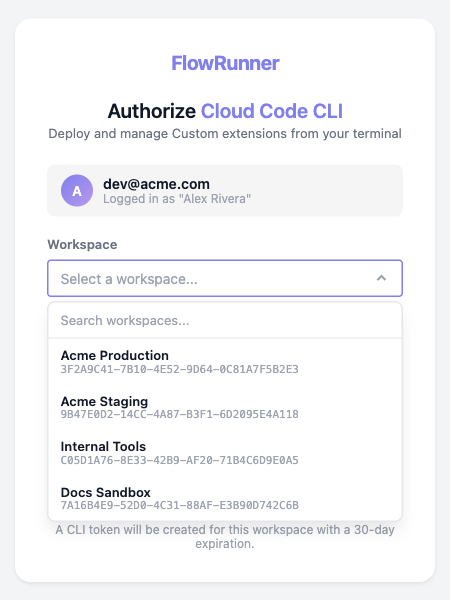
The choice is written back to flowrunner.json:
{
  "serverUrl": "https://app.flowrunner.ai",
  "workspaceId": "3F2A9C41-7B10-4E52-9D64-0C81A7F5B2E3",
  "workspaceName": "Acme Production"
}
Commit that file. The token goes to .flowrunner/token, which init has already gitignored.
Once a workspaceId is recorded, later logins show that workspace already selected, and Authorize is
enabled straight away. To move the project somewhere else, choose Use another workspace and the full
list comes back.
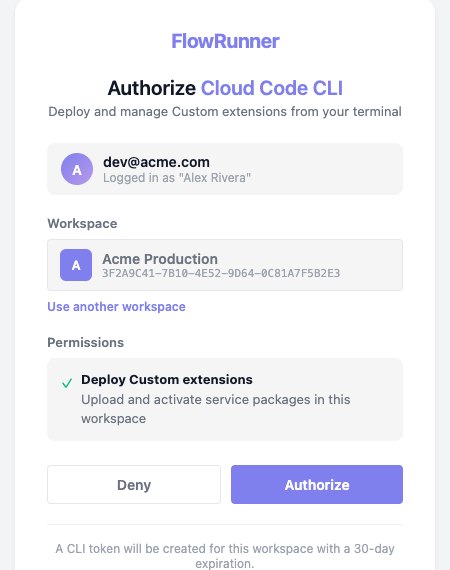
logout revokes the token on the server and deletes the local copy. It leaves workspaceId in place, so
logging in again returns you to the same workspace.
Deploying
A deploy carries one service at a time, so several projects, repositories or people can deploy into the same workspace and coexist.
With one service in the project, deploy sends it. With several it asks which:
Which services should be deployed?

❯ All services [tmdb, invoicing]
  tmdb (TMDB) — modified
  invoicing (Invoicing) — new
The output says what actually changed:
Deploying custom extensions...

  Connecting to Flowrunner Prod cluster (https://app.flowrunner.ai)
  Workspace "Acme Production" (3F2A9C41-7B10-4E52-9D64-0C81A7F5B2E3)
  Found 1 service under services/.

  Deploying 1 service:
    - modified service: tmdb (TMDB) - [1258d5f80c44] - packaged 11.4 KB

  Deployed 1 service to workspace "Acme Production" (3F2A9C41-7B10-4E52-9D64-0C81A7F5B2E3) — you can use it in a flow.
  Open Custom Extensions screen in the Flowrunner Console to configure it: https://app.flowrunner.ai/app/Acme%20Production/custom-extensions
Every service is compared against the workspace before anything is packaged, and labelled new,
modified or same. A same service matches what is already live, so it is skipped rather than
republished. The twelve-character hash is the version id: it covers every file under services/<id>/
except node_modules/, which is why the same code produces the same version in anybody's checkout. A
change made only inside node_modules/ keeps the hash, so deploy that with --force.
The definition is built on your machine rather than on the server, so a service whose module throws on load
fails at deploy time rather than silently in the workspace afterwards. One that fails to build is skipped
with its reason and the rest still deploy; if nothing builds, the deploy stops and reports every reason.
-s, --service <id...>- deploy named services, repeatable and variadic.--all- every service, though still only the changed ones are uploaded.--force- upload even a service whose hash matches what the workspace already has.
The uploaded archive is capped at 50 MB, and it carries the service's node_modules, so a service with
heavy dependencies can reach it.
Service ids are unique per workspace. Two projects that both define tmdb overwrite each other's
versions with no warning, since nothing records which project a version came from. Agree ids across teams
before two repositories deploy into one workspace. The id is both the folder name under services/ and
the id in createExtension, and the two must match. It is also frozen once deployed: renaming both deploys
a different extension and leaves the old one live under its old id, and renaming only the folder makes the
deploy skip the service with its entry point does not define a service.
A failed --all is not rolled back
Services deploy one after another and independently. If the third fails, the first two stay deployed. Re-running is safe, because an unchanged service produces the same version and is skipped.
Removing a service
Deleting services/<id>/ and deploying again does not remove the extension. The deploy only touches
what it carries, so the service stays live in the workspace on its last deployed version.
To remove one, open it under Custom Extensions in the console and click Delete extension, the trash icon at the top. It asks to confirm, and it removes the service and every version of it - there is no undo and no rollback afterwards.
Remove the blocks from your flows first
Nothing checks which flows use an extension before deleting it; the confirmation only says that flows that use it will stop working. Any flow still holding one of its blocks is left referring to something that no longer exists. Take the extension's blocks out of every flow that uses them before you delete it.

Pulling services back down
pull (also sync-services) copies the workspace's services into services/. It is how a fresh checkout
picks up what is live, including extensions somebody else deployed from a different project. In a fresh
checkout, install the project's packages first, because npx flowrunner runs the copy in node_modules:
To pull into a new project instead, create it with npx @flowrunner/cli@latest init -d my-extensions and
run login and pull inside it.
Each service arrives whole, its own package.json included, but without node_modules - the CLI names the
folders that need an npm install rather than running one for you.
pull takes the same -s and --all as deploy. Its --force behaves the opposite way round, on
purpose: a local copy that differs is skipped unless you force it, and a file you added counts as
"differs", so a pull cannot quietly delete your work.
Running without a terminal
Every command works non-interactively. Prompts appear only on a TTY, and a question that cannot be answered
becomes an error that names the flag that answers it, rather than hanging. -y accepts every default, and --id, --name
and --set name=value answer template prompts directly, which is what a CI job uses.
When a command fails it prints the reason and what to do about it, and exits with status 1:
| It prints | What to do |
|---|---|
| Deploying needs a connection to a Flowrunner workspace, and this project has none yet. | Run npx flowrunner login - it needs a browser |
| This project has a login but no workspace attached | Run npx flowrunner login to pick one |
| Session expired. | Log in again and repeat the command |
| There is no flowrunner.json here, so this is not a Flowrunner project. | Run npx flowrunner init to create one |
| No services/ directory in this project. | Run npx flowrunner cs to create a service first |
| No services found under services/. | Each service needs a src/index.js (or dist/index.js) calling Flowrunner.createExtension |
| Pass --yes to accept the defaults, or supply the values as flags. | Pass --yes, or supply the value as a flag |
Working with Claude Code
init-claude installs the FlowRunner agents into the project and adds a block to CLAUDE.md, so an
assistant working in the project already knows the authoring format:
Agents in .claude/agents:

  + flowrunner-service-code-engineer.md
  + flowrunner-service-test-engineer.md

  Created the FlowRunner instructions block in CLAUDE.md.
Files under .claude/agents/ named flowrunner-* belong to the CLI and are overwritten on every run, so
npm install -D @flowrunner/cli@latest followed by npx flowrunner init-claude moves the agents to the version
matching the installed CLI. Your own agents, under your own names, are left alone. The command replaces
only the region between its and markers
and leaves the rest of CLAUDE.md byte for byte.
What the agents do with all that, and how to work with them, is Quick Start: Your First Extension (with AI).
Related
- Quick Start: Your First Extension (with AI) - what
init-claudeinstalls, and the loop it enables - Quick Start: Your First Extension (code) - the whole loop, from install to a deployed extension
- Custom Extensions - what an extension is and what it can do
- Testing - the harness
initcopies into the project