Knowledge Bases (RAG stores)
A Knowledge Base lets an AI Agent answer from your own documents instead of only from what the model was trained on. You feed it your content - a product manual, a policy handbook, your support articles - and at question time the agent can pull back the passages that match what it was asked, so its answer is grounded in your material. This retrieve-then-answer approach is the pattern commonly called RAG, short for retrieval-augmented generation.
How it works
A Knowledge Base does three things: it stores the documents you give it, it indexes them so their meaning can be searched, and at question time it finds the pieces most relevant to what was asked.
The indexing is what makes a meaning-based search possible. When you add a document, FlowRunner does not keep it as one long block of text. It breaks the document into smaller pieces, called chunks, and turns each chunk into an embedding - a list of numbers that captures the meaning of that piece of text. Those embeddings live in a vector store, a kind of database built to compare meanings and return the closest matches.
So when an AI Agent asks the Knowledge Base a question, the question is turned into an embedding too, and the store hands back the chunks whose meaning is nearest - not the ones that happen to share the same words. That is how a Knowledge Base answers from your content: it finds what is relevant by meaning, and the agent writes its answer from those passages.
When to use it
Reach for a Knowledge Base when you want an AI Agent to answer from facts you supply rather than from whatever the model already knows. It keeps answers grounded in your material and lets you update what the AI knows by changing documents instead of retraining anything. The trade-off is that it is a standing resource you configure and feed - it needs its own vector store and an embedding API key from an AI provider - not a single block you drop into a flow. So it is worth setting up when an agent needs real, current domain knowledge, and overkill when a short fixed instruction in the agent's prompt would do.
Creating a Knowledge Base
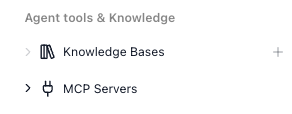
You create a Knowledge Base from the Knowledge Bases group in the workspace navigation, under Agent tools & Knowledge - hover the group and click the +.
The setup screen
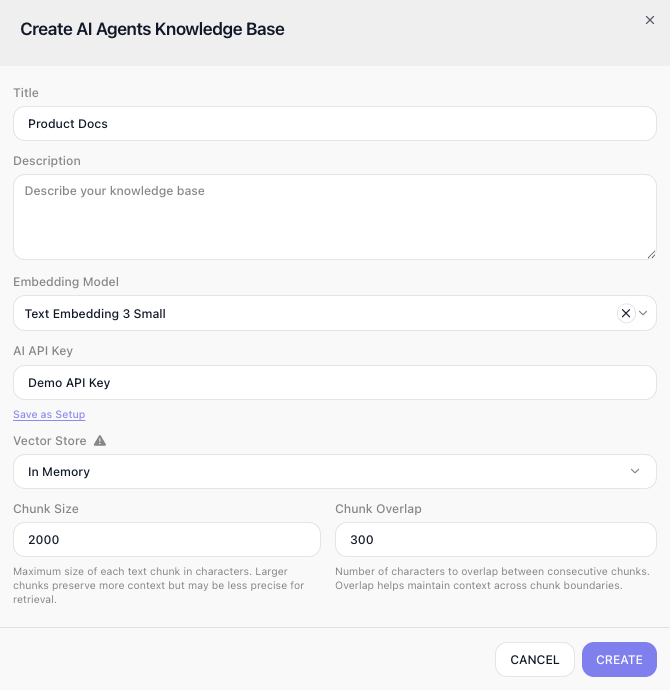
Creating a Knowledge Base is a two-step dialog. The walkthrough below creates a Knowledge Base named Product Docs - a store for a product manual an agent will answer from - backed by Qdrant, one of the vector stores FlowRunner supports. The first step, General Settings, decides what the Knowledge Base is and how it processes text:
- Title and Description - a name and a required summary for the Knowledge Base.
- Embedding Model - the model that turns your text into embeddings, picked from the supported AI providers, and an AI API Key - your own key from that provider's account, used whenever your text is sent to the provider to be embedded.
- Vector Store - which store holds those vectors: MongoDB Atlas, Qdrant, or PostgreSQL with the pgvector extension.
- Chunk Size and Chunk Overlap - how each document is sliced. Chunk Size caps how many characters one chunk holds; Chunk Overlap repeats the tail of one chunk at the start of the next, so an idea that spans the boundary is not cut in half. Larger chunks preserve more context per match; smaller ones make retrieval more precise.
Connecting the vector store
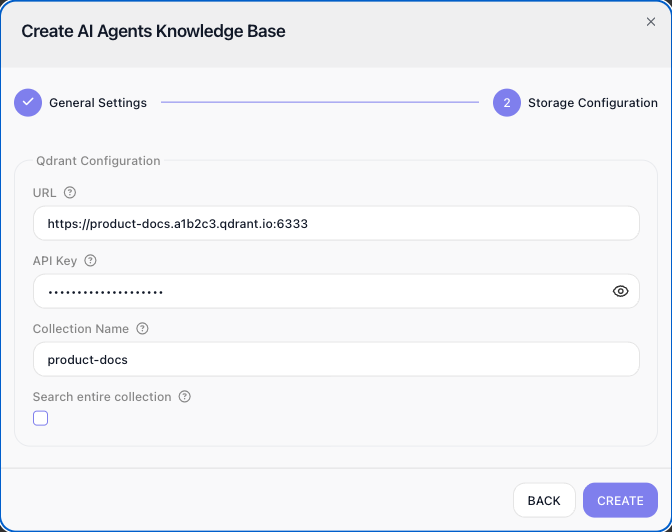
The vector store is your own database, not something FlowRunner hosts for you. Whichever option you pick, you bring a running instance - an Atlas cluster, a Qdrant instance, or a PostgreSQL database - and the dialog's second step, Storage Configuration, asks for whatever the chosen store needs to connect. For the Product Docs walkthrough, that is the Qdrant instance and the collection its vectors will live in:
- MongoDB Atlas - the Connection String from your Atlas dashboard (Database → Connect → Drivers). Press Test and the dialog connects to the cluster, then lets you pick the Database Name and Collection Name from what it finds there - or name new ones.
- Qdrant - the instance URL (for Qdrant Cloud, in the form
https://your-cluster.qdrant.io:6333), an API Key, and the Collection Name that will hold the vectors. - PostgreSQL (pgvector) - Host, Port, Database, User, Password, and a Table Name. A table that does not exist yet is created for you, with the pgvector extension.
Qdrant and PostgreSQL also offer a Search entire collection checkbox. Left off, a search sees only the documents added through this Knowledge Base; turned on, it searches everything already stored in that collection or table - useful when the store holds embeddings you produced outside FlowRunner.
The Knowledge Base's own screen
Once created, Product Docs opens from the same Knowledge Bases group in the navigation, and it has two tabs. Setup carries the choices from the create dialog. Data lists the documents the Knowledge Base holds and shows each document's status while it is being processed.
Giving a Knowledge Base to an agent
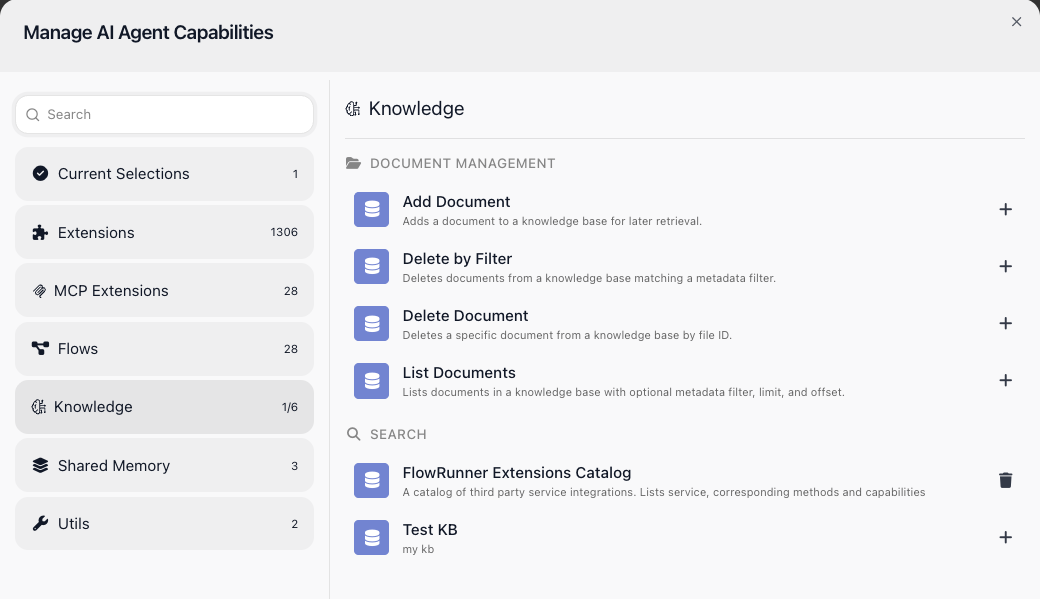
Creating a Knowledge Base does nothing on its own - an agent has to be pointed at it. You do that on the AI Agent block: open Manage Capabilities, go to Knowledge, and add the Knowledge Base from the list of the workspace's knowledge bases. Once the manual has been added - the next section shows how, with an Add Document block - ask the agent a question the manual answers, say what the warranty period is, and the reply comes from that document instead of from general training.
Loading and maintaining documents
A Knowledge Base is read at question time, but the documents have to get into it first. For Product Docs, that is a flow with an Add Document block loading the product manual; once the document finishes processing on the Data tab, the agent's warranty-period answer comes from the manual instead of from general training. The same four action blocks then keep the content current:
- Add Document - add a document.
- List Documents - list what the Knowledge Base holds.
- Delete Document - remove one document by its file id, read from an earlier List Documents.
- Delete by Filter - remove several at once, filtered on the metadata you attached when adding them.
Because a flow manages the documents, the Knowledge Base can stay in sync with wherever your content lives. A flow that runs when a file lands in a Git repo, a row is added to a Google Sheet, or a record is created in Airtable can add that content on its own - and remove a document just as easily when the source goes away.
You can also hand those same action blocks to an AI Agent as tools. Then the agent decides for itself when to add or delete a document - saving something it was told to remember, or clearing an entry that is out of date - instead of you wiring every change into a flow.
Things to watch for
- The embedding model, chunk size, chunk overlap, and vector store are chosen in the create dialog, and on a Knowledge Base that holds documents they are read-only - you cannot change how existing content was sliced or embedded after the fact. Treat them as permanent choices: to switch, you create a fresh Knowledge Base and add the documents again. The title, description, and AI API Key stay editable, so you can rename it or rotate the key at any time.
- Adding a document is not instant. In the document list on the Knowledge Base's Data tab, a new document shows as Processing while it is being chunked and embedded, and only becomes searchable once it reaches Completed. A query run right after you add will not find content that is still processing.