Expression Editor
Data moves through a flow from one block to the next. A block does its work and produces a result, and blocks further down the flow can use that result. FlowRunner™'s Expression Editor is the dialog where you make that connection - setting a block's input to a value taken from an earlier block, or built from a few pieces. A block that sends an email, say, needs a recipient address, and that address is a result an earlier block already produced.
Opening the Expression Editor
Wherever a block's input field can take an expression, it shows an icon at its right edge. Click it to open the Expression Editor on that field.

Using another block's result
This is what the Editor is mostly for. Its Block Data tab lists the results of the blocks that ran before this one. To use one, double-click it into the expression, or start typing its name and pick it from the auto-suggest list.
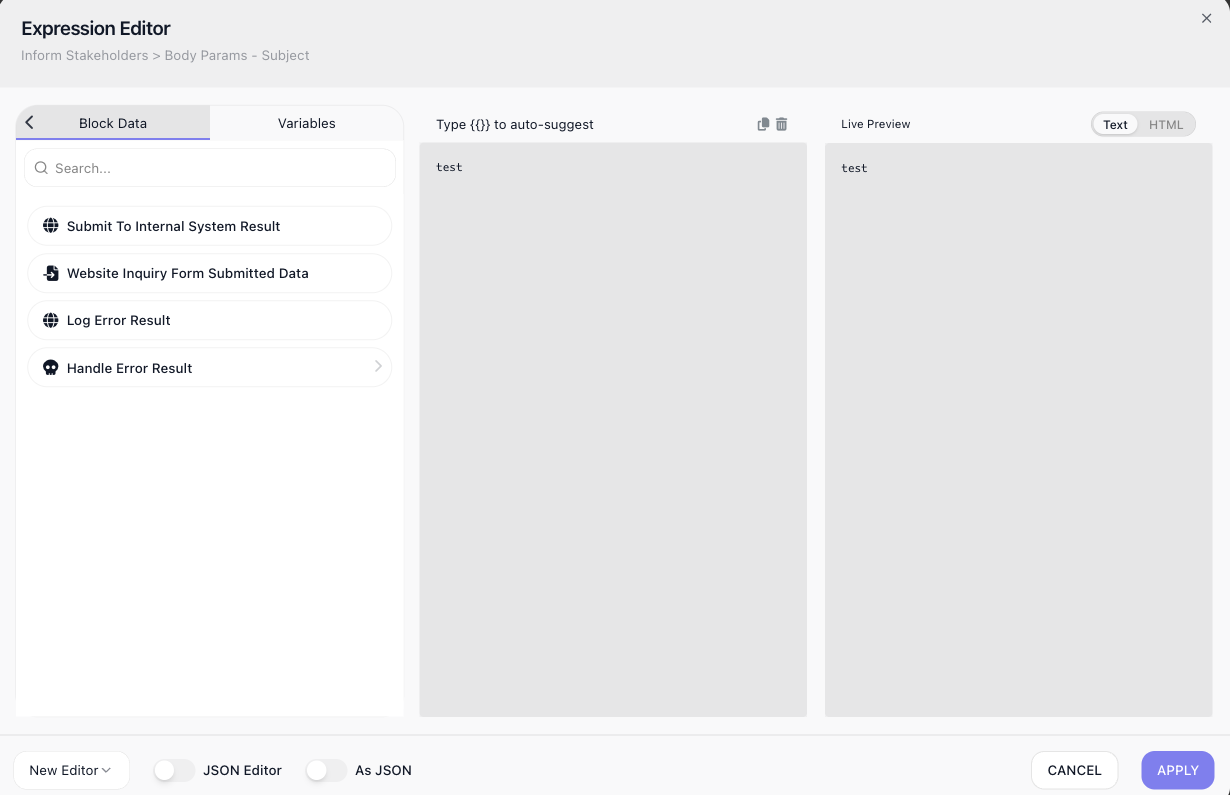
You can take a result whole or reach a single value inside it. Open a result and it shows $$root - the result as one object - with its individual fields listed beneath. Double-click $$root to pass the whole object along, or double-click a field to pass just that value. A list works the same way: take $$root for the whole list, a single item from it, or - when the items are objects - a property from within an item.
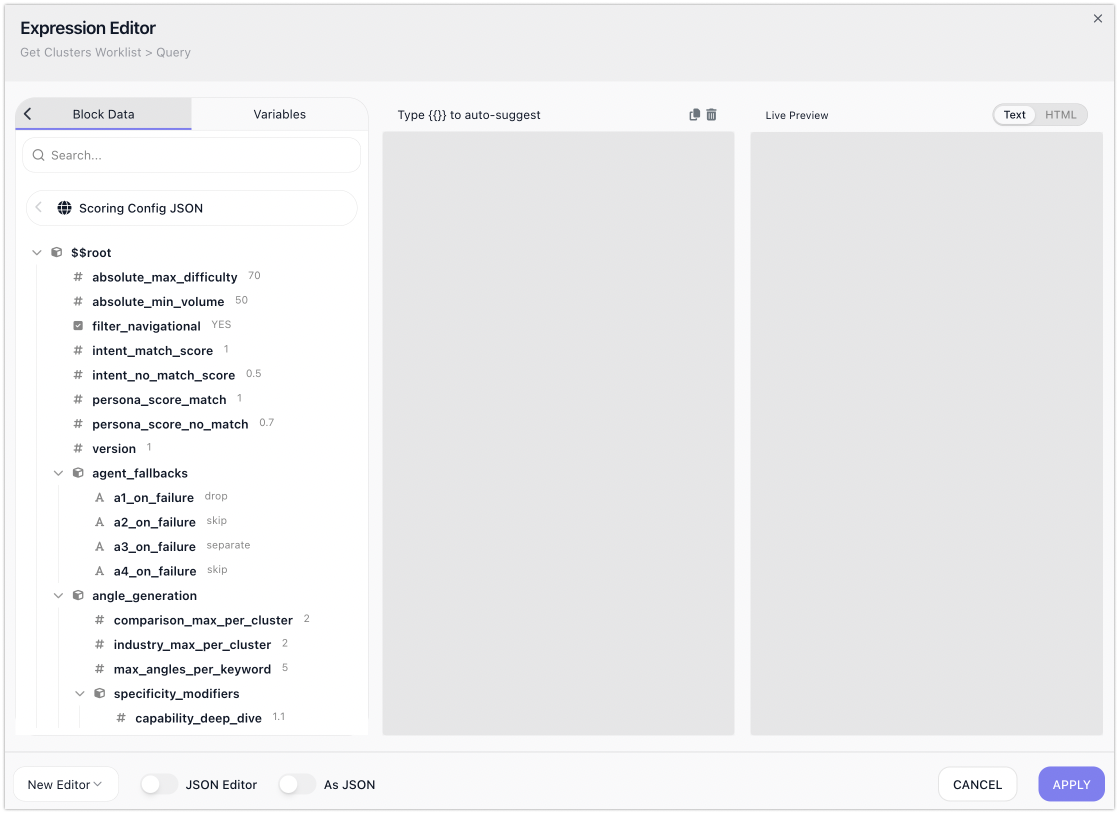
Many blocks declare the shape of their result up front - most Extensions do - so their fields are ready to pick straight away. A few cannot: an HTTP Request or an AI Agent only learns its result's shape once it has actually run. When a result's fields are missing for that reason, run the block once in Test Mode; the Editor remembers what came back, and the fields appear here to choose from.
Reaching inside a result the Editor has not seen
When a result has no sample yet, its pill still opens. Click the pencil on the pill and it unfolds into a path row - one small input per step, joined by arrows - with a type button at the front. That button is how you tell the Editor what the value is before it can know: Object keeps the next step a property name, List turns it into a position.

Choosing List replaces the property input with an index dropdown - First to Fifth and Last,
with a search box that also takes a number for a position further down. Positions count from 1, so typing
7 picks the seventh item.
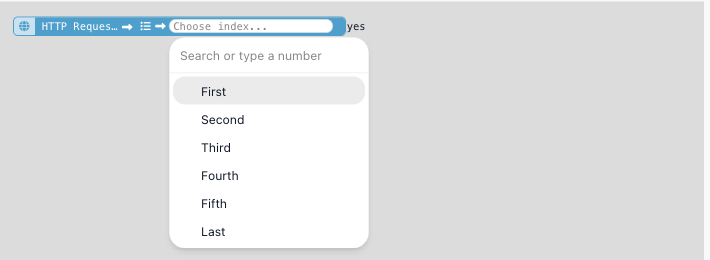
Each later step shows its own type button once it holds a value, so a path can go list, then object, then property as deep as the data does. Changing a step's type clears the steps after it. Click away and the row folds back into one pill that spells the whole path, with a position shown as a # label:

Once the block has run in test mode, the Editor knows the shape and does this for you: the sample tree shows arrays with their positions, clicking a node fills the whole path, and a list step offers the index dropdown without being told. Property names it knows are suggested; one it does not know you type in.
The Editor checks none of this against the real data while you build it. A property that does not exist, or a position past the end of the list, is only found out when the run reaches the block, so read the sample when there is one.
Clicking the body of a pill only selects it, which is how you delete one; the pencil at its right edge is what opens the path row.
Combining pieces into one value
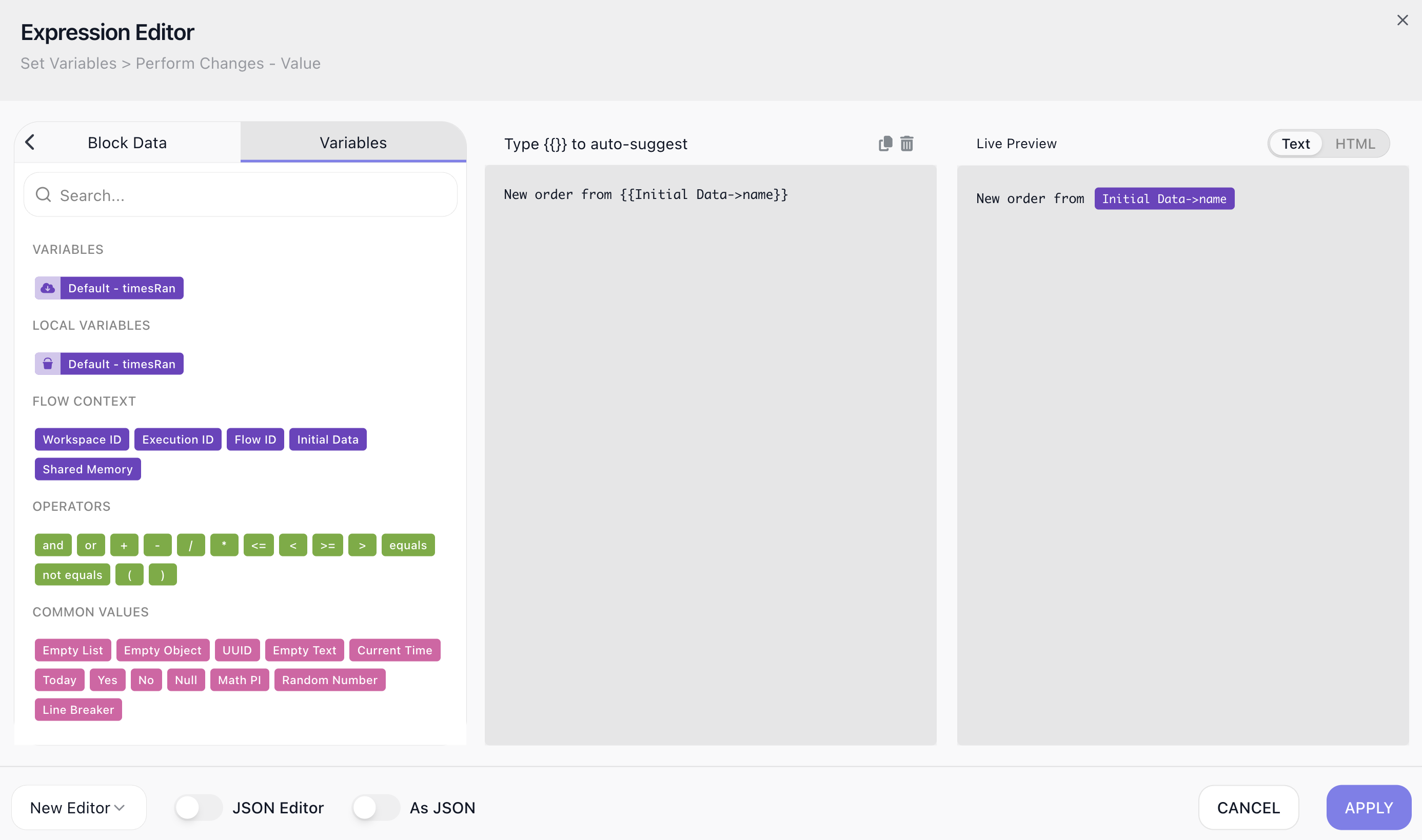
A field's value does not have to be a single reference. You assemble the expression in the middle of the Editor - double-clicking pieces in or typing them - and it can hold several at once, with fixed text or an operator between them. The Variables tab supplies the pieces you build with, in groups:
- your Data Bucket variables, if the flow has any;
- the run's Flow Context - its Initial Data, the Execution ID and Flow ID of this run, the Workspace ID, and its Shared Memory;
- Operators -
and,or, the arithmetic+ - * /, the comparisons< <= > >= equals not equals, and parentheses to group them; - Common Values - ready-made constants to drop in: an empty list, object, or text; today's date or the current time; a fresh UUID; a random number;
Yes,No,Null,Math PI, and a line break; - and, if the flow declares any, its Placeholder Data - the values set once on the flow version, listed in a group of their own below Flow Context.
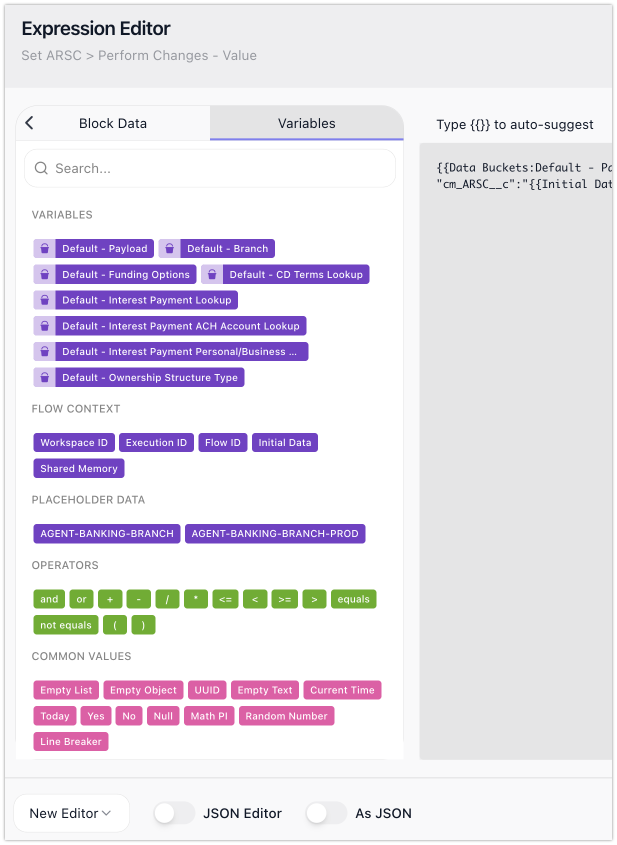
So a subject line can read New order from followed by a name the run started with, and a total can be a price plus its tax.
Writing the value as JSON
Some fields expect a JSON object or array rather than plain text. Turn on As JSON and the editor treats what you build as JSON, so the field receives a structure instead of a string.
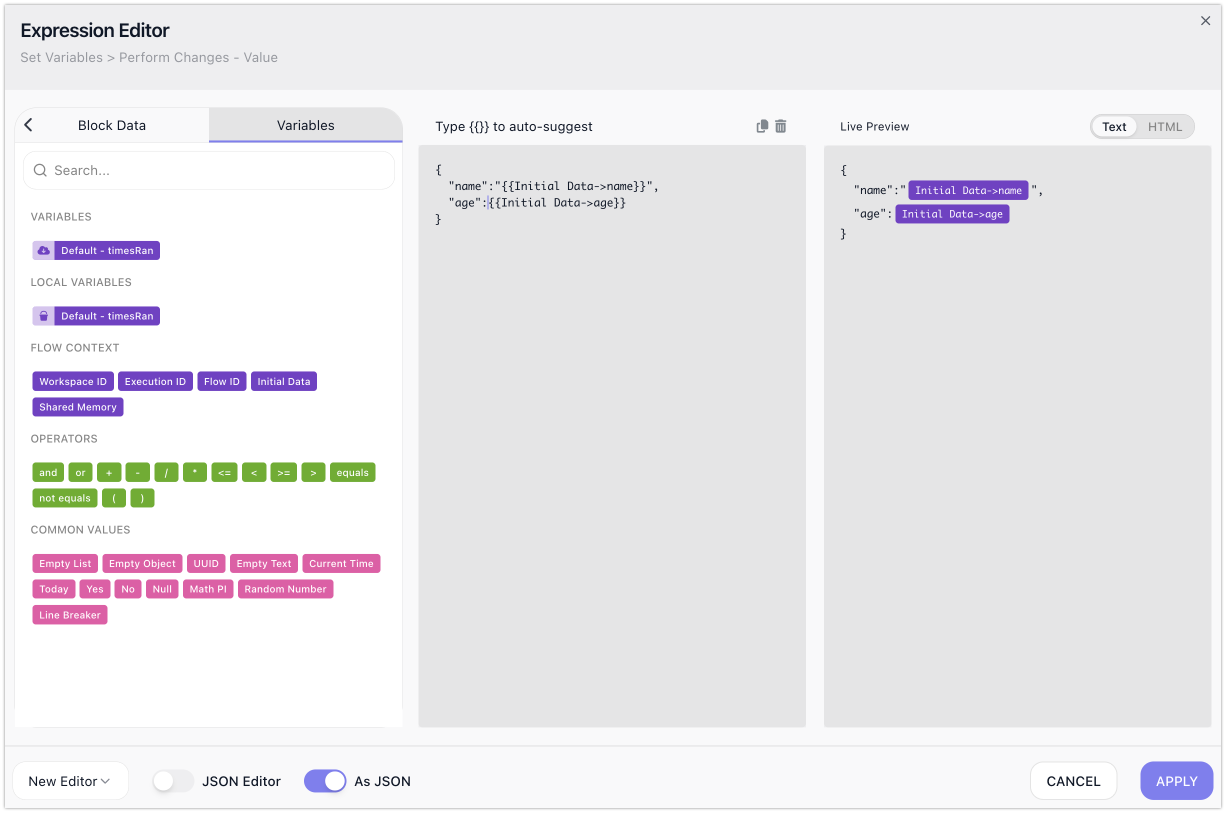
For a structure you would rather write out by hand, turn on JSON Editor: the visual builder is replaced by a code editor where you type the JSON directly, and it checks and formats it as you go.
Checking the result before you apply
The Live Preview keeps pace as you build, showing what the whole expression comes to right now. When it reads the way you want, Apply sets it on the field. If a piece cannot be worked out - a value that is not there - the preview shows that too, so you settle it here rather than when the flow runs.