Call Flow
Call Flow is how something outside FlowRunner starts one of your flows: your own application, a script, a scheduler, another vendor's webhook. You make an HTTP request, and FlowRunner creates an instance of the flow you named.
Decide what you want back
Start with the question that decides everything else: when this flow finishes, is there a value you want to receive?
Some flows end by returning something - a record id, a status, the address of a generated image. Others just do work: they file a record, send a message, kick off a long job. FlowRunner gives you a different call for each case.
- The flow returns a value and you want to receive it. Your call waits until the flow finishes and hands you what it returned. This is a blocking call.
- You only need the work started. Your call returns straight away, without waiting for the flow to finish, and tells you which run it created. This is a non-blocking call.
Waiting on a flow that returns nothing gains you nothing but delay, so if your flow has no answer to give, use the non-blocking call.
FlowRunner already knows which one fits
A flow returns a value through a Return Result block, so FlowRunner can see whether yours has one. If it does not, the dialog in the next section offers only the non-blocking call and tells you why: "Your flow has no Return Result block - a non-blocking request URL is provided (triggers the flow and immediately returns an executionId)."
Let the flow write the call for you
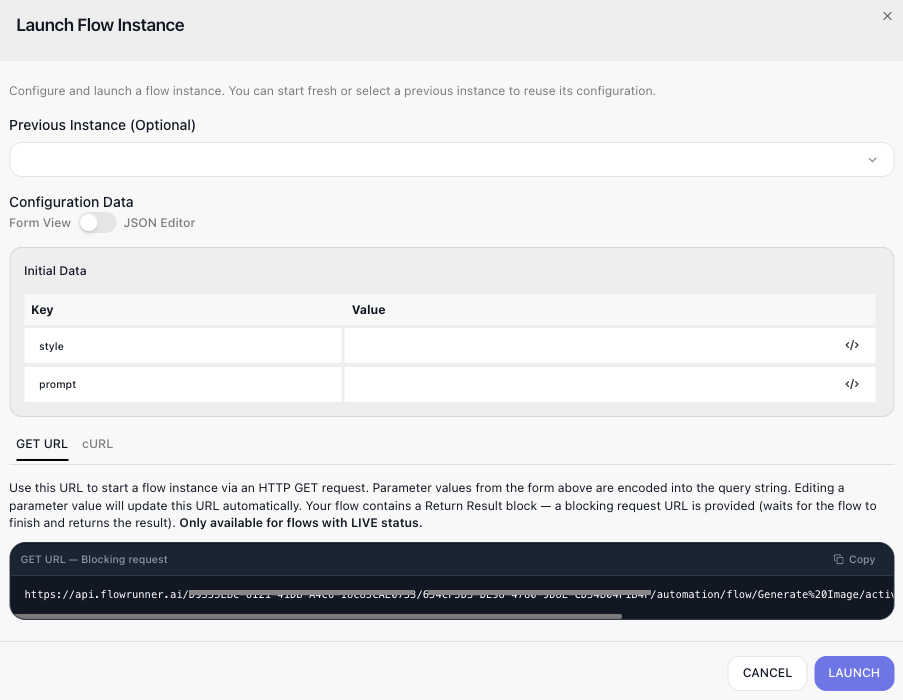
You do not have to assemble these requests by hand. Open the flow and click the Launch Flow Instance icon in the toolbar above the canvas. The dialog hands you the exact call for this flow, on two tabs - GET URL and cURL - each with a Copy button.
If the flow takes Initial Data, the dialog shows a form for those values first and encodes whatever you type into the URL or the request body for you. A JSON Editor toggle beside Form View swaps the form for the raw object.
The dialog also reads the flow before it writes the call. When the flow contains a Return Result block, you are handed the blocking URL - the one that waits for the run to finish and returns what Return Result composed. The dialog labels it GET URL - Blocking request and says so above the box: "Your flow contains a Return Result block - a blocking request URL is provided (waits for the flow to finish and returns the result)."
LIVE flows only
These URLs are, in the dialog's words, "only available for flows with LIVE status". A draft has no address to call, so publish the version you want to reach before wiring anything up to it. See Flows.
Find your workspace credentials
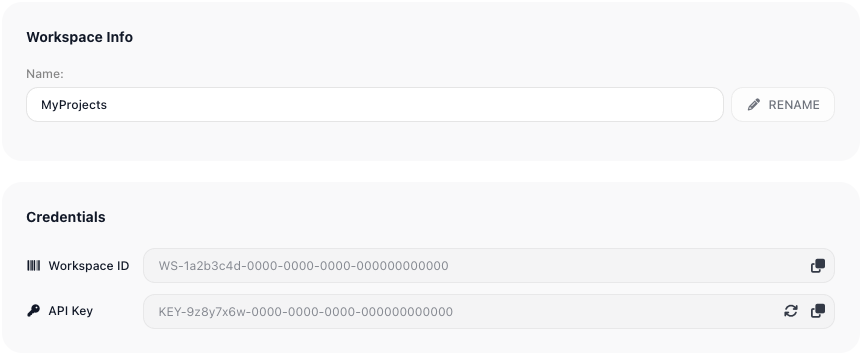
Every call carries two values that say which workspace it is for and prove you are allowed to drive it. Both live in one place: Workspace settings ▸ General, in the Credentials section.
- Workspace ID - names the workspace.
- API Key - authorizes the caller.
Each is read-only with a copy button beside it. Anyone holding the API key can make these calls, so if it leaks, regenerate it with the refresh icon - calls using the old key stop working. See Workspace Settings.
The endpoint
Now the two calls make sense side by side. They differ only in the last segment:
https://api.flowrunner.ai/{workspace-id}/{api-key}/automation/flow/{flow}/activate-blocking
https://api.flowrunner.ai/{workspace-id}/{api-key}/automation/flow/{flow}/activate
{workspace-id}and{api-key}are the two values from the Credentials section above.{flow}is the flow to run. It takes either the flow's name, URL-encoded -Generate%20Image- or its id.activate-blockingwaits for the flow's value;activatedoes not wait.
Calling a flow that returns a value
Use activate-blocking. Values the flow needs to start travel in the query string on a GET:
curl "https://api.flowrunner.ai/{workspace-id}/{api-key}/automation/flow/Generate%20Image/activate-blocking?waitResponseTimeoutSeconds=300&style=watercolour&prompt=a%20red%20barn"
The same call as a POST, carrying those values as a JSON body instead:
curl --request POST \
  --url "https://api.flowrunner.ai/{workspace-id}/{api-key}/automation/flow/Generate%20Image/activate-blocking?waitResponseTimeoutSeconds=300" \
  --header "Content-Type: application/json" \
  --data '{
    "style": "watercolour",
    "prompt": "a red barn"
  }'
Whatever the flow's Return Result block composed comes back as the response. waitResponseTimeoutSeconds
caps how long you are prepared to wait. Deciding what the flow returns is covered in
Returning a Result.
Calling a flow without waiting
Use activate - for a long job, a batch, or anything whose outcome you do not need in the response:
curl --request POST \
  --url "https://api.flowrunner.ai/{workspace-id}/{api-key}/automation/flow/{flow}/activate" \
  --header "Content-Type: application/json" \
  --data '{}'
The response does not contain the flow's work, because the flow has not finished. It contains the identity of the run that was started:
Starting a flow that waits for a callback
Keep that executionId. If your flow contains an
External Callback trigger, you will need it.
A flow like that does not run start to finish. It runs until it reaches the trigger and then stops there,
waiting for an outside system to call back before it goes on. Your activate call starts the run; the
executionId in the response is that run's name.
You need it because more than one run can be waiting at the same trigger at once. The trigger's own
endpoint identifies the flow and the trigger, not the run - so when the moment comes to wake yours, the
executionId is what tells FlowRunner which one you mean.
See Activating an External Callback for that call.
When the call is rejected
Errors come back as HTTP 400 with a JSON code. These are the ones a caller meets:
The flow cannot be started this way
| Code | What it means | What to do |
|---|---|---|
28094 |
This flow begins with a trigger, so it is not started by this call | Activate that trigger instead - see Activating an External Callback |
28107 |
A subflow cannot be started over the API | Call the flow that contains it, or use a SubFlow block |
28045 |
The flow is configured to be started only by its schedule | Change the flow's schedule configuration to allow direct calls |
28127 |
This flow was already called and cannot be called again | Start a new run rather than repeating the call |
The flow cannot be found or is not published
| Code | What it means | What to do |
|---|---|---|
28047 |
No flow with that name and status | Check the name in the URL, and that a version is LIVE |
28048 |
No flow with that id | Check the id in the URL |
28093 |
The operation is only available while the flow is LIVE | Publish the version you are calling |
2002 |
The workspace id or key is wrong, or the version is disabled | Re-copy both from Workspace settings ▸ General ▸ Credentials |
The caller is not allowed, or you have hit a limit
| Code | What it means | What to do |
|---|---|---|
28039 |
The caller has no permission to call this flow | Call with credentials that are allowed to run it |
28061 |
The user token supplied is not valid | Obtain a fresh token |
28083 |
The workspace's action allowance is exhausted | Wait for the allowance to reset, or raise the plan |
28087 |
Too many runs of this flow are already in flight | Retry once some finish |
28132 |
The maximum number of flow executions has been exceeded | As above, or raise the plan |
Codes that any call can return - bad credentials, a malformed request, rate and plan limits - are listed once on the API overview.
Related
- Activating an External Callback - letting a specific waiting run continue
- Workspace Settings - the Credentials section, and regenerating the key
- Returning a Result - deciding what a blocking call receives
- Call Flow - the block that does the same job from inside another flow