Flows
Every automation you build in FlowRunner™ is a flow. This page is about managing the flows themselves - creating them, keeping versions of them, moving them in and out as files, and removing them. Building what a flow does happens in the Flow Editor; running and watching flows is covered under Test & Run.
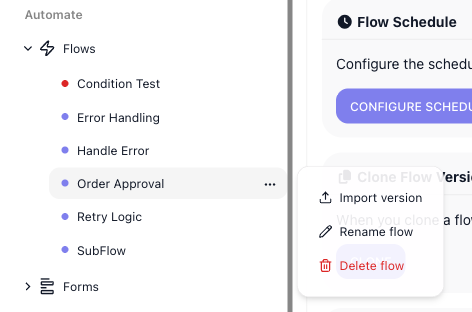
Your flows are listed in the left navigation under Automate → Flows. Each one is a row that opens the flow in the editor, and each row has a ⋯ menu holding the actions that apply to the whole flow. That list is shown under Renaming and deleting a flow below.
Creating a flow
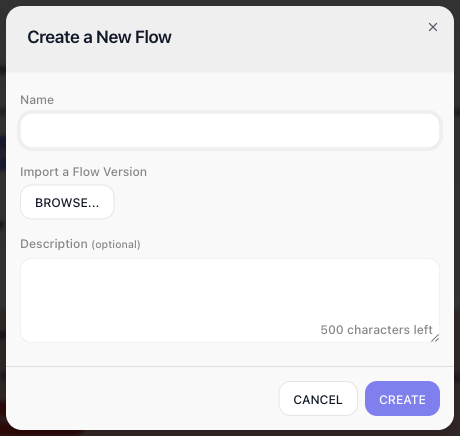
The + beside the Flows heading opens the Create a New Flow dialog. Give the flow a Name, optionally add a Description, and click CREATE to open it in the editor. You can also start from a file: BROWSE... under Import a Flow Version picks an exported flow file, fills in the Name from it, and CREATE makes the new flow from the file and opens it in the editor the same way.
The description is worth writing
The description does more than label the flow for you. When the flow is attached to an AI Agent as a tool, the agent reads its description to learn what the flow does and when to call it. A vague description leaves the agent guessing; a clear one lets it use the flow correctly. See Flows as Agent Tools.
Renaming and deleting a flow
Each flow's ⋯ menu, on its row in the sidebar, carries the whole-flow actions:
- Rename flow - change the flow's name.
- Import version - add an exported version file into this flow as a new version.
- Delete flow - remove the flow and all of its versions. This cannot be undone.
Versions
A flow holds one or more versions. A version is a complete copy of the flow's design that you can edit, run, and schedule on its own. The version you are viewing is named in the breadcrumb at the top, and the selector beside it switches between them.

Versions let you change a flow without disturbing the one already in use: you leave the running version alone, clone it, and work on the copy. The Version Admin tab is where you manage a version.
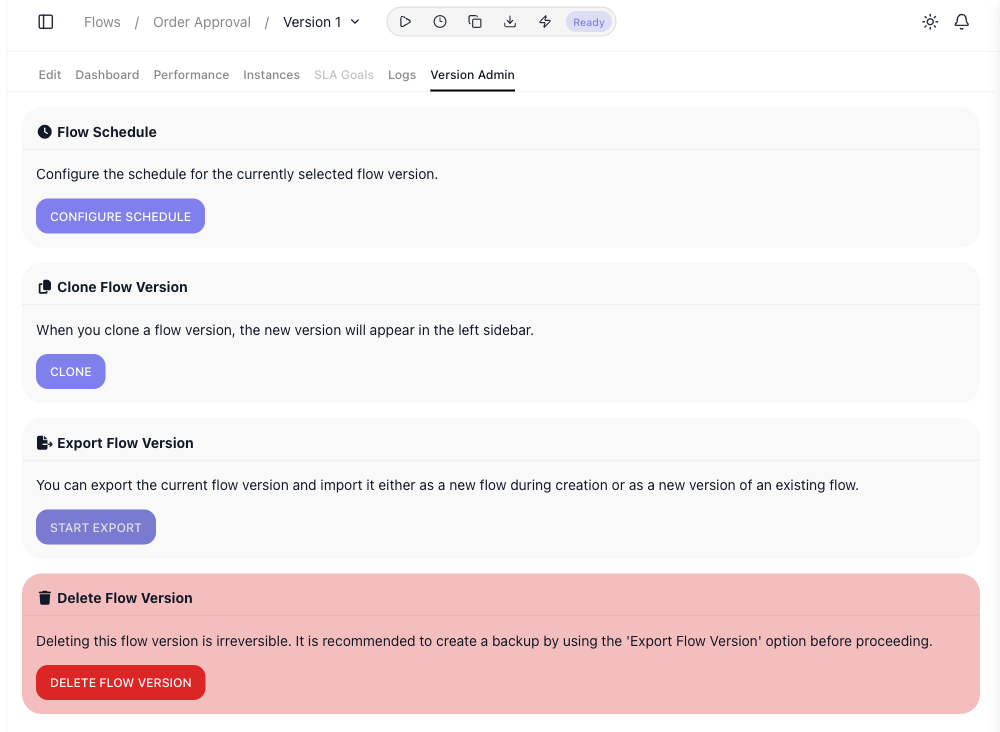
- Clone Flow Version - CLONE makes a copy of the current version; the new version appears in the sidebar and in the version selector.
- Delete Flow Version - DELETE FLOW VERSION removes the version you are viewing. This cannot be undone, so export a backup first (below). To remove the whole flow, use Delete flow on the flow's ⋯ menu.
- Flow Schedule - CONFIGURE SCHEDULE sets when this version runs on its own; see Scheduling.
Moving and backing up flows
On the Version Admin tab, Start Export downloads the current version as a .json file - a portable copy you can keep as a backup or import again, into this workspace or another. You bring a file back in two ways: as a new flow, through Import a Flow Version in the Create a New Flow dialog (see Importing a flow); or as a new version of an existing flow, through Import version on that flow's ⋯ menu. Importing as a new flow in the same workspace is how you make a separate copy of a flow.
Importing a flow
A flow file is a .json export of one flow version: a backup, a flow a teammate sent you, or a flow you
downloaded from a blog post. Importing it creates a new flow in your workspace with the same steps. The file
does not carry anyone's app accounts, so you connect your own before the flow can run.
- Sign in to FlowRunner and open the workspace to import into.
-
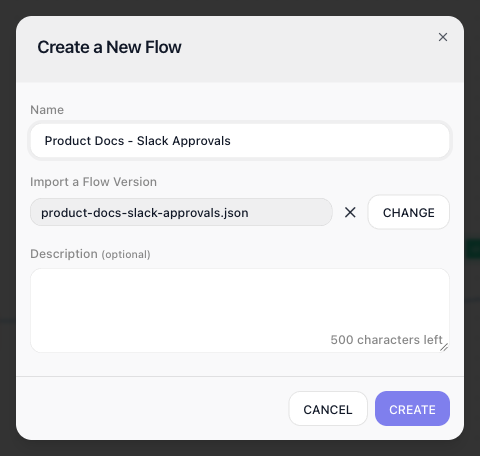
Click + beside the Flows heading. In the Create a New Flow dialog, click BROWSE... under Import a Flow Version and pick the file. The Name fills in from the file; change it if you like.
-
Click CREATE. FlowRunner reports Flow is successfully imported and opens the flow in the editor.
-
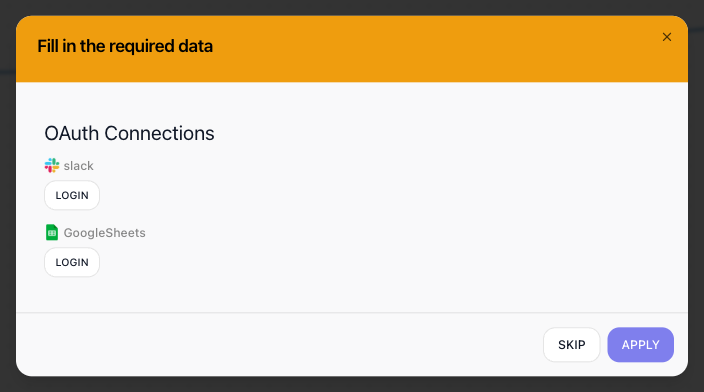
Connect your apps. When the flow uses apps that you sign in to, such as Slack or Google Sheets, a Fill in the required data dialog opens and lists them under OAuth Connections. For each app, pick one of the workspace's connections, or click LOGIN to connect an account. One connection per app fills every step that uses that app. Click APPLY when you are done. SKIP closes the dialog for now, and it opens again the next time you open the flow.
-
Fill in what is still missing. Until every step is complete, the flow is marked Not Ready. Hover the label to see each step that needs attention and what it needs:
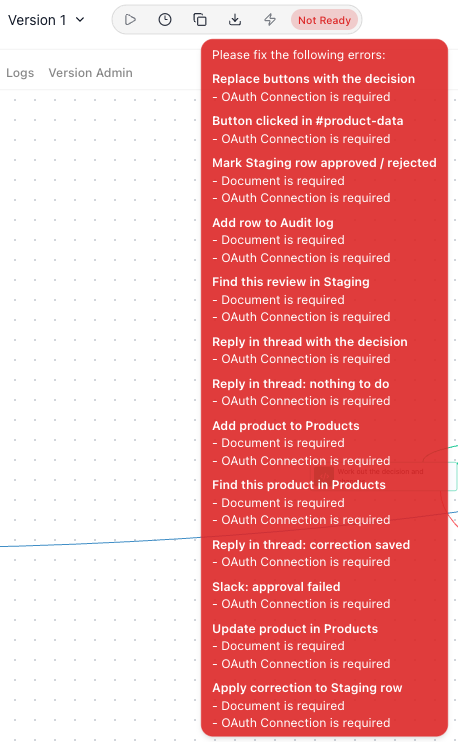
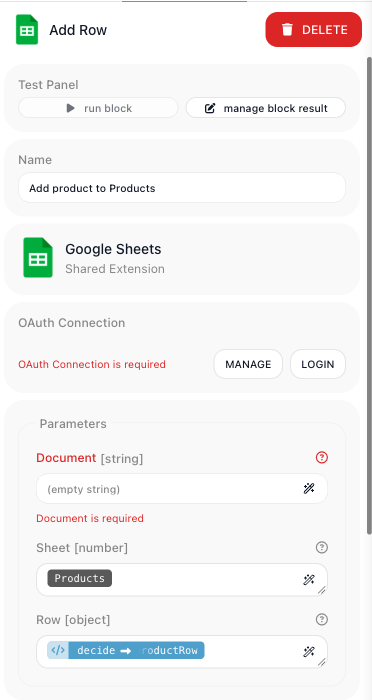
Open each listed step and fill in the field it names. A flow's author may leave fields that point at their own data empty, so you choose your own: here, the spreadsheet a Google Sheets step writes to. The fields beside it can still hold the author's choices, such as the sheet named Products, so check them against your own spreadsheet.
-
Test the flow, then start it - see Testing and Running Flows.
To add a file as another version of a flow you already have, use Import version on that flow's ⋯ menu instead.
Related
- Building a flow - assembling what a flow does
- Running Flows - starting and watching your flows
- Scheduling - running a flow version on a schedule
- Workspace Settings - moving or deleting the whole workspace