Compliance & Security
A workspace that runs automations on a schedule, against deadlines, and on behalf of other people needs more than the editor. It needs a way to hold runs to a clock, a record of who changed what, the controls a regulated team has to satisfy, and an emergency lock for the workspace. FlowRunner™ groups those tools under Compliance & security in the workspace navigation. This page walks through the group and what each item does.
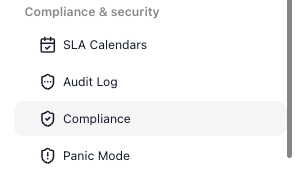
One related setting, SLA Goals, lives on each flow instead of in this group. It is covered below with SLA Calendars because the two work together.
SLA Calendars
A service-level agreement (SLA) is a promise about timing - this work will be done within so many hours. A target of "four hours" usually means four working hours, so a deadline that starts late on a Friday lands on Monday instead of over the weekend. An SLA calendar says which hours count.
A calendar has:
- Time Zone - an offset from GMT that anchors the calendar's hours, from GMT-12 to GMT+12. The list includes the half-hour offsets, such as GMT+5:30, and GMT+5:45. It has no named zones, so the calendar does not follow daylight saving; change the offset when your clocks change.
- Work Week - the days that count, Monday to Friday by default, and the hours on each, 09:00 AM to 06:00 PM for a new calendar. A day can have more than one span, for example a morning and an afternoon shift: the green + beside a span adds another one below it, and the red - removes one.
- Excluded Dates - named dates the calendar skips even when they fall on a working day, such as public holidays. + adds a row.
Pick a calendar in the selector at the top, or CREATE A NEW CALENDAR to start another. The icons beside the selector save, clone, rename and delete the calendar you are viewing.
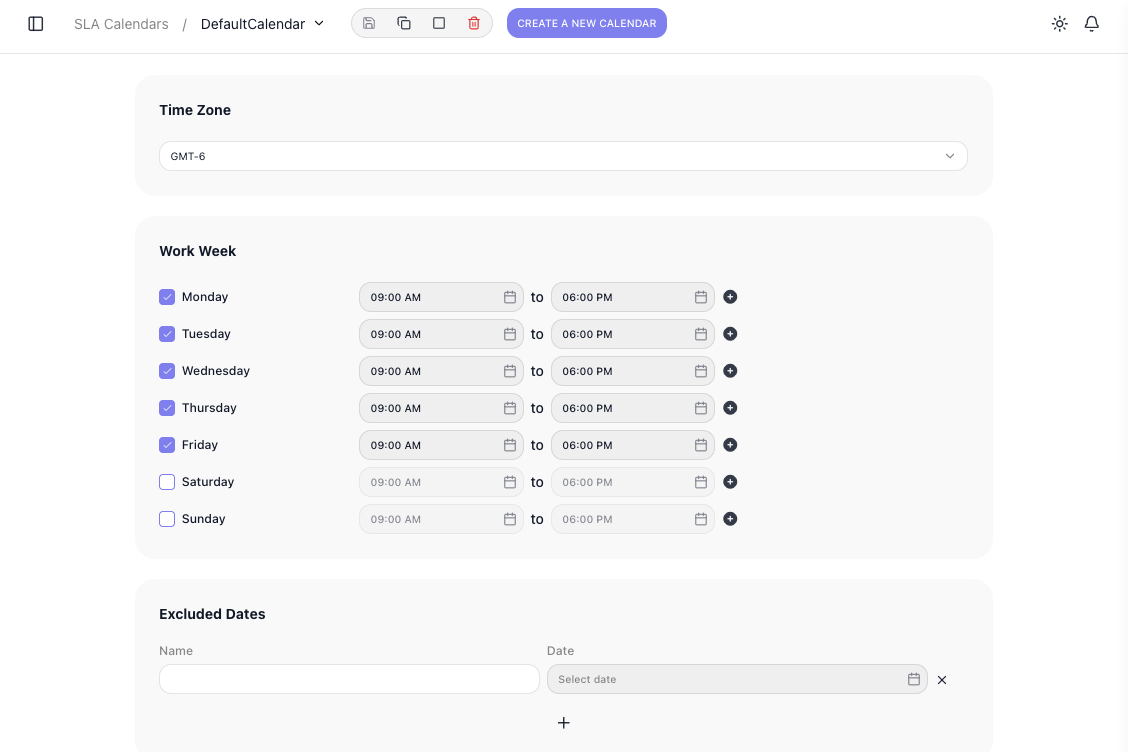
Each span must end later than it starts. If one does not, saving shows Could not save the calendar and names the day, for example "Configuration for 'Monday' is not valid. Period 'From' should be less than 'To'". An end time of 12:00 AM counts as the start of the day, so a span cannot run to midnight.
Each flow's SLA Goals tab, beside Instances in the flow's tab row, sets the target itself - how long a run may take - and ties it to one of these calendars, so the time is measured in working hours.
Business plan and higher
SLA Goals, and the SLA tracking they drive, are available on the Business plan and higher. On other plans the tab is greyed out. SLA Goals walks through composing a goal - its time targets, time tracking, and escalation rules.
Change Log
When a flow that worked yesterday starts failing, the Change Log shows whether someone changed something it depends on, who did it, and when. It records:
- flows - created, renamed, exported or deleted; a version created, deleted, started (Version N of flow "…" enabled), paused, stopped (Version N of flow "…" terminated) or given a new schedule
- SLA calendars - saved with changes
- custom extensions - deployed, configured or deleted, and an OAuth connection created for one
- knowledge bases - created, files added, and synced
- keys on the API Keys page - created or deleted
- the workspace API key - regenerated, listed as API key regenerated in the API Keys category
In the Change Log, terminated means a version was stopped, not that a run failed.
Professional plan and higher
The Change Log is the audit trail included in the Professional plan (the last 30 days), the Business plan (90 days) and the Enterprise plan (unlimited). On other plans the screen says the feature is not supported on the current plan.
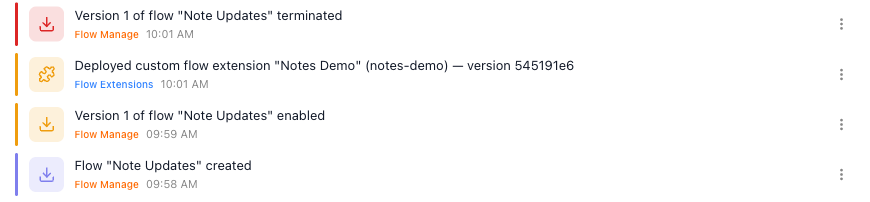
Entries are listed newest first under the name of the person who made them. Each one shows what happened, its category, and the time; the coloured bar at its left marks the level, so a deletion stands out in red.
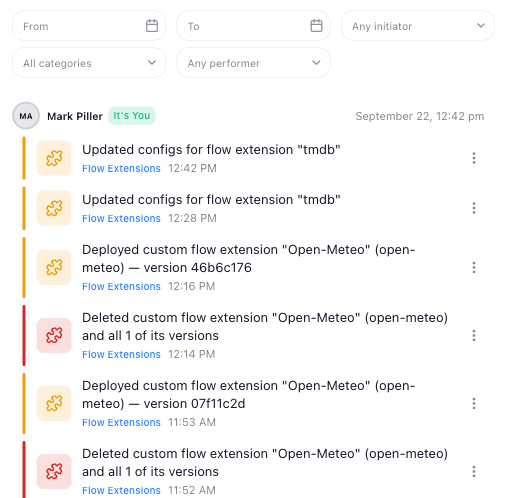
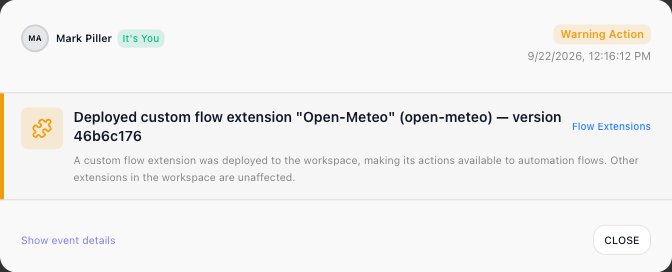
The ⋮ at the end of an entry opens it with the exact date and time, a sentence on what the change was, and its level by name:
- Critical Action (red) - a deletion, a version stopped, or the workspace API key regenerated
- Warning Action (orange) - a version started, an extension deployed, a configuration changed
- Info Action (purple) - a flow or an API key created
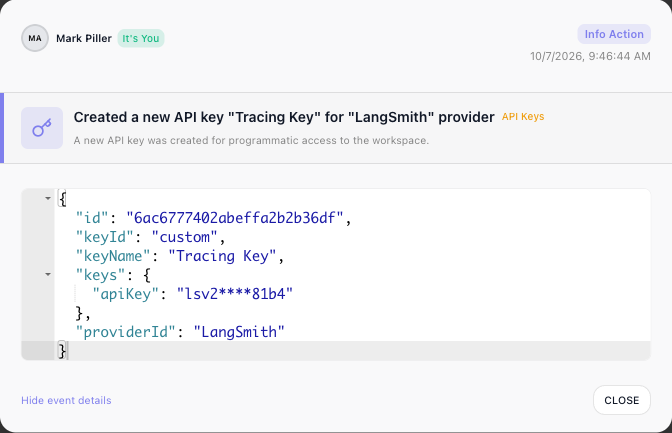
Show event details adds the data stored with the entry - which key or extension, and the values that
were saved. Secret values are masked: an API key's value, and any extension setting its developer marked as
secret. A masked value keeps its first and last four characters, enough to tell which key it was; one of 12
characters or fewer shows as ********. Other extension settings appear as they were saved. Here, an API key named Tracing Key was created
for LangSmith on the API Keys page:
The bar above the list narrows it. The filters combine, and each clears with the × inside it:
- From / To - a date range.
- Any initiator - User for changes a member of your team made, System for the rest: the platform's own actions, and changes the FlowRunner team makes on your workspace.
- All categories - one area: API Keys, Dynamic Forms, Flow Extensions, Flow Manage, Knowledge Base, MCP Servers, Workspace Billing or Workspace Manage.
- Any performer - one member of the team, or Me.
Your own account keeps a separate log: Activity Log in the account menu at the bottom of the left navigation, with the same filters.
Flows Activity Log
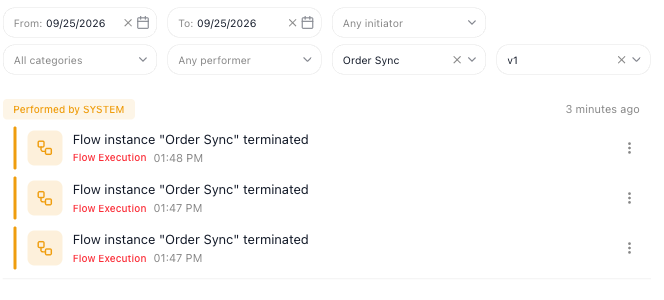
The Flows Activity Log lists what happened to your flows' runs across the whole workspace - a run that was terminated, for example - in one filterable list. A flow's Instances tab shows what each run did; this log is where you look across flows and versions at once. Its categories are Flow Execution and Realtime Triggers, and its bar adds a flow picker, where you search by flow name or ID, and a version picker beside it. The version picker stays greyed out, reading All versions, until you pick a flow. The entries in the example read Performed by SYSTEM: the platform, not a person, terminated those runs.
An entry about one run, such as a terminated run, has an icon beside its title. Its tooltip reads Open flow instance, and clicking it opens that run's page, where you can see where it stopped - see Inspecting a Run.
A grouped notification's View in Activity Log opens this log already narrowed to that flow and version - see Notifications:
Compliance
Business plan and higher
HIPAA compliance needs three things, all available on the Business plan and higher: an accepted Business Associate Agreement (below), Panic Mode, and role-based access control - the per-member permissions that limit what each person can see and change.
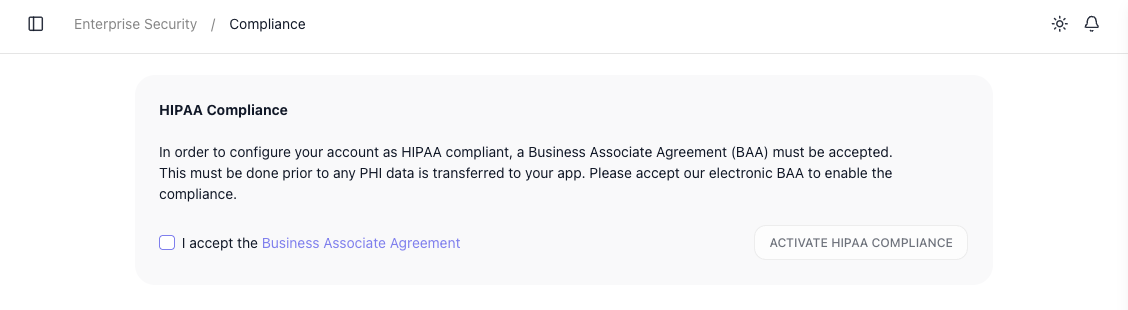
To handle protected health information (PHI) in your flows, the workspace needs a Business Associate Agreement (BAA) in place first. Compliance is where you accept FlowRunner's electronic BAA: tick I accept the Business Associate Agreement, then choose ACTIVATE HIPAA COMPLIANCE. The agreement's name is a link that opens the document, so you can read it first. Until the BAA is accepted, the workspace is not set up to carry PHI.
Panic Mode
Business plan and higher
Panic Mode is available on the Business plan and higher.
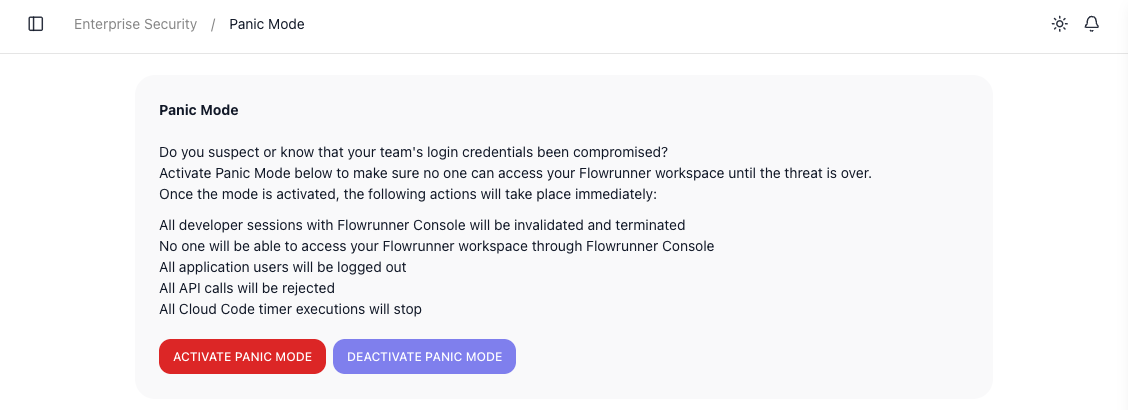
Panic Mode is for when you suspect or know your team's login credentials are compromised: one action locks the workspace until the threat is over. The screen lists what activation does at once:
- all developer sessions with the FlowRunner Console are invalidated and terminated
- no one can reach the workspace through the Console
- all application users are logged out
- all API calls are rejected
- all Cloud Code timer executions stop
ACTIVATE PANIC MODE turns it on and DEACTIVATE PANIC MODE lifts it.
Related
- SLA Goals - the per-flow targets (Business or Enterprise plan) that measure a run against a deadline, using the SLA Calendars set up here
- Notifications - the grouped run messages whose View in Activity Log opens the Flows Activity Log