API Keys
Every AI block and operation in FlowRunner™ - the AI Agent, the AI Router, and the rest - calls a model hosted by an outside provider such as OpenAI, Anthropic, or Google, and each provider authenticates that call with an API key you hold with them. API Keys is the workspace store for those keys: save a key once, give it a label, and reuse it across every flow instead of pasting the same secret into block after block. The screen lives under Connections in the workspace sidebar, and it holds keys for other services too, not only the AI providers.
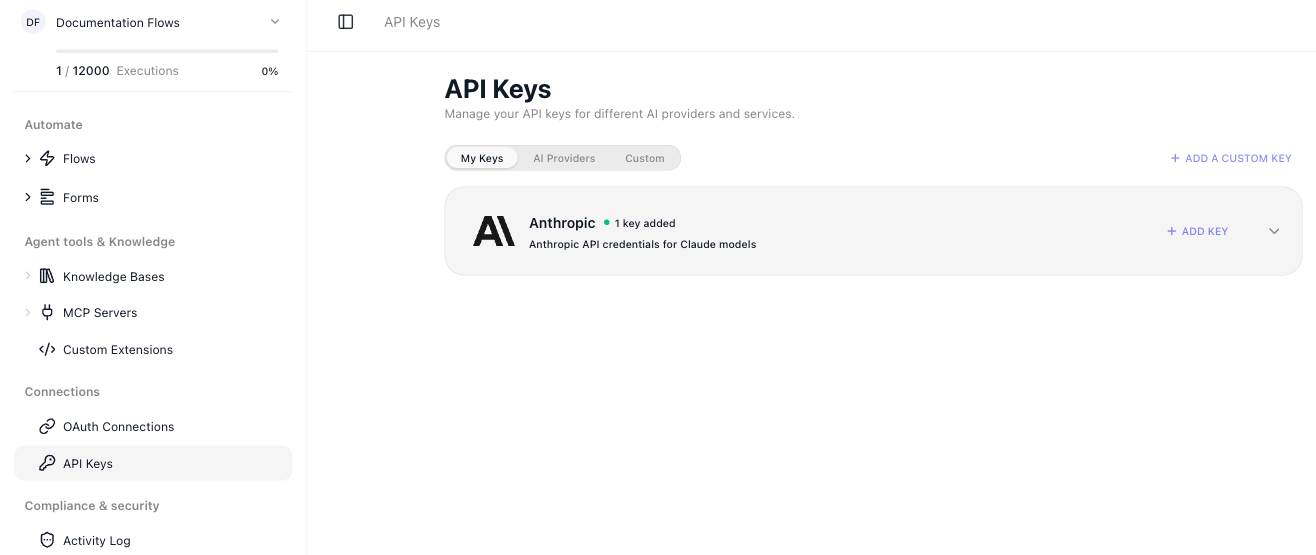
The screen has three tabs:
- My Keys - the keys you have saved, grouped by provider, with the controls to edit or delete each one.
- AI Providers - the catalog of supported AI providers, each with an ADD KEY button.
- Custom - keys and secrets for services outside that catalog.
Saving a provider key
The AI Providers tab lists the providers FlowRunner supports - OpenAI, Anthropic, Google AI (Gemini), Cohere, Mistral AI, Groq, DeepSeek, Kimi, and Voyage AI (embedding models) - each with a one-line description:
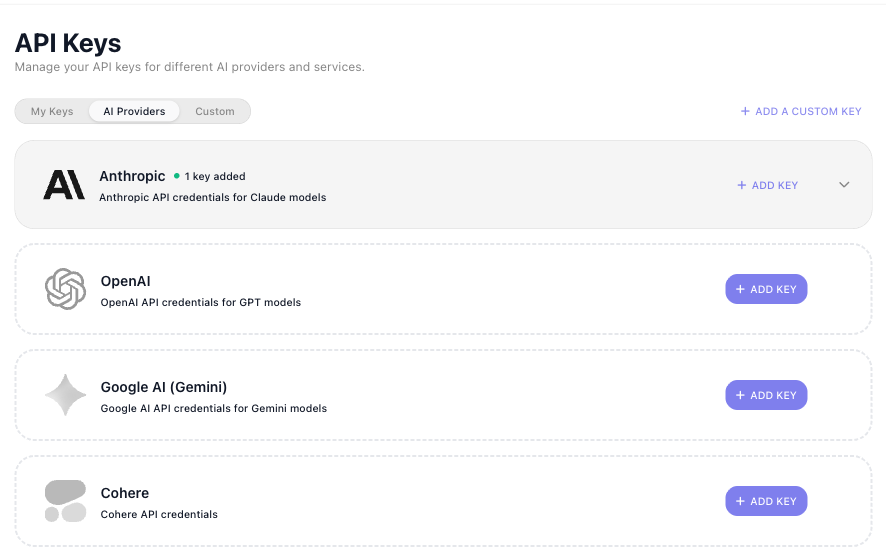
Click ADD KEY on the provider you hold a key with. A setup dialog opens for that provider -
Create OpenAI Setup, for example - and asks for two things:
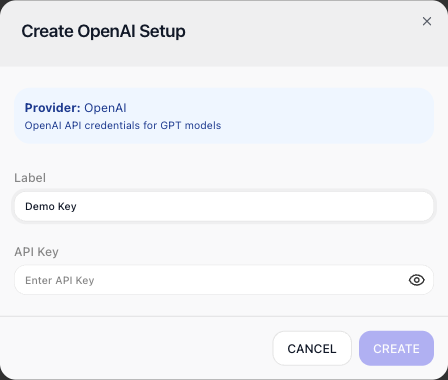
- Label - a name for this key, so you can tell it apart from other keys for the same provider.
Demo KeyandProductionmight both be OpenAI keys. - API Key - the secret itself, copied from the provider's own console.
A saved key is called a setup. One provider can hold several setups, so you can keep a test key and a production key side by side, or a separate key for each client.
Saving a key for any other service
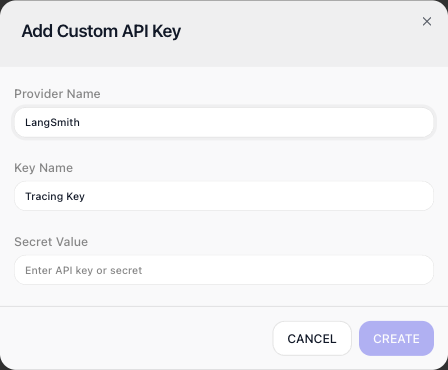
The Custom tab stores an API key or secret for a provider or service that is not in the built-in list. ADD A CUSTOM KEY opens a dialog with three fields: Provider Name - the service the key belongs to, Key Name - the label for this key, and Secret Value - the secret itself.
Using a key in a flow
Every AI block and operation has an AI API Key field. Choose the model first - until you do, the field is disabled and reads "Select model first". Once the model is picked, the field offers your saved setups:
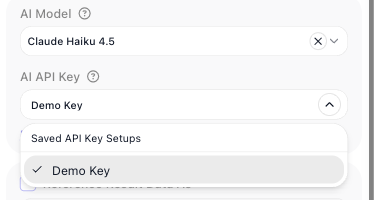
Pick a setup by its label and the block authenticates with the provider using it - the secret value never appears in the block. If you instead type a new key straight into that field, the Save as Setup option that appears writes it to this store under a label, so the next block, and the next flow, can select it. Both paths leave the secret in this one place.
A flow can also record which of these keys it uses as part of its own configuration: declare a
placeholder of type API KEY and choose a saved setup as its value.
The flow then stores your choice of setup rather than the secret. To have an AI step use it, flip the
switch beside the AI API Key label: the field becomes an expression, and you pick the placeholder in the
Expression Editor. Whoever sets up the flow then chooses the key in one place, without opening the AI step:

Managing keys
The My Keys tab shows each provider you hold keys with; expand a provider to its setups. A setup shows its label, its provider, and the date you created it, with two controls:
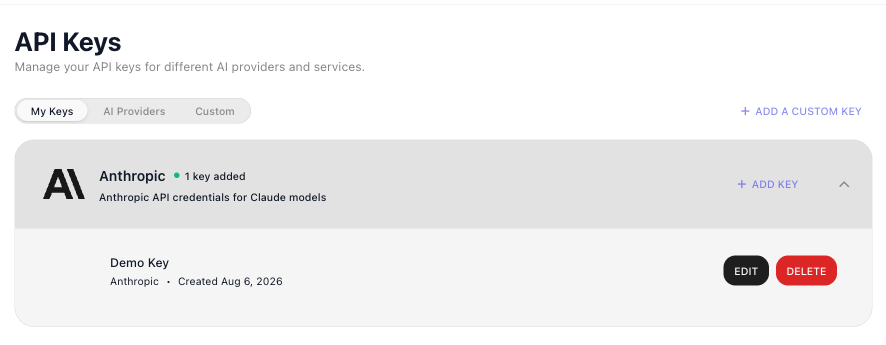
- EDIT - change the label, or replace the key value after you rotate it with the provider. The dialog also reveals the stored key, so treat access to this screen as access to the keys themselves.
- DELETE - remove the setup from the workspace. Any block set to use it stops authenticating until you point it at another key.
Related
- OAuth Connections - the workspace's other credential store, for services you sign in to
- AI Agent - an AI block whose AI API Key field draws on these saved setups
- AI in Flows - every place a flow can put a model, and its key, to work