Running Flows
A flow you have built and tested does nothing on its own. Running it means making one of its versions LIVE - from then on, each time something sets the flow off, FlowRunner™ starts a fresh instance and carries it out. This page covers taking a version live, what starts an instance, and watching the runs.
The example is an "Order Poller" flow: it takes an order id, records the order's status, polls until the order ships, and notes the result.
Ready, then live
A flow keeps its work in versions - you build and test a draft version without touching whatever is running. When a draft passes validation, its status reads Ready: error-free and cleared to go live. You make it live from the toolbar at the top of the flow, where the version's status sits beside a row of controls. Start flow - the play button - puts the version live.

Only one version of a flow is live at a time, and the live version is the one that runs. While a version is not live - a draft, or one you have taken down - it produces nothing, so half-finished logic never touches real data.
Once the version is live its status reads Live, and the play button is replaced by pause and stop.

What starts an instance
A live flow does not run continuously. It produces one instance - one run - each time something sets it off:
- a trigger fires;
- a schedule comes due (see Scheduling);
- a form is submitted (see Forms);
- the Call Flow API, or another flow, calls it;
- or you launch one by hand with Run Instance (see Testing).
A flow can begin from any of these - it is not tied to a trigger. Each instance is independent: it carries its own data, gets its own execution id, and several can run at once without waiting on each other.
Watching the runs
Every run a live flow produces is listed on the Instances tab: its name, when it started and finished, how long it took, whether it hit an error, and its status. Filter by date range or by status to find the runs you care about.
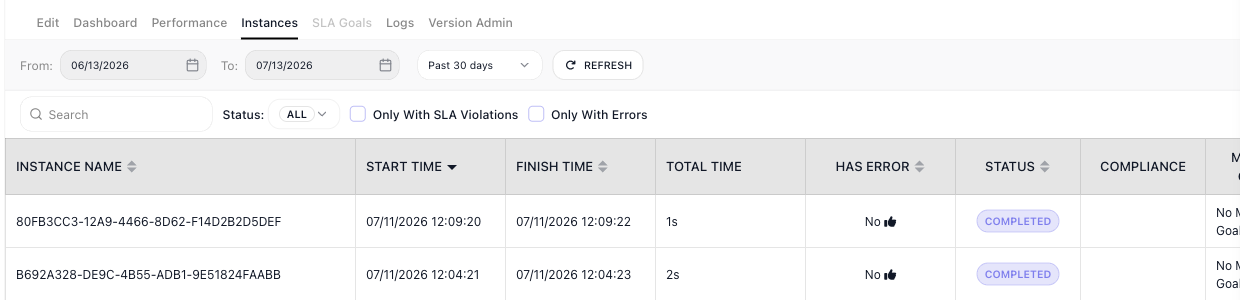
By default each run is listed by its Instance ID - the machine identifier shown above. To make a run easy to find, name it: an Assign Instance Name block, placed early in the flow, sets a readable name from the run's own data - an order id, a customer email - and from then on the run is listed by that name in place of the ID.
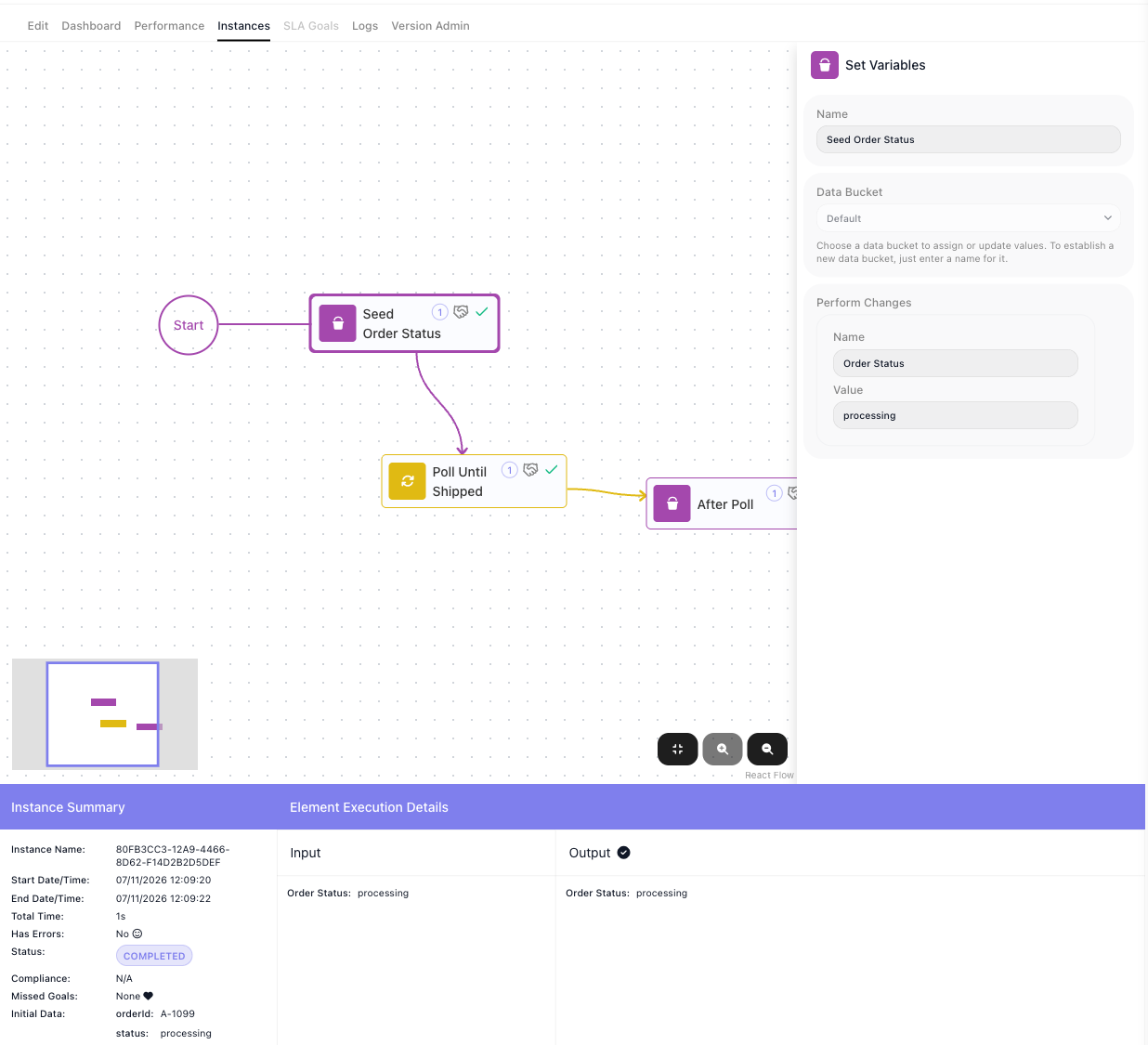
Open a run to see exactly what it did. The flow is drawn with the path that run took, each block ticked as it executed, and the panel below gives the whole picture: the Instance Summary - its timing, status, and the Initial Data it started with - and, block by block, the Input each step received and the Output it produced.
Stopping and replacing a live flow
While a version is live, stop takes it out of LIVE and hands it back as an editable draft, so nothing new starts and you can work on it again. pause holds the live version without taking it down: its status becomes Paused, and while it is paused the version answers nothing - an API call to it is refused exactly as if no version were live. Resume flow takes the place of pause in the toolbar and puts the version back to LIVE.

To roll out a change, you do not edit the live version in place - you make a new version live instead. Clone the live version, change and test the copy, then Start flow on it: the copy becomes the LIVE version and the previous one steps aside, since only one is ever live. See Flows for cloning and versions.
Related
- Testing - trying a flow before it goes live
- Scheduling - running a live flow on a timetable
- Flows - versions, cloning, and which one is live
- Flows and Instances - the flow-and-run model behind all of this
- Billing - what a run costs against your allowance