Billing
How much your automations can run is set by your plan. Every workspace has a monthly execution allowance - the number of times its flows may run in a month - and the Billing page is where you see which plan you are on, what each one offers, and move to a larger one when your flows start to outgrow their room. That same allowance is what the executions counter at the top of the navigation counts against.
What counts as an execution
An execution is one run of a flow - one instance. Each time a flow produces an instance, the counter goes up by one, and that single count covers everything the run does from beginning to end. A run that works through fifty blocks counts the same one as a run through two: the loops, retries, waits, and parallel branches inside it add nothing on their own.
An instance counts when:
- The LIVE flow is set off on its own - a trigger fires, a schedule comes due, a form is submitted, or an outside system calls it over the API.
- You launch one by hand with Run Instance, on the LIVE flow or on a draft version in the editor, or run a flow from one of its blocks with the block's lightning icon.
- One flow runs another as a step, with a Call Flow block or from the Flows as Actions palette. The called flow starts its own instance, so it spends its own execution on top of the flow that started it.
These do not spend an execution:
- Running a single block. Trying one block at a time with run block while you build is free. The exception is a SubFlow block, which runs the whole subflow and counts as one execution.
- An inline SubFlow. It runs as part of the same instance, so it adds nothing.
A run counts from the moment it starts, whether or not it ends well. A flow that begins and then errors out has still produced an instance, so it spends an execution the same as one that finishes cleanly.
Plans and allowances
FlowRunner™ offers a ladder of plans - Free, Starter, Growth, Professional, and Business - each trading a higher monthly price for a larger execution allowance, plus a custom Enterprise plan for needs beyond Business. The cards show each plan's price and monthly allowance side by side; the row scrolls sideways, so the higher plans sit off the right edge until you scroll to them.
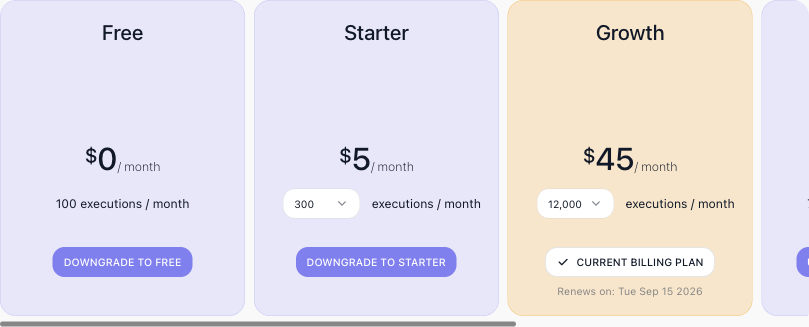
The plan you are on is marked Current Billing Plan and carries its renewal date. Starter and Growth each carry a selector beside the price that raises the allowance without moving plans - Starter from 300 executions at $5 to 3,000 at $15, Growth from 12,000 at $45 through 30,000 at $89 to 60,000 at $149 - so outgrowing a plan's first rung does not mean jumping to the next plan. To move up instead, use the plan's upgrade button; See detailed comparison opens the full plan-by-plan breakdown, and Contact us arranges an Enterprise plan. Manage Subscription, at the top right of the Billing page, opens Stripe's customer portal in a new tab; you enter your account email there and Stripe sends you a sign-in link. When your flows begin bumping against the allowance - the executions counter climbing toward its limit before the month is out - raise the allowance or move up a plan to give them more room.
What else the plan sets
Executions are the main meter, and two more things follow the plan:
- How far back your run history shows. The Instances list, the Dashboard and Performance views, the Logs and a CSV export all reach back over the plan's execution log visibility: 24 hours on Free and Starter, 7 days on Growth, 30 on Professional, 90 on Business, unlimited on Enterprise. Older runs are not deleted - the Instances page counts how many it is holding back, and moving up a plan brings them back into view. See Inspecting a Single Run.
- Bulk workspace export. Building a workspace archive needs Growth or above; exporting any flow version, one at a time, works on every plan, Free included.
Two rules on the Free plan: an account may hold one Free workspace, so a second workspace cannot be created on it or moved down to it, and a new workspace lands on Free when no trial applies. Moving to Free needs no payment method; moving to any paid plan - up or down - needs one on file.
Starting on a trial
A new workspace begins on a 14-day trial of the Professional plan, with no card required to create it. The trial is granted once per account, not once per workspace: the entitlement is checked against both the account and the email address it registered with, so deleting an account and signing up again with the same address does not earn a second one. Your second and later workspaces are therefore created without a subscription and stay suspended until you subscribe to a plan for them - that is the normal outcome, not an error.
To convert a trial before it runs out, pick a plan on this page. That ends the trial immediately and charges the new plan straight away, and it does so even when you pick the plan the trial is already on, or a cheaper one - a downgrade is not a way to defer the charge. A payment method has to be attached to the workspace first; without one the change is refused.
If a trial is never converted, the trial ends and the charge is attempted anyway. When there is no card, or the card declines, the subscription is left past due and the workspace is suspended; the owner is sent a payment-failed notification. While a payment is outstanding the workspace navigation carries a past due label and the Billing page offers a button to pay the outstanding invoice. Paying it restores the subscription and lifts the suspension on its own; until then the workspace cannot be moved to Free either. A workspace that has paid before is not suspended by a single failed renewal - only a final cancellation does that.
Running out of executions
The allowance is not a surprise you meet at the end of the month. As the counter climbs, FlowRunner warns the workspace at 80%, 90% and 95% of the allowance, and again at 100%:
- In the console. A message pops up at the top right and stays in the notification panel under the bell icon.
- By email, to every member of the workspace. From 90% on, the email carries a button that opens the workspace's Billing page.
- In the executions counter at the top of the navigation. Its bar turns amber at 80% and red at 95%, and at 100% a red warning icon appears beside it. Click the icon to open Billing.
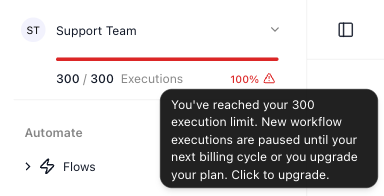
At 100% no new run starts. Runs already in progress finish normally. Every new run - started by hand, by a
schedule, by a trigger or through the API - is refused with the message Exceeded the limit of 300 flow executions
per billing period, with your plan's allowance in place of 300. Through the API, a
non-blocking call gets it as HTTP 400 with code 28063, and a
blocking call gets the run back as TERMINATED with code 28132. Runs start again when the next billing cycle begins and the counter resets, or as soon as the
workspace moves to a plan with more room. Nothing is lost in the meantime: flows, logs and configuration are
all still there.
Enterprise workspaces have no execution limit, so none of this applies to them.
Changing plan mid-month
The two directions deliberately do not mirror each other:
- Moving up takes effect at once. From one paid plan to a larger one, you are charged a prorated amount for the days left in the current cycle, the execution counter resets to the new plan's full allowance, and the renewal date does not move.
- Moving up from the Free plan starts a new cycle. You pay the full price of the new plan, whatever day of the month it is, the new billing cycle starts on the day you upgrade, and the execution counter starts again from zero.
- Moving down takes effect at the end of the cycle. There is no refund for the current month, you keep the current plan and its allowance until the cycle ends, and the new rate applies from the next renewal.
That asymmetry is why an upgrade between paid plans late in a cycle is cheap in money but full in allowance, and why a downgrade cannot be used to undo one. A plan change also reaches runs already in progress: their run and wait allowances are re-stamped to the new plan, so a run that a downgrade narrows ends at its next block rather than immediately.
What a workspace on a trial, cancelled, or past due cannot do
Exporting a flow version works on every plan, Free included, and is refused only while the subscription is:
| The subscription is | The reason given |
|---|---|
| on a trial | Not available on a trial subscription; upgrade to a paid subscription to use it. |
| cancelled | Not available with a cancelled subscription; renew to use it. |
| past due | Not available while a payment is outstanding; update the payment method to use it. |
Importing is deliberately untouched - the restriction is on taking work out of a workspace, not on putting it in. Cloning a flow version is unaffected too, because the copy never leaves.
Restarting a cancelled subscription
A cancelled subscription suspends the workspace, but its flows and data are kept, and you can start a new subscription at any time. The workspace's Billing page opens a Workspace Suspended dialog: The subscription for this workspace was canceled, so the workspace is suspended. Start a new subscription to restore access - your flows and data are kept.
The dialog offers the plan the workspace had, at the price it paid before, and payment on Stripe's checkout page: CONTINUE TO CHECKOUT takes you there. To pick another plan, at that plan's current price, or to pay with a card already saved for the workspace, tick Change plan or payment method. With a saved card picked, the button reads PAY $5.00 AND START NEW SUBSCRIPTION, with your amount, and pays at once.
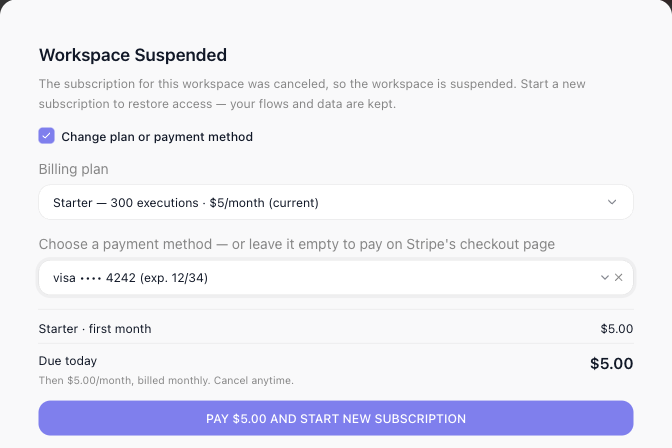
Before you pay, the summary shows the amount due now: the plan's first month, plus any unpaid balance from earlier invoices, which is charged together with it. Once the payment goes through, the workspace is active again straight away: the Billing page shows the plan as Current Billing Plan with a renewal date a month from that day, and the owner gets a Workspace Reactivated notification, Your automations have resumed. If your bank asks you to confirm the payment, do it in the window that opens. Only the workspace owner can restart a subscription.
Payment methods
Before a workspace can be charged - moved onto a paid plan, or up from the one it is on - it has to be tied to a payment method. Until it is, the upgrade buttons stay disabled, and a free-credit balance shown at the top of the Billing page keeps your flows running in the meantime.
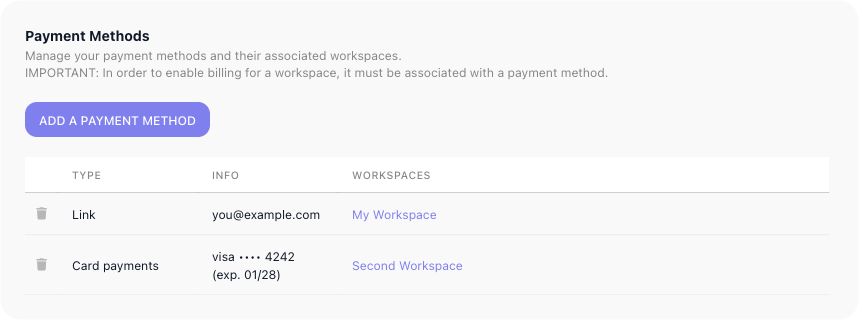
You add and manage payment methods on the account-level Payment Methods page, reached from your account menu at the bottom of the left navigation. It has two parts.
The first lists your payment methods - the cards and payment accounts on your account. Add a payment method hands off to a secure Stripe checkout to enter your details; each saved method then shows its type, its identifier, and the workspaces it covers.
The second is a Workspaces overview - every workspace you have, each with its billing plan (a workspace still on its trial reads, for example, Business (Trial)), the payment method assigned to it, and its subscription renewal date. You assign a workspace's payment method from this table; you change its plan back on the workspace's own Billing page.
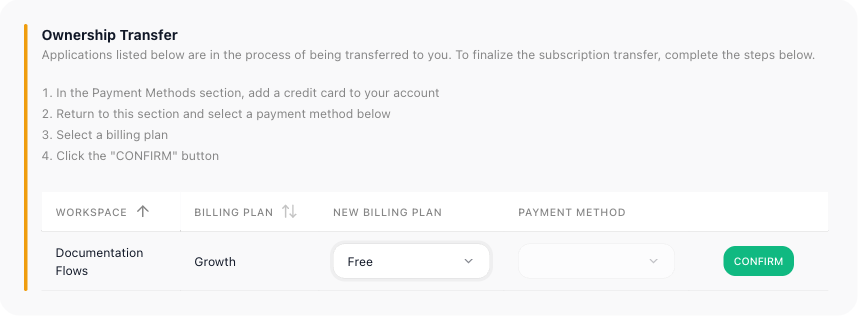
When someone is handing a workspace over to you, a third panel, Ownership Transfer, lists it here, with the workspace's current plan and a New Billing Plan picker that starts on the same plan. Choose a plan and - unless you choose Free - a payment method, and click CONFIRM to take it over. On a paid plan CONFIRM stays disabled until a payment method is chosen; on Free it works without one (the card step in the panel's instructions applies only to paid plans):
Some cards need you to confirm a payment with your bank. When you subscribe a workspace with such a card, the bank's confirmation opens straight away, and the workspace is subscribed only once the payment goes through. Close it without confirming and the workspace stays blocked until the payment is completed.
Taking over a workspace works differently. If you chose a paid plan and your bank asks you to confirm the first payment, the transfer still completes and the workspace keeps running. Confirm the payment within about 24 hours, or the workspace is suspended until you subscribe it from its Billing page.
Related
- Workspace - the executions counter, and the areas a workspace holds