Yes/No Branching
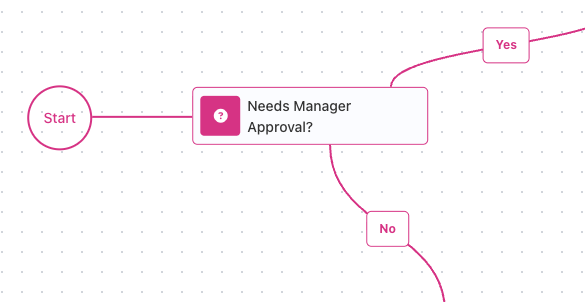
Most flows reach a point where one case needs different handling from another. In an order flow, an order over $1,000 needs a manager's approval; the rest can process automatically. The Condition block is the flow's decision point: it asks a question about your data, and the run continues down its Yes path or its No path.
Add the flow's decision point
The order flow needs a place where the over-$1,000 rule gets asked. That place is a Condition block: drag it from the palette's Utils group, under System, onto the canvas. A block you just dropped shows no exits yet; hover over it and its two exits appear, one labeled Yes and one labeled No, ready for you to connect. Each exit starts a path of its own.
Pick the value to check
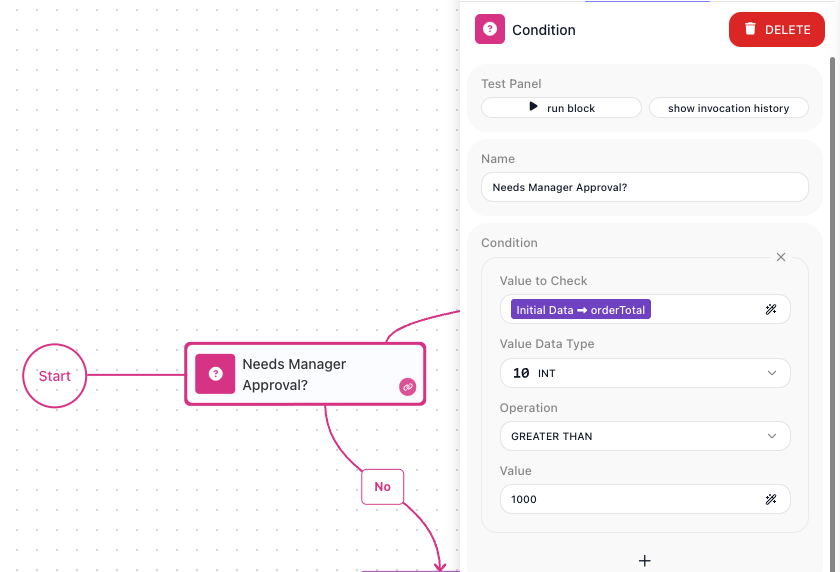
The question is about the order's total, so the check needs to point at that value. Select the block to open its settings: the Value to Check field is where the question begins, with an expression icon at its right edge.
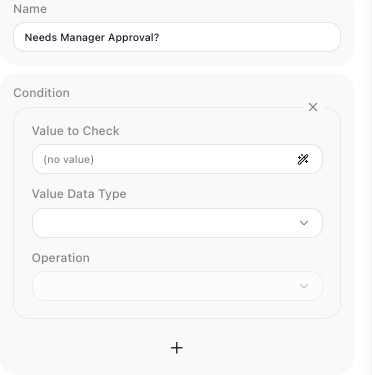
Click that icon to open the Expression Editor.
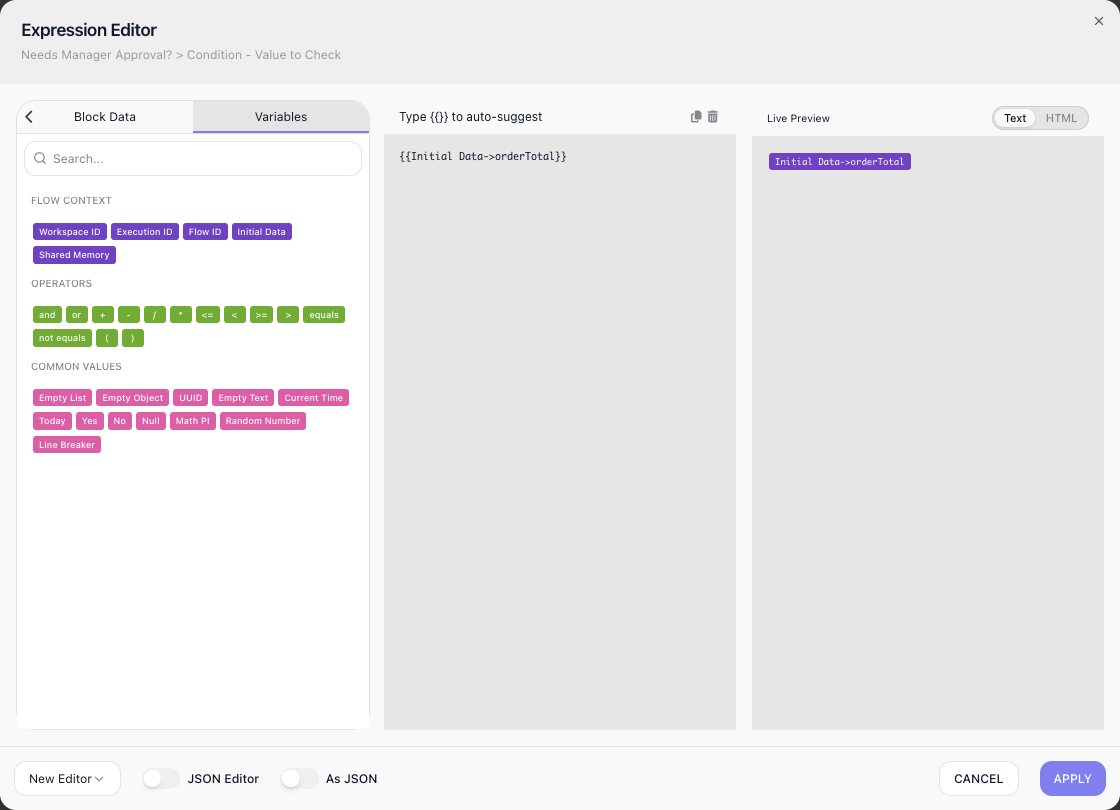
The order arrives as the run's Initial Data, so open the Variables tab of the
editor's palette and double-click Initial Data: the reference lands in the expression
with an arrow ready for a field name. Type orderTotal after the arrow and apply.
Set the data type and operation
The total is a number, and the check must compare it as one. A check has three settings, and one more that appears when the operation needs it:
- Value to Check - the value the question is about.
- Value Data Type - the value's type. The type decides which operations the check
offers:
STRINGoffersCONTAINS,INToffersGREATER THAN, and so on. - Operation - the comparison to run.
- Value - the value to compare against, for operations that take one.
For the order rule: INT, GREATER THAN, and 1000 in Value. A total with cents
would use DOUBLE instead. FlowRunner also compares the type you selected against the
type it detects in the data from your runs, and shows a small warning next to
Value Data Type when the two disagree. Most data types also offer an AI QUESTION
operation, which lets an AI model decide the branch. The
Condition reference lists every type's
operations.
Wire the Yes and No paths
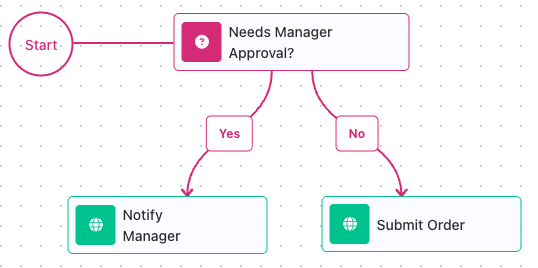
Order A-1042, at $1,480, needs the manager. Order A-1044, at $240, should go straight
through. Connect each exit to the step that handles its case. Here both are
HTTP Request blocks: Yes leads to
Notify Manager, which posts to the approvals service, and No leads to Submit Order,
which hands the order to the fulfillment system. A run takes exactly one of the two
paths. You can also leave an exit unconnected - a run that reaches it ends there.
Combine checks into one question
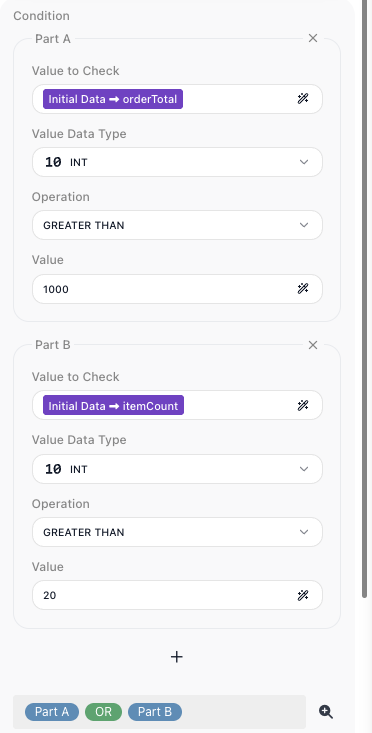
The manager also wants to see every large order, whatever its total. Click the +
under the check to add a second part: the order's itemCount field, INT,
GREATER THAN, 20. With two or more parts, the panel labels them Part A and
Part B, and a strip at the bottom shows the combined question. Parts join with AND;
click the AND between them to switch it to OR. The question now reads Part A OR
Part B, and order A-1043 - a $240 order of 25 items - reaches the manager too. A
question with more than two answers is a different job: route on a value with
Value Router instead, covered in
Routing on a Value.
Set evaluation order with parentheses
The manager narrows the rule: large orders only when they are also discounted. Add a
third part for the order's discountPercent field, INT, GREATER THAN, 15, and
set the strip to Part A OR Part B AND Part C.
That strip needs grouping. Left ungrouped, FlowRunner evaluates every AND before any
OR, so Part A OR Part B AND Part C runs as
Part A OR (Part B AND Part C), and order A-1042 reaches the manager on its
total alone. Group it the other way,
(Part A OR Part B) AND Part C, and the same $1,480 order skips the manager:
no discount turns the whole question false. Parentheses set which reading runs. To
place them, click the magnifier next to the strip to open the parts in a larger editor,
then click the parenthesis marks around the parts you want grouped. Clicking a placed
bracket removes it, and the editor flags the question until every bracket is matched.

Make a trigger fire only when a check passes
The same rule can also filter a trigger. A trigger with a condition fires only when
the check passes; otherwise it stays silent and no run starts. In a flow that receives
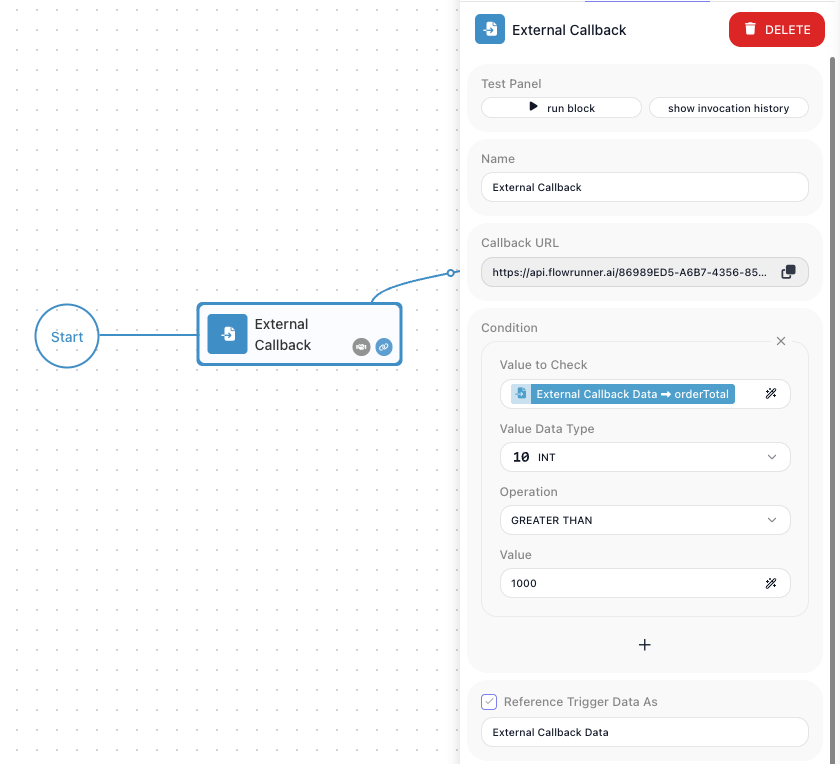
orders through an External Callback
trigger, click Add a Condition on the trigger and build the same card - with one
difference. A trigger's payload is its own data, not Initial Data, so the check points
at the trigger's reference, which lives on the Block Data tab of the editor:
External Callback Data, the orderTotal field, INT, GREATER THAN, 1000. An
order under $1,000 now never starts a run.