Flow Scheduling
Flow scheduling starts a run of a flow on its own, on a timetable you set, so it happens without anyone or anything kicking it off - a nightly cleanup, a poll every few minutes, a weekly report.
How it works
A schedule is a timetable attached to one version of a flow. You give it a start time, a frequency, and an end (or no end), and from then on FlowRunner™ starts a fresh run of that flow every time the timetable comes due. A scheduled run is a new Instance with its own data - the same kind of run a trigger firing or a Call Flow API call would start, only begun by the clock instead. So a schedule set to every five minutes produces a steady series of independent Instances, one per due time.
A schedule is part of the version's definition, and it produces runs only while that version is LIVE. Starting the version - the START FLOW control, or the equivalent API - turns it LIVE and the clock begins; the version's Pause and Stop controls take the whole version back offline, which halts every way it starts - trigger, Call Flow API, and schedule alike. So a schedule you have defined but never started - or have paused - just sits there: the timetable exists, but it produces no runs until the version is LIVE.
A schedule belongs to one version, and that has two consequences. Cloning a version copies its schedule along with everything else, so the clone starts life with the same timetable already set. And since a schedule produces runs only while its version is LIVE, starting a different version - which makes that one LIVE in its place - stops the old version's scheduled runs and lets the new version's schedule drive.
When to use it
Reach for a schedule whenever a flow should start itself on a timetable rather than waiting for a trigger, an API call, or a manual launch - a nightly cleanup job, a poll that checks a source every few minutes, a weekly report, a recurring batch of emails. The trade-off to weigh is control: a schedule starts runs on the clock whether or not there is anything to do, so for work that should start in response to an event (a record changed, a request came in) a trigger fits better. Pick a schedule when the timing itself is the thing that should drive the flow.
Setting up a schedule
The controls all sit in the flow editor's top toolbar, just right of the version dropdown. The clock icon opens Configure Flow Schedule, where you build the timetable; the play icon is START FLOW, which turns the version LIVE - once it is LIVE, the version's Pause and Stop controls appear in the same toolbar.

Say you have a flow that polls a source, and you want a fresh run to fire on its own every half-minute. In Configure Flow Schedule you set Start to the current date and time, Frequency to Every X seconds with Repeat every set to 30, and Expire left on Never so it keeps going. Each time the timetable comes due, FlowRunner starts a fresh Instance of the flow with its own data:
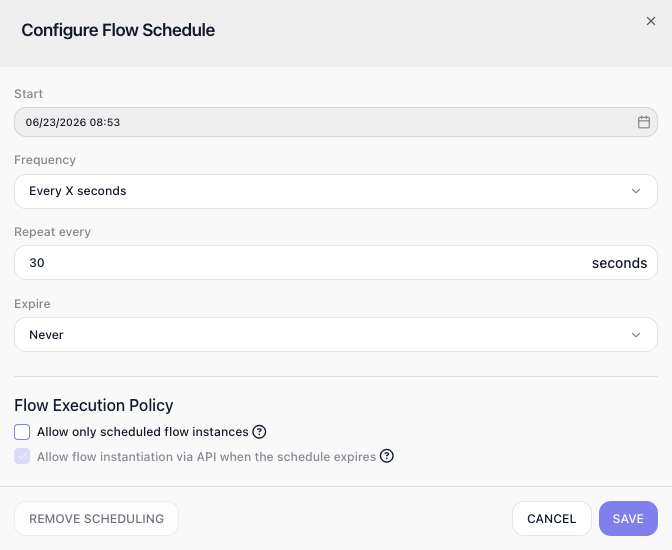
With that saved and the version started, a fresh Instance runs every 30 seconds, each one independent of the last. The definition you typed stays put no matter how many runs come and go.
Frequency is where you pick the cadence. It offers six shapes:
- Once - runs the flow a single time at Start and never again.
- Every X seconds - repeats every N seconds, set in Repeat every.
- Daily - repeats every N days, set in Repeat every.
- Weekly - repeats on the weekdays you choose in an On picker.
- Monthly - schedules by month and day-of-month or weekday.
- Cron - takes a full cron expression, for any cadence the others cannot express.
So a nightly cleanup goes on Daily, and a weekly report on Weekly.
The Flow Execution Policy
A schedule is not always the only way its flow can start. If the flow also has a trigger, or if something calls it through the Call Flow API, those create runs of their own alongside the scheduled ones. The Flow Execution Policy, a pair of options at the bottom of the Configure Flow Schedule popup, is where you decide whether the schedule shares that job or takes it over.
Allow only scheduled flow instances makes the schedule the sole way new runs start. With it on, a trigger no longer starts a fresh run on its own; if the flow begins with a trigger, its data is only accepted into a scheduled run that is already going. A Call Flow API call is turned away too, answering with "Flow can be called only by scheduler." Reach for it when the timetable is the only thing that should ever create a run, and nothing else should be able to slip one in.
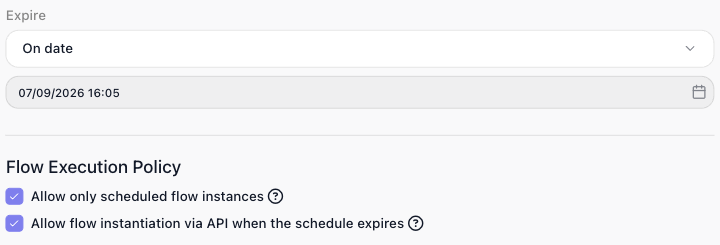
Allow flow instantiation via API when the schedule expires covers what happens after an Expire date passes, so it only applies to a schedule that has an end date - the checkbox stays greyed out until you set one. Once that date arrives the schedule stops producing runs, and normally the Call Flow API is shut out along with it; turn this on and a Call Flow API call can still start a run after the schedule has expired - a deliberate escape hatch for launching the flow by hand once its automatic timetable is done.
The two options act on different windows of time, so turning both on - as the screenshot does - is not the contradiction it first looks like. Allow only scheduled flow instances governs the schedule's active life: while the schedule is live, a Call Flow API call is refused. Allow flow instantiation via API when the schedule expires governs only the window after the Expire date has passed, re-opening the API once the schedule is done. So with both ticked, a Call Flow API call is turned away while the schedule is running and accepted once it has expired.
Starting and stopping scheduled runs from a flow
The version's Pause and Stop controls halt the schedule, but they are a blunter tool than that: they take the whole version offline, so a trigger and the Call Flow API stop starting runs right along with the schedule. To switch off just the schedule - leaving the version LIVE so triggers and API calls still work - and to do it from inside a flow rather than by hand, you use the Start Scheduled Runs and Stop Scheduled Runs blocks. Each one names a target flow and turns only that flow's schedule on or off, so one flow can drive another's schedule, or its own, in response to something that only becomes true while it runs.
They earn their keep when the schedule should be live only under a condition the clock cannot predict. Suppose a job kicks off a large export at your data warehouse, and a flow polls it every few minutes to see whether the file is ready. Polling on a timetable is a natural fit - but there is no point polling once the file has landed, and you cannot know in advance which minute that will be. So the flow that requests the export runs a Start Scheduled Runs block against the poller to begin checking, and the poller, on the run where it finally finds the file, runs a Stop Scheduled Runs block against itself and stops. The polling schedule is defined once; the blocks turn it on when there is something to poll for and off the moment there is not.
Things to watch for
- REMOVE SCHEDULING deletes the timetable outright, so there is nothing left to restart - you would have to set it up again. Halting the schedule is a different thing entirely: taking the version offline with Stop, or switching the schedule off with a Stop Scheduled Runs block, leaves the definition intact, so starting again picks it back up unchanged.