AI in Flows
A flow can already move data, branch on a value, and work through a list. Real work also brings steps no fixed rule can decide: what is this customer actually asking for, is this message a refund request, what should the reply say. In FlowRunner™, AI makes those judgment calls as a step of the flow. An AI step reads what earlier blocks hand it and produces a result the next block uses, like any other block. You choose how much of the job the model gets: a single value to reshape, a known task done by a ready-made action, one yes/no question, a routing decision, or the whole job handed to an agent.
Every AI step needs a model and your key
The AI blocks and operations on this page run on a model you choose, through your own provider account. An AI API key is the credential your provider account (OpenAI, Anthropic, Google, and others) gives you. Save it once: under Connections in the workspace sidebar, open API Keys and add the key to its provider. A saved key is called a setup. See API Keys for the walkthrough.
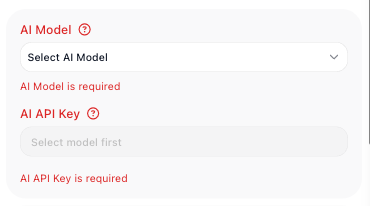
On the AI blocks and operations below the order is fixed: pick the model first. Until a model is chosen, the key field is disabled and reads "Select model first", as on this not-yet-configured step; once you pick the model, the field offers your saved setups.
Ready-made extension actions are the exception: each carries its provider connection on the action itself, set up through its Configure button.
Reshape a value by describing the change
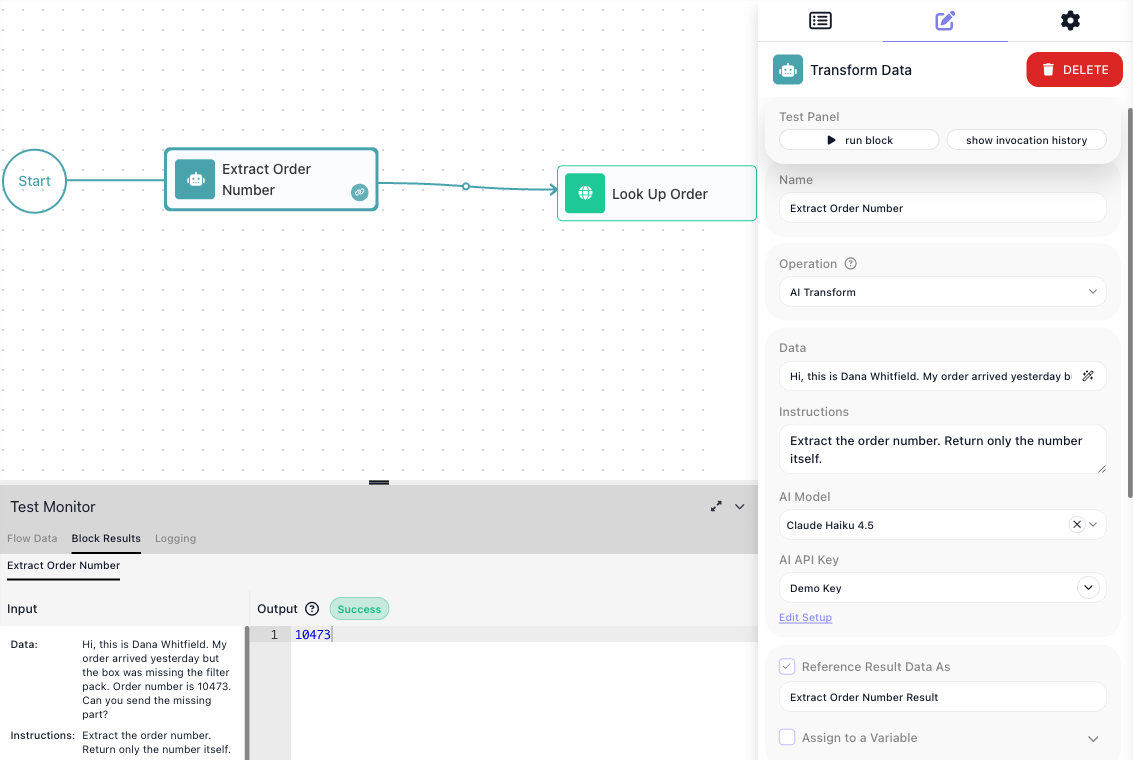
Sometimes the judgment call is small: pull one fact out of messy text, tag a message by tone, boil a long thread down to one line. Inside a Transform Data block, the AI Transform operation does this in place. You hand it a value in Data, describe the change in Instructions in plain language, and pick the model and key.
The flow below reads a customer email. An Extract Order Number block (Transform Data) runs the AI Transform operation with the instruction "Extract the order number. Return only the number itself.", and a Look Up Order block (HTTP Request) calls the order API with the number it produced: its URL is built in the Expression Editor and ends in the Extract Order Number Result pill. In the test run the block returned 10473.
Fields and options live in the AI Transform section of the Transform Data reference.
When the change is exact, code is cheaper
If the change can be specified precisely, a Custom Cloud Code block does it deterministically - a few lines of your own code, no model call to pay for, and the same result every run.
Drop in a ready-made AI action
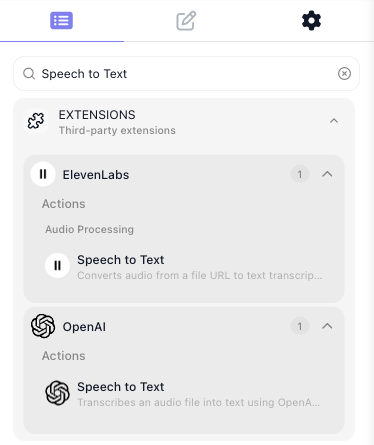
Not every AI job needs a prompt you write. When the job is a known task - transcribe a voicemail, generate an image, moderate an upload - the Extensions library ships a ready-made action for it, and you drop it in like any block. Search the block palette for the task; AI actions from providers such as OpenAI and ElevenLabs appear under Extensions.
Searching the palette for Speech to Text, for example, turns up the Google Cloud Speech-to-Text service and its ready-made transcription actions, such as Recognize.
The AI & LLMs category of the Marketplace lists the full catalog, and Custom & Marketplace Actions covers the other ways to add a capability no built-in block provides.
Ask a yes/no question no rule can answer
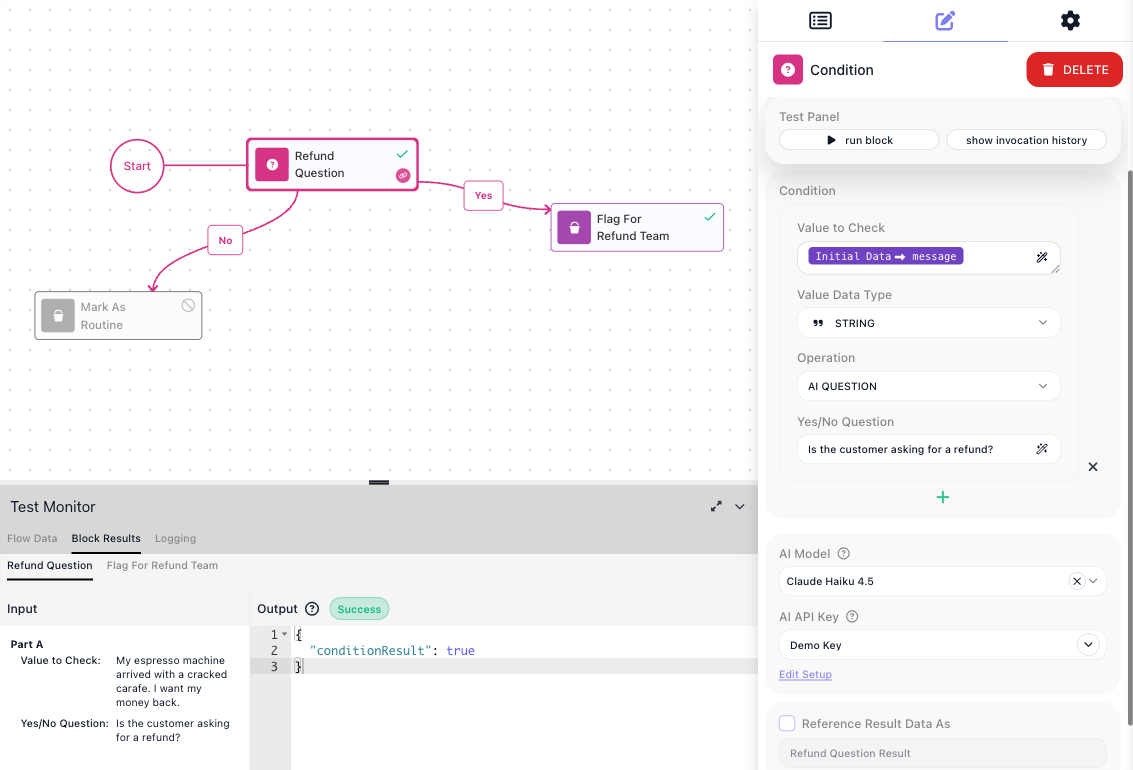
Some yes/no tests are judgment calls: is this message asking for a refund? For those, the Operation list of every data type in a Condition ends with AI QUESTION. You write the question in plain language in Yes/No Question and pick a model and key. The answer drives the same Yes and No exits as any comparison; Yes/No Branching covers building on them.
In the flow below, a Refund Question block (Condition) checks the customer message the run received as Initial Data. The question is "Is the customer asking for a refund?" - Yes leads to a Flag For Refund Team block, No to a Mark As Routine block.
The Condition reference covers the operation's fields.
Send the run down the branch an AI picks
When a message can go more than two ways, the AI Router block branches on meaning. It lives in the palette's AI group, together with the AI Agent. You name a branch for each outcome in Expected Decisions, say what to judge in AI Decision Request, and pass the material to judge as named Decision Data inputs. Each named branch is its own connector on the block, and the model picks exactly one per run. A branch named Everything Else is always present and cannot be removed - wire it, so a run that fits no named branch has somewhere to go.
The Ticket Router flow below routes a support message by topic. The Route By Topic block (AI Router) names Billing, Shipping, and Technical branches; in the test run the model judged "I was charged twice for order 10473, please fix my invoice." and chose Billing.
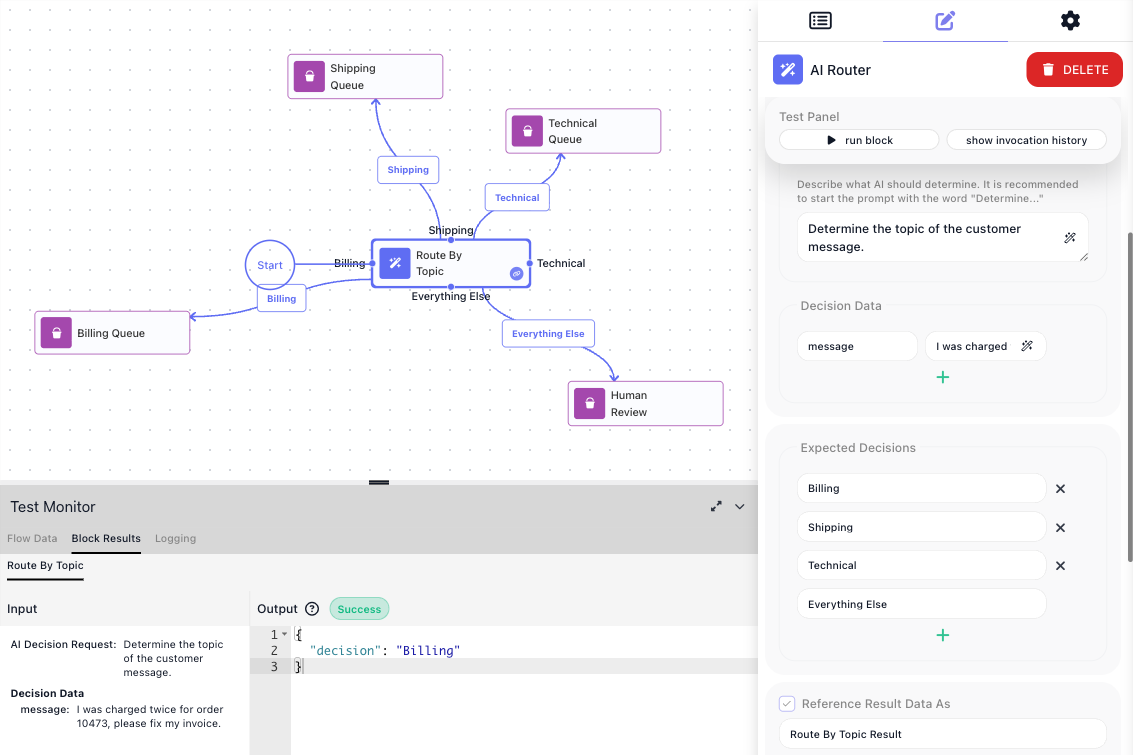
The router also stores the decision it made: a later block reads Route By Topic Result → decision in the Expression Editor to act on or record the chosen label.
Routing on a Value shows when a fixed-value router does the job instead; the AI Router reference covers the fields.
Hand the whole job to an agent
The steps above make one model call and hand back one answer. When the step has to decide what to do on its own - fetch knowledge, take an action, carry a conversation - reach for the AI Agent block.
You give the agent its instructions in System Prompt and User Prompt, and you grant it capabilities with Manage Capabilities:
- built-in extension actions
- your own flows
- Knowledge Bases
- the flow's Shared Memory
- a small set of utilities
With an MCP server registered in the workspace, its tools join the list. The agent decides which of its capabilities to use, and when.
When the agent should remember earlier runs, FlowRunner keeps the conversation record for you: turn on the Messages History toggle on the block. See Agent Memory.
The Draft Reply flow below gives an agent the customer message from Initial Data and one flow tool: it can run the workspace's Order Check flow when it needs the order's status before answering. A Send Reply block (HTTP Request) posts the finished reply to the helpdesk.
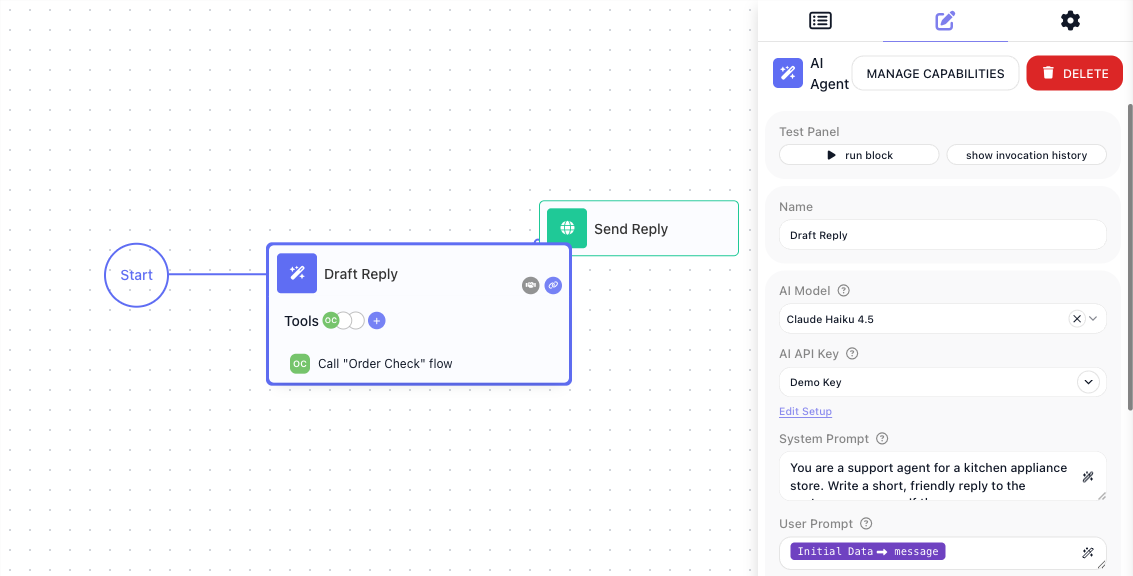
The reply arrives under the result's output property: the Send Reply block reads
Draft Reply Result → output in its Body, picked in the Expression Editor from the
properties the test run recorded.
Related
- Quick Start: An AI Agent - build and test your first agent step by step
- AI Agent - every field, the capability groups, and reading the reply
- Agent Memory - what an agent remembers between runs
- Flows as Agent Tools - your flows as the agent's tools, including waiting on a human
- Knowledge Bases - answers drawn from your own documents
- MCP Servers - an outside service's tools, for flows and agents