Reshaping Data
Data does not always arrive in the shape the next step wants. A service returns a whole order when you only
need the line items. A list of records has to become a list of email addresses. Three numbers have to
become one total. A timestamp has to go out as March 14, 2026. Turning what you have into what the next
step expects is the job of a Transform Data block.
Do you need one at all?
Reaching into data is not reshaping. If the value you want is already sitting in the data as it stands - one field of a result, one item of a list - point at it with an expression in the field that needs it and move on. No block required.
Reach for Transform Data when you cannot point at what you need, because it is not there in that form yet.
The data is there; the value is not. Three line items are there, the total of them is not. A timestamp is
there, March 14, 2026 is not. Transform Data is what derives the one from the other - filtering,
combining, totalling, sorting, or reformatting.
One block, one operation
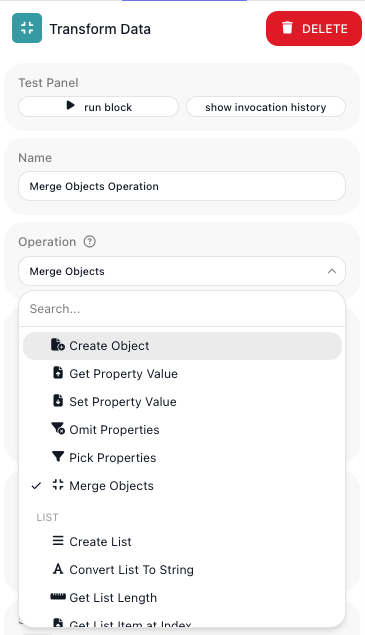
A Transform Data block takes a value in, runs a single Operation on it, and publishes the reshaped value as its result. The block is always the same; the operation is the verb.
Choosing the operation is the first decision, not the last. Each one then asks for its own inputs, and they differ: Get Property Value wants an object and a property name, Sort List wants only the list to sort, Replace wants the text, the string to find and the string to put in its place. Working out what to put in those fields - and pointing them at the right earlier results - can easily be more work than picking the operation was.
Because each block runs one operation, deriving a value in two moves takes two blocks - one to pull a list
of numbers out of a set of records, another to total them. That reads well when you name each block for
what it produces. A flow that reads Item Quantities then Total Items tells you what happened; two
blocks both named Transform Data do not.
Which operation for which job
There are dozens of operations. These are the ones that come up constantly, grouped by what you are trying to do:
- Pull one field out of every item - Map List turns a list of objects into a flat list of one property: line items into quantities, records into email addresses.
- Reduce numbers to one - Sum, Average, Max, and Min take a list of numbers and return a single value.
- Keep only the items that match - Find All Elements and Find All by Expression filter a list; Find First Element and Find First by Expression return the first match.
- Put a list in order - Sort List orders by a property you choose, Reverse List flips it, Distinct List drops duplicates, Slice List takes a range.
- Reshape an object - Pick Properties and Omit Properties trim it, Merge Objects combines two, Create Object builds one from scratch, Get Property Value reads a single field out.
- Fix dates and numbers - Format Date rewrites a date for display, Parse Date reads one in, Format Number and Parse String to Number convert between text and numbers.
- Choose a value without branching - If returns one of two values from a test, so you can drop the right wording into a message without splitting the flow into two paths.
The Transform Data reference documents every operation with its inputs and a worked example, including an end-to-end walkthrough of deriving an order's item total.
Related
- Transform Data - every operation, and the full worked example
- Passing Data Between Blocks - reading a reshaped result in the steps that follow
- Expression Editor - building the value you feed an operation
- Working Through a List - when each item needs steps of its own rather than one bulk operation