Call Flow (Blocking)
If a flow has a Return Result block, the blocking Call Flow
endpoint is how your code gets that result: one GET or POST request starts an instance of the flow and
waits; the value the Return Result block returns arrives as the response body. In one round trip the FlowRunner™ flow answers like any other API. When you only need the work
started, use Call Flow (Non-Blocking) instead. The examples on this page use a
flow named Order Lookup: it takes an orderId and answers with that id and the order's status (for the
example, always shipped), or with an error when no orderId came.
Endpoint (GET or POST)
https://api.flowrunner.ai/
            {workspace-id}/
            {api-key}/
            automation/flow/
            {flow}/
            activate-blocking?waitResponseTimeoutSeconds={time-in-sec}
| Placeholder | Value | Where it comes from |
|---|---|---|
{workspace-id} |
The workspace the flow belongs to | Workspace Settings ▸ General ▸ Credentials - see Workspace Settings |
{api-key} |
The workspace's API key | Same place |
{flow} |
The flow's id, or its name URL-encoded (Order%20Lookup) - either one works |
The id is the segment after /flow/ in the address bar while the flow is open. The name is in the breadcrumb at the top of the flow and in the flows list in the sidebar - see Flows. Names are unique within a workspace, so one name always means one flow. Both forms are case-sensitive. An id URL survives a rename; a name URL does not |
{time-in-sec} |
How long the call waits for the run to finish, in seconds. Optional - the default is 5 and the maximum is 300 |
You pick it - see How long the call waits |
What you send with the call becomes the run's Initial Data.
Flows without a Return Result. The Launch Flow Instance dialog writes the non-blocking URL, not
this one, so build this call by hand: take the Calling with GET or
Calling with POST example, put your flow's id or name in place of
Order%20Lookup, and drop orderId=1042 or replace it with what your flow reads. The answer is the
run envelope.
The flow has to be LIVE. The endpoint answers only while a version of the flow is LIVE - the state a
version enters when you start it (see Running Flows); otherwise
the call is refused with error 28053. The address carries no version, so it always runs whichever version
is live now: making a different version live changes what this URL executes, without changing the URL.
The URL is a credential. It embeds your workspace's id and API key, so anyone who has it can start runs
of this flow, read whatever the Return Result returns - the order data in this example - and spend your
workspace's execution allowance. Keep it server-side, out of client code and untrusted configs. If one does
get out you have two ways to close it, and they differ in blast radius. Regenerating the workspace's API key
kills every URL built on the old key at once - the leaked one included, which then answers 2027 - but it
also breaks every other call your systems make with that key, so they all have to be rebuilt with the new
one. Taking this version out of LIVE - Stop or Pause in the flow's toolbar - is the narrower move:
every copy of this flow's URL answers 28053 at once and nothing else is disturbed (see
Running Flows). Reach for the key when you do
not know how far the exposure goes, and for Stop when you do. The key belongs to the whole workspace, not to
this flow, which is why it is the blunter of the two: see
Workspace Settings.
You do not have to assemble the URL by hand - FlowRunner writes it for you.
Calling with GET
Copy, fill in the two credential placeholders, and run - the flow's values travel in the query string.
For your own flow, put its id or name in place of Order%20Lookup and its values in place of orderId=1042:
curl "https://api.flowrunner.ai/{workspace-id}/{api-key}/automation/flow/Order%20Lookup/activate-blocking?waitResponseTimeoutSeconds=30&orderId=1042"
You do not have to set any headers on a GET. Every query parameter except waitResponseTimeoutSeconds becomes one value in the
run's Initial Data, under its own name. Encode your values as in any query string - send a space as %20 - and the flow receives the decoded
value. Query values arrive as text: orderId=1042 reaches the flow as "1042". When the flow needs real numbers,
booleans, or structured values (objects, lists), call with POST instead. Any fetch of this URL starts
a real run - a HEAD request included, which is how link previews, prefetchers and uptime monitors
usually touch a URL - so if it ever has to appear in a
document or a chat, paste it as plain text, never as a clickable link.
Calling with POST
Copy, fill in the two credential placeholders, and run - the flow's values travel in a JSON body. For your
own flow, put its id or name in place of Order%20Lookup and its own properties in place of orderId:
curl --request POST \
  --url "https://api.flowrunner.ai/{workspace-id}/{api-key}/automation/flow/Order%20Lookup/activate-blocking?waitResponseTimeoutSeconds=30" \
  --header "Content-Type: application/json" \
  --data '{
    "orderId": 1042
  }'
A POST body is a JSON object, sent with Content-Type: application/json (a charset parameter is
fine; any other media type is refused with HTTP 415). Each top-level property becomes one value in the run's
Initial Data, with its JSON type kept: {"orderId": 1042} reaches the flow as the number 1042.
When a POST carries both a body and query parameters, FlowRunner merges the query parameters into the
body object. Two rules follow from that, and both are refusals rather than silent surprises: a key sent
both ways is refused with 28064, and a body that is valid JSON but not an object - an array, a bare
string - is refused with 28064 too, because there is no object to merge into. A non-object body on its
own, with no query parameters, is still accepted: the run starts with nothing for Initial Data to pick up
by name. waitResponseTimeoutSeconds is read from the query string only: sent as a
body property it does not set the wait: the call falls back to the five-second default, and the property
lands in Initial Data like any other. Put it in the query string. The URL is the
same one a GET answers, so any fetch of it - a link preview, a browser prefetch, an uptime monitor - starts
a real run; if it ever has to appear in a document or a chat, paste it as plain text, never as a
clickable link. An empty object,
no body at all, and a body that is valid JSON but not an object (an array, a bare string) are all accepted:
the run starts, with nothing for Initial Data to pick up by name.
Response
What comes back depends on how many Return Result blocks the run reached. The response is sent when the run finishes, not when a Return Result produces its answer: that block ends the path it sits on, but other branches keep working and the caller waits for all of them. So the five-second default covers the whole run, not just the time to the answer.
One Return Result: the body is its value
This is the usual case. It also covers a Return Result on each branch of a
Condition, since a run takes one branch. The body is the value that
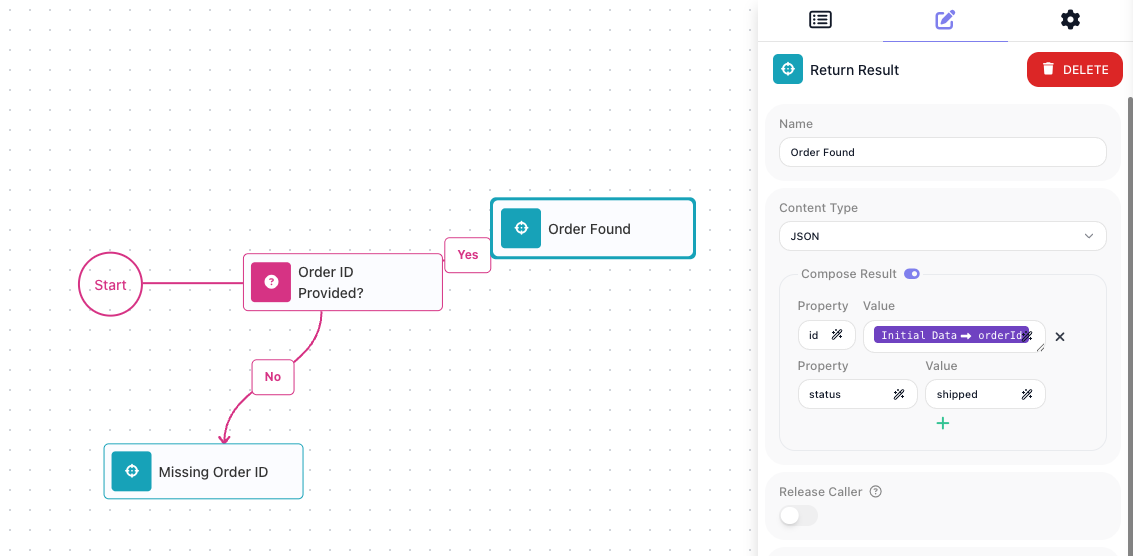
block composed, in the Content Type set on the block. Order Lookup checks that an orderId
arrived and then ends in one of its two Return Results. Order Found composes id from
Initial Data → orderId - the value the caller sent - and status as shipped. Missing Order ID answers
when no orderId came. The screenshot below shows Order Found selected on the canvas, with its panel: the
Content Type, the two Compose Result rows, and the Release Caller toggle, off here (see
Release Caller answers early).
A caller that posts {"orderId": 1042} receives:
The same call with GET returns "id": "1042", because query values arrive as text. When a caller posts
{}, the run takes the No branch and the caller receives Missing Order ID's value, {"error": "orderId is required"}. Both
answers are HTTP 200: a Return Result sets the body and its content type, not the HTTP status, so the caller
reads success or failure from the body.
The Content Type sets the response format
A caller that expects XML or plain text gets it from the same block: the Content Type on the Return Result decides how the value is sent.
- JSON - the composed object, as
application/json. Switch Compose Result off and the rows collapse to one field, with the toggle now sitting beside the label Result - that is where you switch it back on. The body is then that one value as a JSON string, including when what you put there is itself an object, which comes back escaped rather than as an object. - XML - the block has only the Result field; the body is that value, as
application/xml. - Plain Text - the same, as
text/plain.
Under XML and Plain Text the value does not arrive raw: the body is a JSON string holding it, quotes
included - "<error>orderId is required</error>". Parse that string as JSON to recover the markup or the
text. Trimming the quotes is not enough, because any quote inside the value is escaped too: an XML result
<order id="1042">shipped</order> arrives as "<order id=\"1042\">shipped</order>". This is a known
issue rather than the intended contract, so treat the decode as something you may be able to drop later.
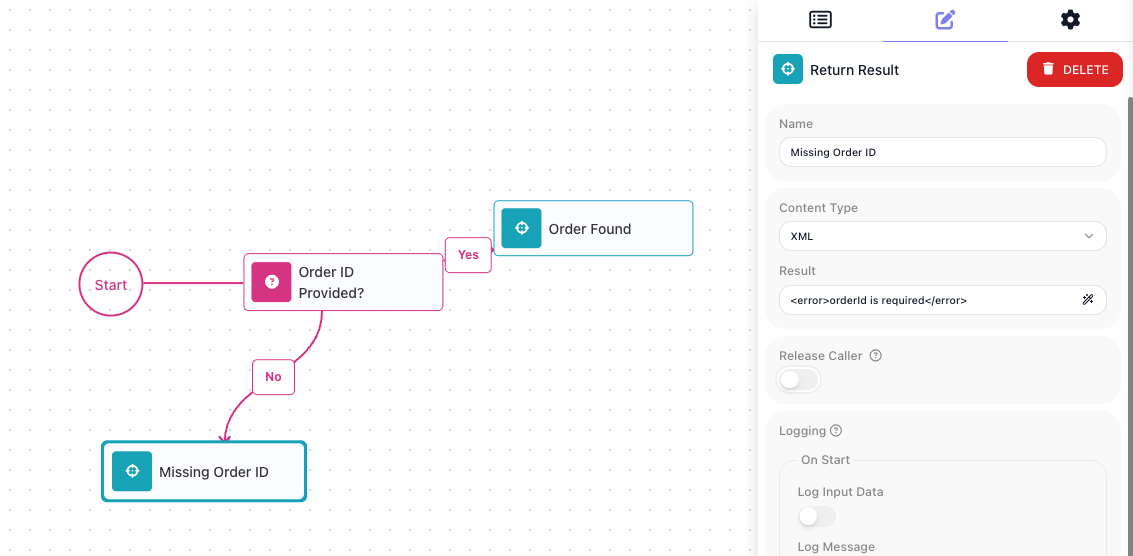
Switching Missing Order ID to XML replaces the Compose Result toggle and its rows with a single
Result field. The screenshot below shows it holding <error>orderId is required</error> - what a caller
on the No branch then receives, quotes and all.
Switched back to JSON, the block composes error with the value orderId is required - the body shown
earlier, and what the rest of this page assumes.
No answer, or more than one: the run envelope
When a run composes no answer, or more than one - a run that reaches no Return Result, or one whose
parallel branches each end in one - the caller receives an envelope describing the run instead. To show one,
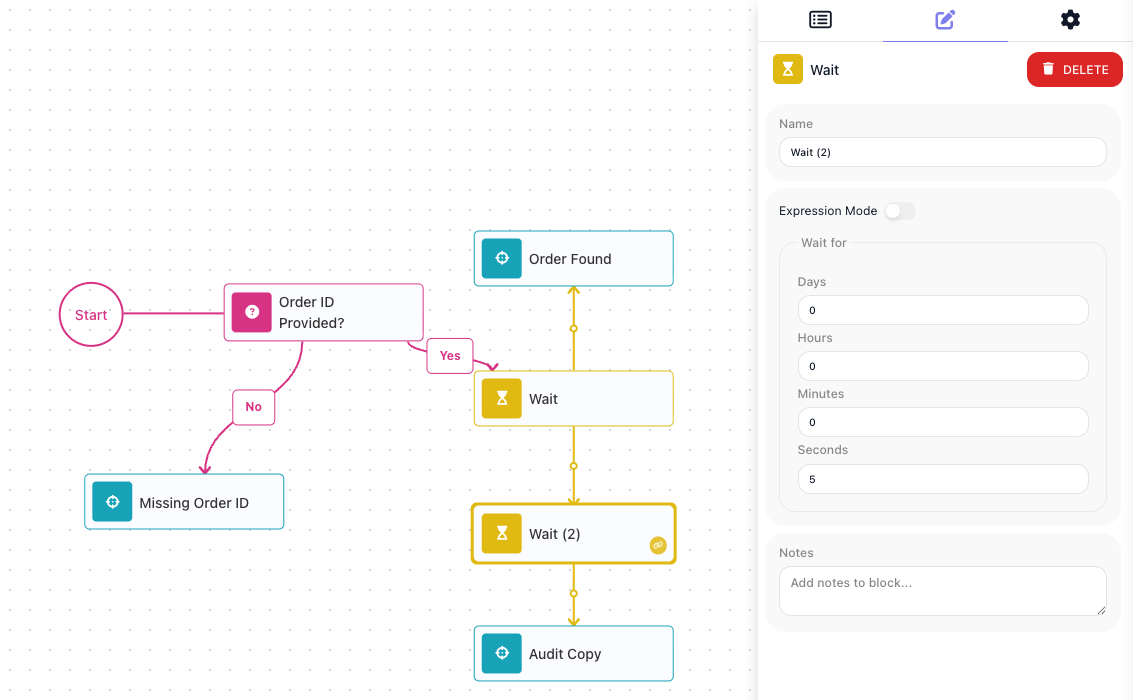
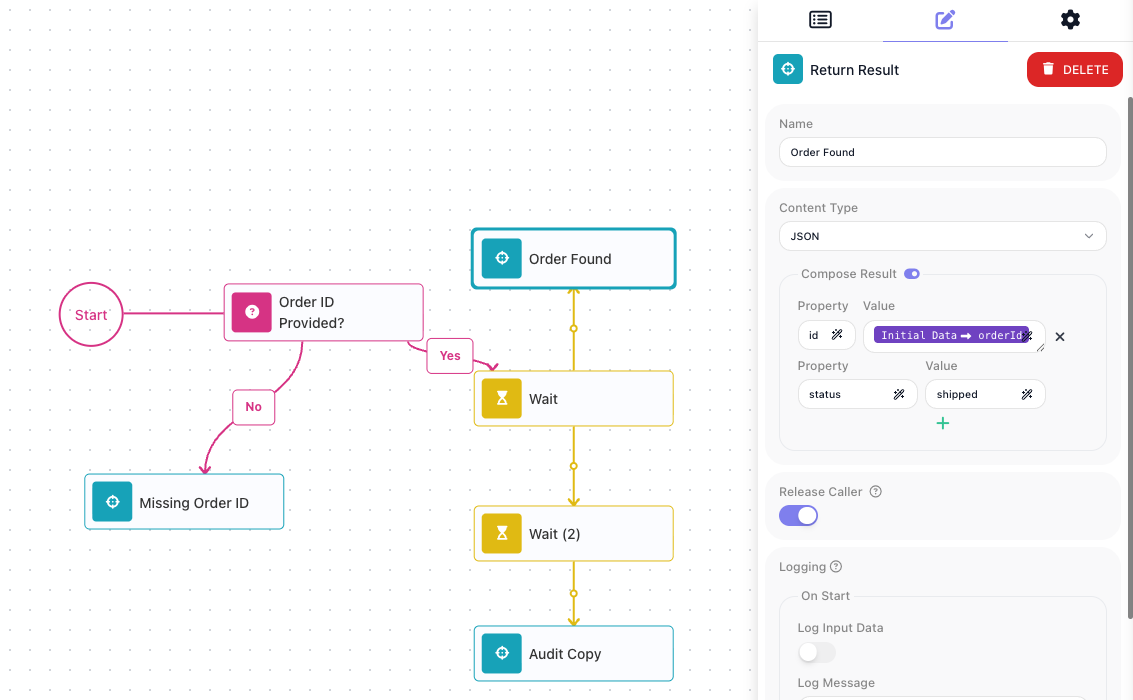
Order Lookup gets a second branch: after the Yes exit, one branch answers with Order Found
as before while a second, slower branch ends in a Return Result named Audit Copy that composes an event
and the same id. The two Wait blocks only space the branches out: the
first delays the split by three seconds, and Wait (2) adds five more before Audit Copy, so Order Found is
reached at about three seconds and Audit Copy at about eight. The screenshot below shows the arrangement, with Wait (2) selected; the first Wait, not selected here, is
set to three seconds:
A run with orderId reached both, and the caller received:
{
  "executionId": "5AE81D70-6BF9-4C22-BD42-96B4E27686D7",
  "status": "COMPLETED",
  "result": {
    "blockName": "Audit Copy",
    "contentType": "application/json",
    "data": {
      "id": 1042,
      "event": "order looked up"
    }
  },
  "results": [
    {
      "blockName": "Audit Copy",
      "contentType": "application/json",
      "data": {
        "id": 1042,
        "event": "order looked up"
      }
    },
    {
      "blockName": "Order Found",
      "contentType": "application/json",
      "data": {
        "id": 1042,
        "status": "shipped"
      }
    }
  ],
  "apiCallerReleased": false
}
| Property | Meaning |
|---|---|
executionId |
The run that was started |
status |
The run's final state: COMPLETED when it finished, TERMINATED when a block failed or someone stopped the run from the Instances tab. This call answers only after the run is over, so these are the two states it reports |
result |
One of the results the run produced - the block's name, its content type, and the composed value under data - or null when it produced none. Which one it holds is not predictable when a run produced more than one (here it holds Audit Copy, the block reached second), so do not build on it - find the entry in results whose blockName is the block you want. Switching Release Caller on for any Return Result removes the envelope from that call, so a client written to results stops seeing one |
results |
Every result the run produced, each in the same shape. The order is not guaranteed - Audit Copy was reached second here yet is listed first - so read the one you want by its blockName. That value is the block's Name field: a second unnamed Return Result comes out as Return Result (2), so give yours real names - and remember that renaming one later changes what your client has to look for |
apiCallerReleased |
Whether the caller was released early by Release Caller. A released caller gets that block's value instead of the envelope, so any envelope you receive says false |
terminationError |
Present only when status is TERMINATED. A block failure fills in the failing block's blockName, an errorCode (that block's own error, not one of the call errors in Errors), and a message; a run stopped by hand carries only message: Instance was stopped by user. Read message and treat the other two as optional |
Your flow has no Return Result. A run that reaches none gets the same envelope, with result null
and results empty - so this endpoint is how you wait for such a run and learn whether it finished or
failed. Building that call is covered under Endpoint.
Telling the envelope from a composed value. On an HTTP 200, a composed value is whatever the flow's
author put in it - Order Found's has a status of its own - so a client that may receive either shape tests
for executionId:
it is present on every envelope and absent from a composed value unless you put one there, so do not compose
a property of that name. A composed value carries no run id, so if your client has to tie a call to its
run, find the run on the flow's Instances tab by its start time, or start it with the
non-blocking call, which returns one.
The envelope itself always arrives as application/json, whatever the blocks' Content Type is - an XML
Return Result inside an envelope keeps its own contentType on its entry, with the markup as a string under
data. So for an XML or Plain Text flow the response's Content-Type header alone separates the two shapes,
while the executionId test covers the JSON-against-JSON case. A response that is not HTTP 200 is never a
flow's answer at all: an HTTP 400 carries a code and a message (see Errors), and a wrong media
type or method is refused with application/problem+json, which carries title and detail instead.
When a run fails
A run that fails before reaching any Return Result is still HTTP 200; the body is the envelope with status
TERMINATED and a terminationError. Order Lookup has no step that can fail, so this envelope comes from
another flow, Retry Demo, whose only block, an
HTTP Request, was answered with a 503:
{
  "executionId": "27614B25-48EC-46CB-9928-F2C2D785AF23",
  "status": "TERMINATED",
  "result": null,
  "results": [],
  "apiCallerReleased": false,
  "terminationError": {
    "blockName": "HTTP Request",
    "errorCode": 28105,
    "message": "Error occurred while executing 'HTTP Request' block. Block execution failed with an error:\n\n{\n  \"status\" : 503\n}"
  }
}
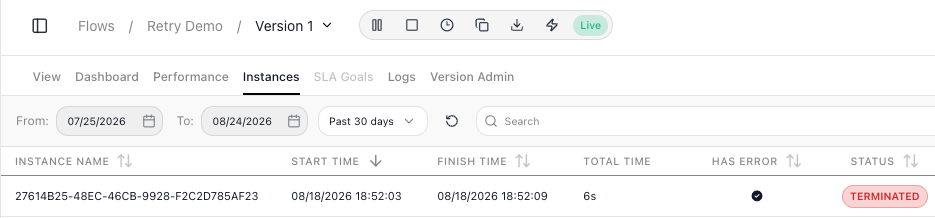
That run appears on Retry Demo's Instances tab with a filled Has Error mark and a TERMINATED badge - the same instance id the envelope above carries:
A result already sent wins. On Order Lookup without the Audit Copy branch - one Return Result on the
path - a step that fails alongside Order Found does not take the answer away: the caller still receives
{"id": 1042, "status": "shipped"} while the run itself terminates. Driven with an HTTP Request to an
address that does not resolve. The envelope above appears only when no Return Result was reached first, and a run whose
caller already has an answer still shows as TERMINATED in the list.
Release Caller answers early
Answer the caller as soon as the result exists, and let the run finish the work the caller does not wait
on - writing an audit record, notifying a downstream system, sending a confirmation. That is what
Release Caller is for. A Return Result with the toggle on answers a waiting caller the moment the run
reaches it: the body is that block's composed value, and the run carries on with whatever else it has to
do.
In the parallel arrangement above, switching it on for Order Found gave the caller Order Found's value after
the three-second Wait ({"id": 1042, "status": "shipped"}, HTTP 200), while the run went on to reach Audit
Copy five seconds later; with it off, the caller waited for the whole run - Audit Copy at about eight
seconds - and received the envelope. What follows from that:
- The caller receives only that block's value, never the envelope - even when the run had already reached a different Return Result before the one carrying the toggle.
- Return Results the run reaches after the release never reach that caller.
- A run that never reaches the block (Order Lookup's No branch) answers as if the toggle were off.
- With the toggle on more than one Return Result, whichever block the run reaches first answers the caller, and the others change nothing for that call. On branches that start together, which one gets there first is not predictable - two calls to the same flow can return different branches' values.
The toggle sits below Compose Result in the block's panel; here it is switched on for Order Found, with the branch still in place:
How long the call waits
Set waitResponseTimeoutSeconds on every call: the default is 5 seconds and the maximum is 300. Your own
HTTP client's timeout has to be longer than the value you send, or it gives up before the answer arrives. A
run that calls a model, waits, or loops past its answer needs more than the default. Pick a value a little above the run's normal end-to-end time - the flow's
Instances tab shows each run's Total Time (see Running Flows). A larger one is not free: every waiting call holds a connection open, and a
workspace has a ceiling on how many requests it can have in flight (error 998, see Errors), so
do not send 300 everywhere. The dialog writes 300, the maximum, so a copied URL waits as long as this
endpoint allows while you are testing; the examples here send 30.
When the wait expires. If the run is still going, the call returns HTTP 400 with error 28118. What
that means for you:
- The run is not cancelled; it finishes on its own.
- No
executionIdcomes back. Find the run on the flow's Instances tab by its start time (see Running Flows); if you will need the id, start the run with the non-blocking call instead. - The answer never reaches your code. If the run composes a Return Result value after the wait expires, no call returns it to you. You can still see it: open the run from the flow's Instances tab and read the Return Result block's Output (see Inspecting a Run).
- When the answer is known well before the run ends, switch Release Caller on for that Return Result: the call returns the moment the run reaches the block, instead of waiting for the rest of the run. The timeout still applies - it has to be long enough to cover the work up to that block.
- Do not retry a timed-out call: the run is already going, and a retry starts a second run with the same data. Turn off any automatic retry-on-timeout in your HTTP client.
Runs longer than the maximum wait. The Release Caller remedy above covers a run that keeps working after its answer. If even the answer takes longer than 300 seconds, or the run pauses at an External Callback, start the run with the non-blocking call and let the flow deliver its answer itself.
Errors
Most errors come back as HTTP 400 with a JSON code, a message, and a details object that is empty on
every refusal in the table below - read the code; a wrong media type or
method is refused at the HTTP level (415 / 405) with no code. This is what an identifier with no LIVE
version behind it returns - here Order Lookup while its version was paused; the message echoes what you
sent:
{
  "code": 28053,
  "details": {},
  "message": "Flow with ID or name 'Order Lookup' and status 'LIVE' is not found."
}
The id and the name are interchangeable here, and a wrong one of either kind returns this same refusal.
| Code | What it means | What to do |
|---|---|---|
28053 |
No LIVE flow with that id or name | Check the identifier is spelled and cased exactly as FlowRunner shows it - a name also has to be URL-encoded (Order%20Lookup), and a + is not read as a space - and that a version is LIVE. A paused version (On hold) answers this too, so put it back with Resume flow in the flow's toolbar (see Running Flows). Renaming the flow breaks a name URL - the old name answers 28053 - but leaves an id URL working |
2027 |
The API key is not this workspace's key | Re-copy the API Key from Workspace Settings ▸ General ▸ Credentials. Regenerating the key invalidates every URL built on the old one |
9000 |
No workspace with that id | Re-copy the Workspace ID from Workspace Settings ▸ General ▸ Credentials |
28064 |
Query parameters could not be merged into the body (the same key was sent both ways, or the body is valid JSON but not an object), or waitResponseTimeoutSeconds is above 300 |
Read the message - it names the duplicated key, says the body is not an object, or names the rejected timeout. Send each value once, make the body an object whenever you also send query parameters, and keep the timeout at 300 or below |
28118 |
The run did not finish within waitResponseTimeoutSeconds |
The run is still going - do not re-send the call (see How long the call waits). For the next call, raise the timeout (up to 300), or use the non-blocking call and let the flow deliver its answer |
28045 |
The flow can be called only by its schedule | Turn off Allow only scheduled flow instances in the Flow Execution Policy checkboxes of the Configure Flow Schedule popup - see Flow Scheduling, which pictures it |
| HTTP 415 | A POST body sent without Content-Type: application/json |
Send that header |
| HTTP 500 | The POST body was not valid JSON |
Check that the body parses - a trailing comma or an unquoted key is the usual cause - and send it again |
| HTTP 405 | PUT and DELETE are refused |
Use GET or POST. HEAD is not refused - it is answered like GET and starts a run |
Rate and plan limits. The platform also enforces call-rate and plan limits, answering with one of these codes:
| Code | What it means |
|---|---|
999 / 997 / 995 |
A request-rate limit was exceeded - back off |
998 |
Too many requests are in flight at once - back off |
28083 |
The workspace's monthly execution allowance is exhausted - wait for the month to reset, or raise the plan (see Billing) |
28087 / 28132 |
Too many runs are executing at once / the execution maximum is reached - retry once some finish |
28086 |
The maximum number of active flows has been exceeded - stop a LIVE flow you no longer need, or raise the plan |
Let FlowRunner write the call for you
Open the flow and click Run Instance in the toolbar at the top of the flow - the last icon in the row.
Its own note says the URL is only available for flows with LIVE status, but it writes the URL on a paused
(On hold) version too - and that URL answers 28053 until the version is running again. The same toolbar shows Start flow while the version is Ready and
Resume flow while it is On hold (see
Running Flows). The screenshot below shows the toolbar of a LIVE
flow with the tooltip open.

Run Instance opens the Launch Flow Instance dialog. For a flow that contains a Return Result block it writes this
page's URL, built on the flow's name with waitResponseTimeoutSeconds=300 already appended - the maximum,
which suits testing; lower it to a little above your flow's normal run time before you ship the call (see
How long the call waits) - on two tabs -
GET URL and cURL - each with a Copy button. (A flow without a Return Result gets the
non-blocking URL instead.) The same dialog
also starts a run by hand: LAUNCH starts a run of the flow with the form's values, and
Previous Instance lists earlier runs by start time and execution id and refills the form with that
run's values - both are covered in
Testing.
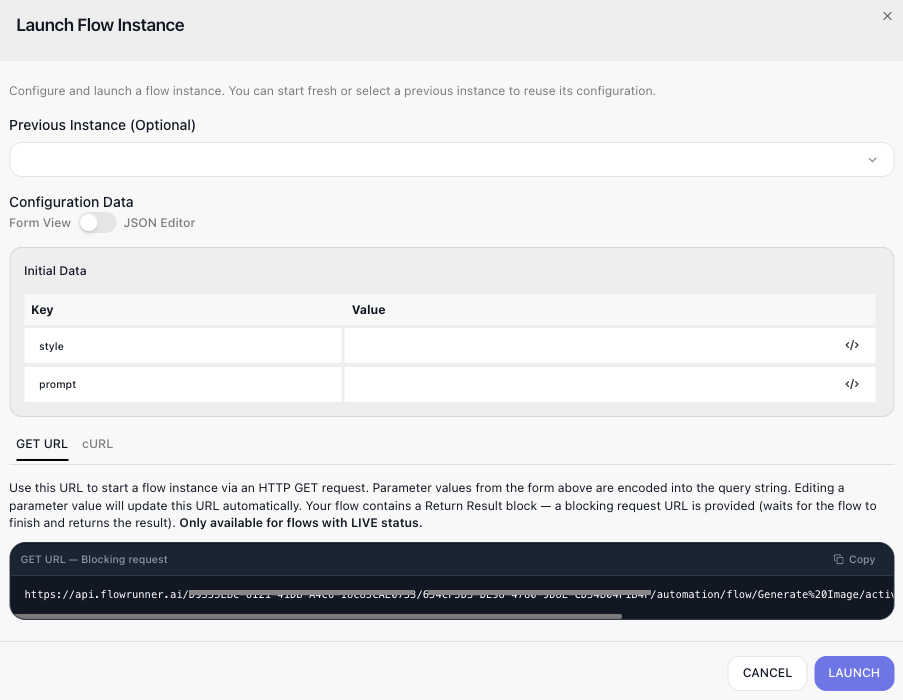
When FlowRunner detects Initial Data the flow reads, the dialog shows a form for those values first and
encodes whatever you type into the URL or the request body. The screenshot below shows the dialog for Order
Lookup: the Initial Data form already lists orderId, the value 1042 has been typed in, and the GET URL tab holds the call with the value in its query string. The dialog fills in your workspace's real
credentials (blanked to YOUR_WORKSPACE_ID / YOUR_API_KEY in these screenshots). The URL you copy is
therefore complete and live: fetching it, accidental fetches included, starts a real run.
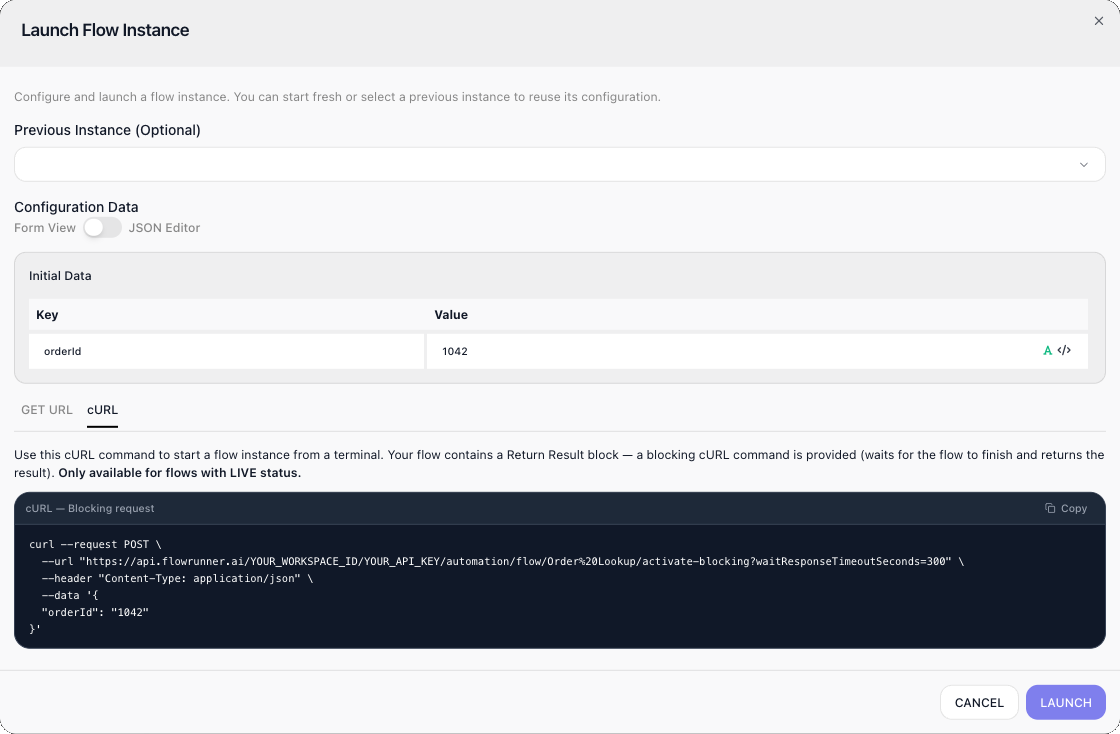
The cURL tab, and values as strings or numbers. The cURL tab writes the same call as a POST: the
endpoint, the Content-Type: application/json header, and the form's values as the JSON body. These
controls decide what lands in it:
- The green A icon on each value row (tooltip: Use data as string if selected (green)) is on by default,
so the body below carries
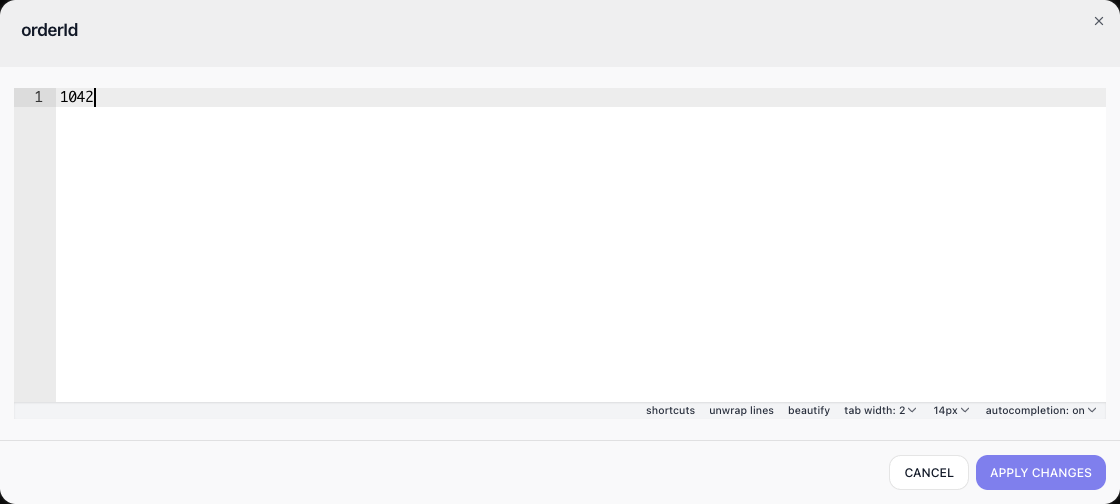
"1042"in quotes; switch it off and the body carries the number1042(see Calling with POST for why that matters). Leave it on and the dialog's cURL sends the same string values aGETwould, so Order Lookup answers{"id": "1042"}; switch it off for any value your flow needs as a number, boolean, or object. - The code icon beside it (tooltip: JSON Editor) opens an editor for that one value - useful when the value is itself an object or a list - switch the green A icon off for that row first, or the object is sent as an escaped string. APPLY CHANGES writes what you typed back into the Value cell, the GET URL and the cURL body.
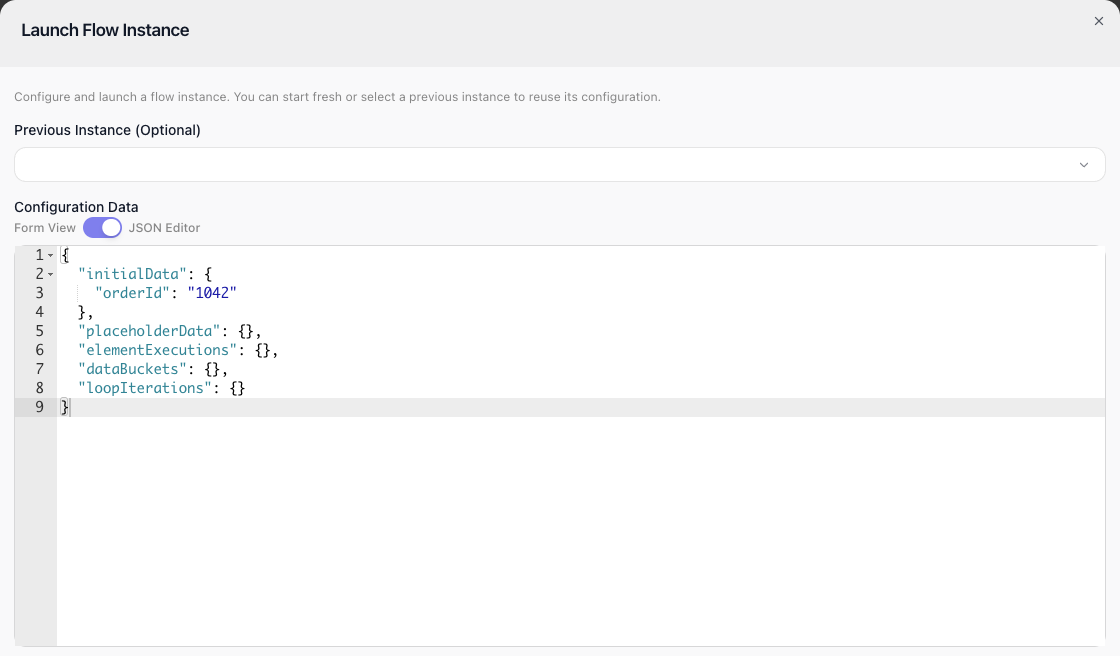
- The JSON Editor toggle above the form changes nothing in the body: it shows the same values as raw
JSON under
initialData, and the cURL body is unchanged - theinitialDatawrapper is the dialog's own display format, not the request body. Send the flat object; a body wrapped ininitialDataarrives as a single property of that name.
Here is the cURL tab itself, with the green A icon on - its default - so the body carries "1042" in
quotes:
The per-value editor opens on that row's value - here 1042 on line 1, under the orderId title:
The same value under the JSON Editor toggle:
Related
- Call Flow (Non-Blocking) - starting a run without waiting for it
- Activating an External Callback - letting a specific waiting run continue
- Return Result - the block's fields: Content Type, Compose Result, Release Caller
- Returning a Result - when to answer a caller, and with what
- Workspace Settings - where the Workspace ID and API Key live
- Call Flow - the block that does the same job from inside another flow