Notifications
A live flow runs without you watching it, so FlowRunner™ tells you when something happened that you would want to know about - a run that terminated, a payment that failed, a limit you are close to. Those messages collect in the notification panel, and this page is about reading them and keeping the list under control.
Opening the panel
The bell in the top-right of the console opens the panel down the right-hand side. The number beside the bell is how many messages are waiting, so you can tell at a glance whether anything arrived without opening anything.
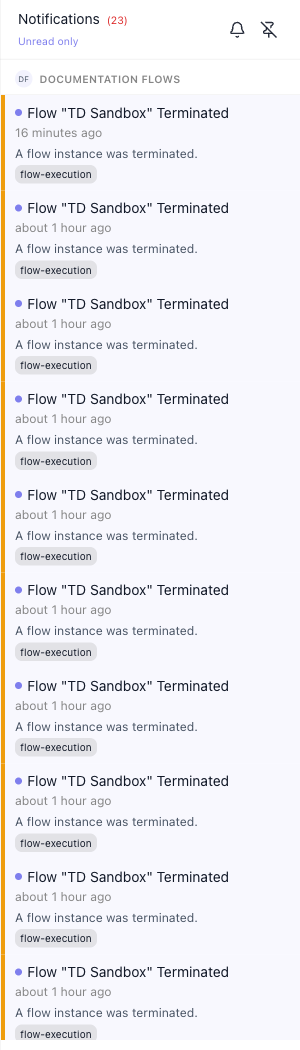
Clicking anywhere outside the panel closes it again. The second icon in its header pins it open instead, so it survives moving between screens - useful while you are watching a flow you have just started, and the reason the panel is sometimes already open when you arrive.
What a notification tells you
Every entry carries the same four things, and each earns its place:
- The title - what happened, naming the flow it happened to, so a glance down the column is enough to spot the one that matters.
- When it arrived, written as time elapsed ("about 1 hour ago") rather than a timestamp.
- A line of detail under the title.
- A source chip - the part of the platform the message came from, such as
flow-execution. This is what separates "a run of mine ended badly" from "something about the account needs attention", and it is the fastest way to skim a long list for one kind of message.
A dot at the start of a row marks it as one you have not read yet.
Notifications from more than one workspace
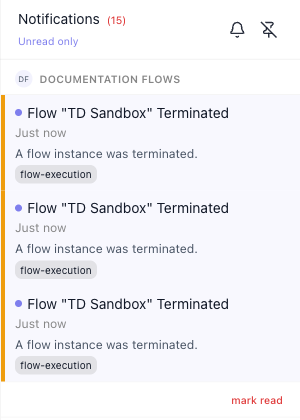
The panel is per person, not per workspace, so it carries messages from every workspace you belong to. They are grouped under a workspace heading, and the groups are what you scan first: a message under a workspace you are not working in today is still yours to see, and still in its own group rather than mixed into the flow you are looking at.
Keeping the list short
Two controls sit in the panel header:
- The link under the title switches which messages are listed. It reads Unread only while you are seeing everything, and All notifications once you have narrowed it - each time, the label names the view you would move to.
- Mark read at the end of a workspace's group clears that workspace's unread messages out of the list in one go, rather than making you work down them one at a time.
Related
- Inspecting a Single Run - opening the run behind a flow-execution message
- Monitoring & Analytics - the health views a notification sends you to check
- Billing - the execution-limit warnings that arrive here