Write It Yourself
This walkthrough builds a working custom extension end to end, by hand. You will write an action that fetches a movie from The Movie Database, deploy it to your workspace, fill in its API key, and place it in a flow. It takes about fifteen minutes, and the TMDB extension you build here is the one every later page adds to.
Writing the module yourself is one of two ways to build an extension. If you would rather describe the service and review what comes back, see Let AI Build It - it produces the same kind of module, in the same project, deployed with the same command.
What you need
- Node.js and npm. Node 18.20 or newer, which is what the test harness the CLI installs requires.
- A FlowRunner™ workspace you can sign in to. The extension is deployed to one workspace, and you need access to it.
- A TMDB API key, if you want to run the example against the real service. It is free: create an account at themoviedb.org, then Settings ▸ API, and copy the v3 key.
Create the project
A custom extension lives in your own repository, not in FlowRunner. Create one with npx, which is the only
time you need it - init installs the CLI into the project it creates:
It writes the project files, installs dependencies, and makes a git repository with a first commit:
Project directory:

  /Users/you/my-extensions
  a new directory

  + package.json
  + .gitignore
  + flowrunner.json
  + README.md
  + jest.config.js
  + jest.setup.js
  + sandbox/index.js
  + sandbox/service.js
  + sandbox/nock-mock.js
  + sandbox/files-mock.js

  Server: https://app.flowrunner.ai
flowrunner.json records which server the project points at. sandbox/ is the local test harness, and
.gitignore already excludes the deploy token you are about to create.
Connect the project to your workspace
The CLI starts a small server on a local port, opens your browser, and waits. On the page that opens, pick the workspace this project will deploy to and choose Authorize.
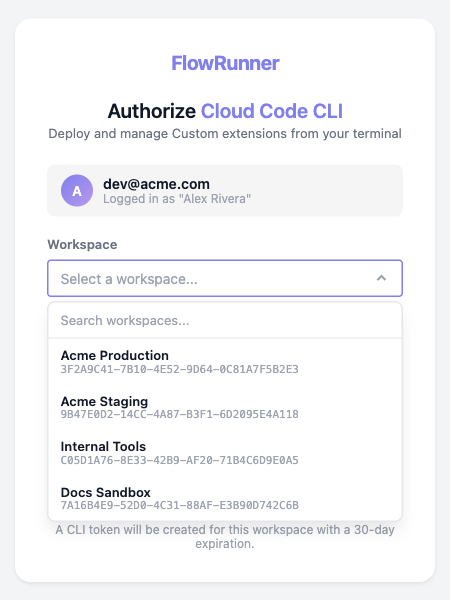
The token it issues is good for 30 days and is stored in .flowrunner/token, outside git. Your choice of
workspace is written into flowrunner.json, which you should commit:
{
  "serverUrl": "https://app.flowrunner.ai",
  "workspaceId": "3F2A9C41-7B10-4E52-9D64-0C81A7F5B2E3",
  "workspaceName": "Acme Production"
}
Scaffold the service
Each extension is a folder under services/. Create one from the blank template:
The id becomes the folder name and the extension's identity, so it is frozen once you deploy: it must start with a lowercase letter and contain only lowercase letters, digits and dashes.
Note the package.json inside the service folder. Each service is its own npm package, and only
services/<id>/node_modules is uploaded, so any dependency you add is installed there:
A dependency installed at the project root instead will work on your machine and then fail with
MODULE_NOT_FOUND the first time the block runs.
Write the extension
Open services/tmdb/src/index.js and replace it with this:
const z = Flowrunner.z

const API_BASE_URL = 'https://api.themoviedb.org/3'

const ext = Flowrunner.createExtension({
  id         : 'tmdb',
  name       : 'TMDB',
  description: 'Look up movies and TV from The Movie Database.',
  logo       : '/icon.svg',

  configItems: z.object({
    apiKey: z.string().label('API Key').describe('Your TMDB v3 API key, from Settings -> API'),
  }),

  initContext: ({ config }) => ({
    baseUrl: API_BASE_URL,
    apiKey : config.apiKey,
  }),

  apiRequest: async ({ url, query, context }) => {
    return Flowrunner.Request.get(`${ context.baseUrl }${ url }`)
      .query({ ...query, api_key: context.apiKey })
  },
})

ext.addAction({
  category   : 'TMDB',
  id         : 'getMovieDetails',
  label      : 'Get Movie Details',
  description: 'Returns everything TMDB holds about one movie.',
  params     : z.object({
    movieId: z.string().label('Movie ID').describe('TMDB numeric id, e.g. 693134'),
  }),
  result: {
    id          : 693134,
    title       : 'Dune: Part Two',
    tagline     : 'Long live the fighters.',
    release_date: '2024-02-27',
    runtime     : 167,
    vote_average: 8.133,
    genres      : [{ id: 878, name: 'Science Fiction' }, { id: 12, name: 'Adventure' }],
  },
  execute: async ({ params, apiRequest }) => {
    return apiRequest({ url: `/movie/${ params.movieId }` })
  },
})
There is no require and no export. The runtime never reads an export: it loads the file and takes
whatever createExtension and addAction put on the extension object.
Four things in that file do the work:
configItemsdeclares what the workspace fills in. It becomes a form in the console, and the values arrive asconfigin your code, so a key is never written into the file.initContextruns once per invocation and returns thecontextevery handler sees. Derive base URLs and resolved credentials here rather than repeating them.apiRequestis the one place HTTP happens. Auth, error handling and logging live here instead of in every action.addActionregisters a block.labelis its name in the editor,paramsbecome its fields, andresultis the sample a flow builder binds against when wiring the output into a later step.
Test it before you deploy
init installed a harness in sandbox/ that runs your extension through the real runtime with HTTP
intercepted at the socket, so a test asserts what the pod would have sent and nothing reaches the network.
Suites live beside the service they cover, in services/<id>/tests/. Create
services/tmdb/tests/tmdb.test.js:
'use strict'

const { createNockMock, runServiceMethod } = require('../../../sandbox')

const BASE = 'https://api.themoviedb.org/3'

describe('TMDB Service', () => {
  const serviceId             = 'tmdb'
  const serviceEntryPointPath = require.resolve('../src/index.js')
  const configs               = { apiKey: 'test-api-key' }

  let httpMock

  beforeAll(() => { httpMock = createNockMock() })
  afterEach(() => { httpMock.reset() })
  afterAll(() => { httpMock.dispose() })

  it('reads one movie by id and sends the key from config', async () => {
    const movie = { id: 693134, title: 'Dune: Part Two', runtime: 167 }

    httpMock.onGet(`${ BASE }/movie/693134`).reply(movie)

    const result = await runServiceMethod({
      serviceId, serviceEntryPointPath, configs,
      methodName: 'getMovieDetails',
      methodData: { movieId: '693134' },
    })

    expect(result).toEqual(movie)
    expect(httpMock.history[0].query).toEqual({ api_key: 'test-api-key' })
  })
})
The second assertion proves the key came from configuration, read off the request as it went out.
Deploy it
Deploying custom extensions...

  Connecting to Flowrunner Prod cluster (https://app.flowrunner.ai)
  Workspace "Acme Production" (3F2A9C41-7B10-4E52-9D64-0C81A7F5B2E3)
  Found 1 service under services/.

  Deploying 1 service:
    - new service: tmdb (TMDB) - [9073d8681d99] - packaged 11.0 KB

  Deployed 1 service to workspace "Acme Production" (3F2A9C41-…) — you can use it in a flow.
The twelve-character hash is the version. Deploy again after a change and the line reads modified service
with a new hash; deploy without changing anything and it reads same service and nothing is uploaded.
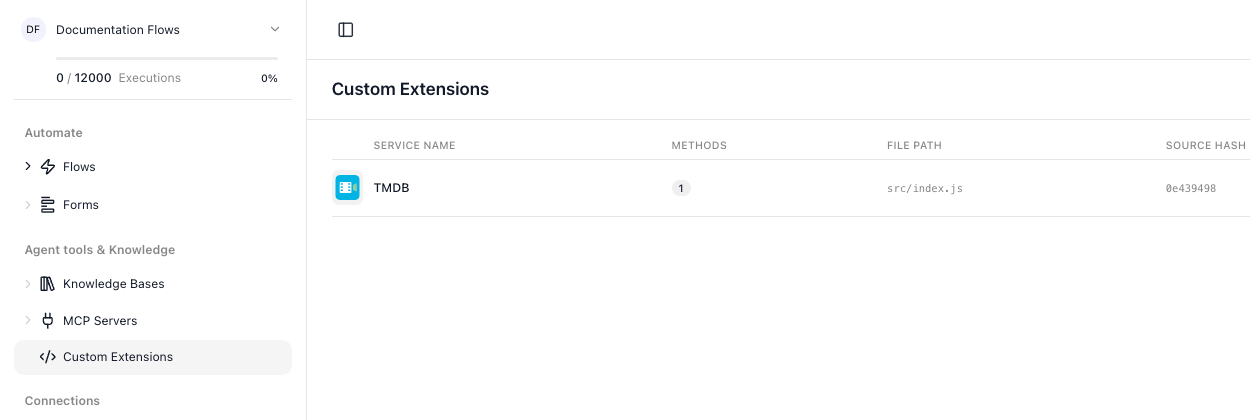
Your extension is now listed under Custom Extensions in the workspace navigation:
Fill in the API key
Open the service and go to Configuration. Every field you declared in configItems is here, with the
label and description you gave it. Paste your TMDB key and Save Configuration.
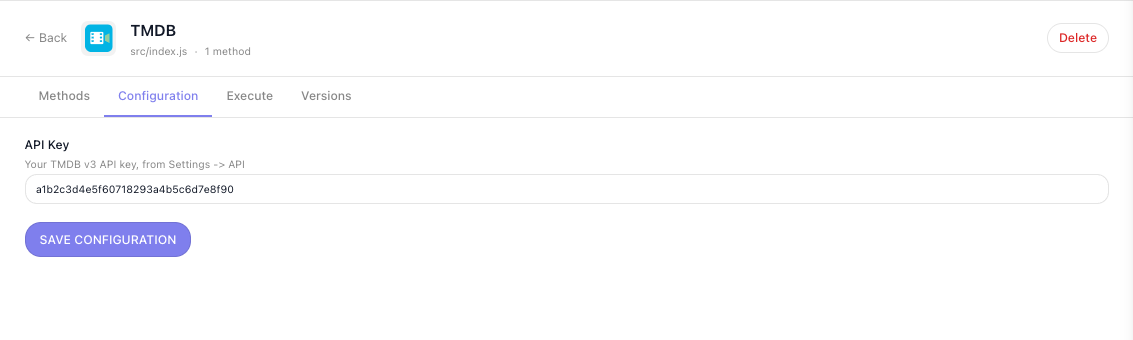
This is filled in once per workspace, not per flow.
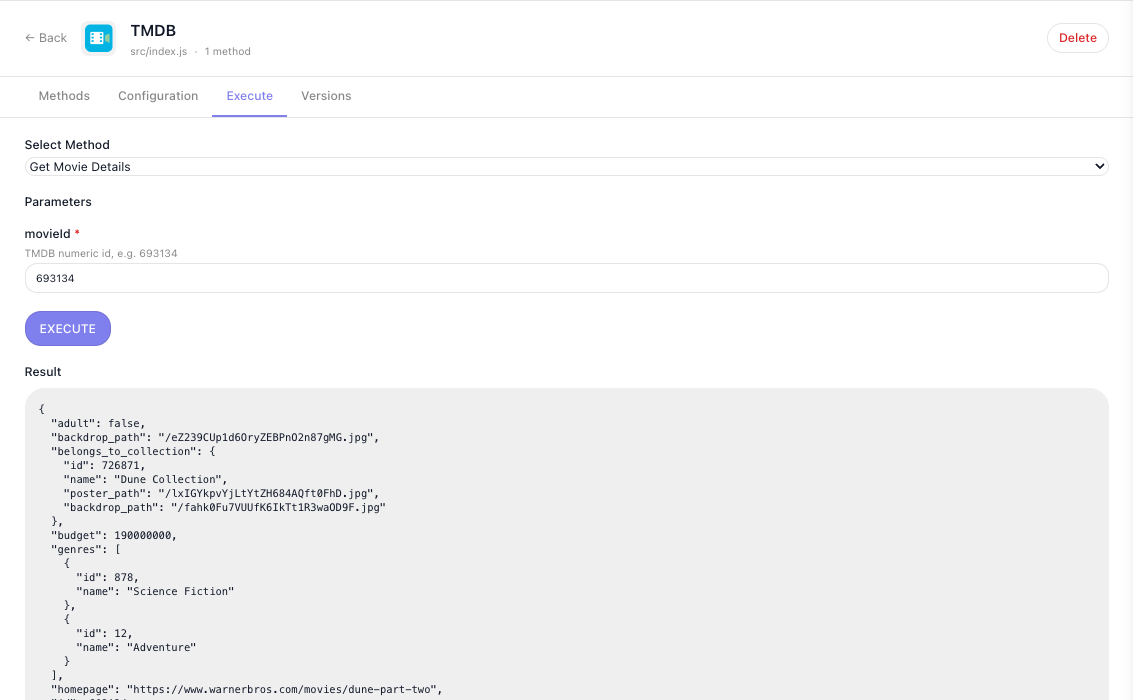
The Execute tab beside it runs a single method by hand, which is the quickest way to confirm the key works before you build anything around it.
Use it in a flow
Open a flow, or create one, and search the block palette for your action. It sits under
Local Extensions, grouped by the category you set:
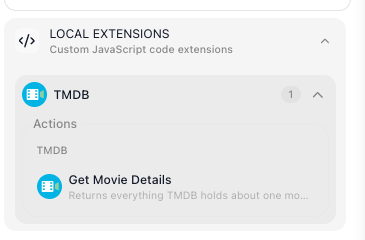
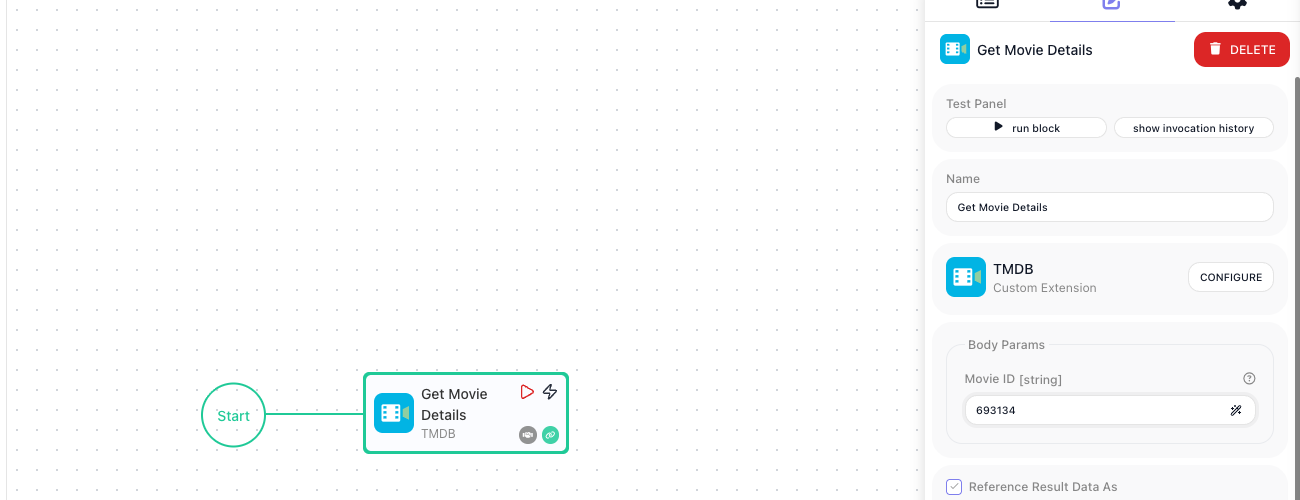
Drag it onto the canvas and fill in its field. The params you declared are the fields on the
configuration panel, and the panel names the extension the block came from:
Run Block in the Test Panel runs it there and then. The Test Monitor shows the input you gave it beside what the API returned:
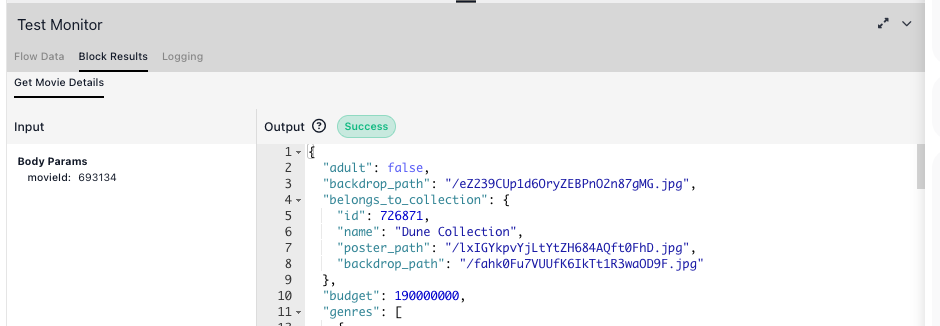
That result is what later blocks read through the Expression Editor, the same as any built-in block's.
Every later change repeats three steps: npm test, flowrunner deploy, and a reload of any editor tab
that was already open.
Related
- Service Structure -
createExtensionin full: config,initContext,apiRequest, helpers - Actions - the handler context bag, declaring results, and what to return
- Parameters & Types - every zod type, the widget it produces, and the plugins
- Dictionaries - turn an id field into a picker filled from the live API
- Triggers - extensions that watch a system and hand what they find to a flow
- Testing - the harness this page used, and what a fuller suite covers
- Deploying & Managing - versions, rollback, and sharing a workspace between projects
- Troubleshooting - what to do when a deploy or a block fails
- The FlowRunner CLI - every command and flag