Running Steps in Parallel
Some of a flow's work does not have to happen one step at a time. Enriching a new signup might mean fetching their profile, their orders, and their recent activity from three different services, and none of those calls needs the others. Run one after another, the three calls take as long as all three combined. Run at the same time, they take only as long as the slowest. FlowRunner™ lets independent steps run side by side, and holds the flow for that work when a later step needs it done.
Branches that run at the same time
Independent steps do not have to take turns. In FlowRunner a block can lead to more than one next step, and when it does, each of those steps starts as soon as the predecessor block finishes. Each path out is a branch, and a branch can be a single block or a whole chain of them.
The flow below enriches a new signup. From a first step that sets the user's id, it fans out into three branches, each an HTTP Request to a different service: one fetches the profile, one the orders, one the recent activity. You fan out by drawing a connection to each branch: every block has a link icon you drag to the next step, and a block can have as many outgoing connections as you draw.
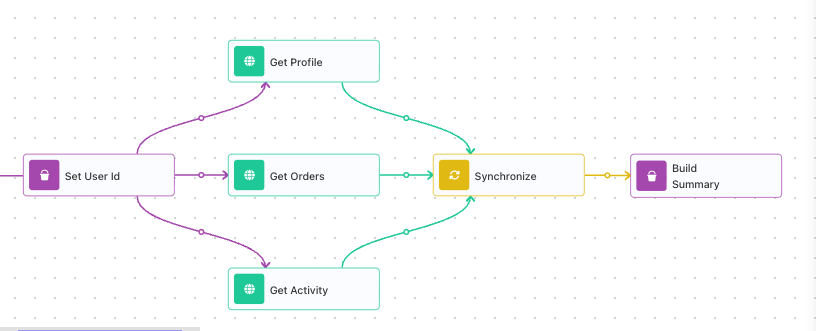
All three requests leave at once and run in parallel. In a test run where the calls take 1, 2, and 4 seconds, all three finish about 4 seconds after they start - the slowest - not the 7 they would take one after another. The flow carries on past them only once every branch is done, and that is the Synchronize block's job, covered below.
Bundle parallel actions in an Actions Group
When the parallel steps are independent actions, an Actions Group keeps them together in one container. Drop two or more actions inside it, and when the flow reaches the group they all start at the same time. The actions sit side by side with no connections between them, because none of them waits for another.
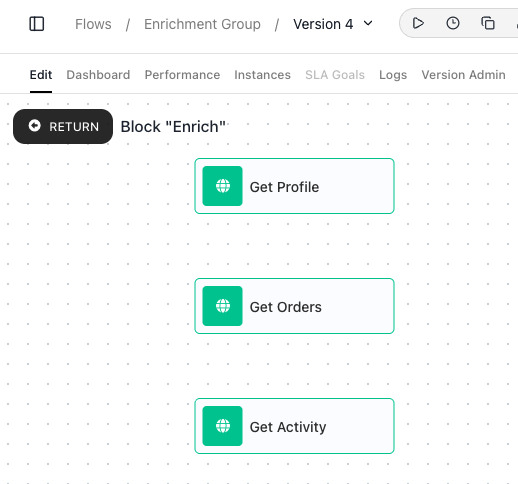
Select the group on the canvas to open its settings in the panel on the right. One of them, Outgoing Transition Mode, decides when the rest of the flow may move on:
- On Start releases the flow the moment the actions have been launched. The flow carries on without waiting for them to finish.
- On Completion holds the flow until every action inside the group has finished.
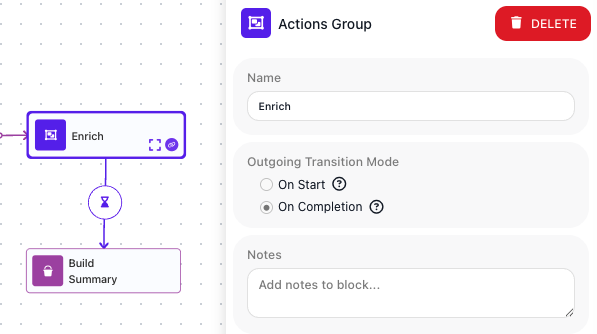
The choice also shows on the canvas: the hourglass icon on the group's outgoing connection reflects the mode you picked.
Under On Completion the group takes about as long as its slowest action. Bundling the same three calls in a group set to On Completion held the flow for about 4 seconds, the time of the slowest call. Choose On Completion when a later step needs the actions' results; choose On Start when you only want to launch the actions and let the flow move on.
Wait for every branch with Synchronize
An Actions Group waits for its own actions (with the On Completion mode selected). Separate branches drawn on the canvas do not: each runs
to its own end on its own. When you have fanned out into branches and a later step needs them all
finished first, a Synchronize block is the meeting point.
Wire every branch into it. It holds the flow until the last branch arrives, then lets the flow
continue once - so the step after it runs a single time, with every branch's work done.
Without a Synchronize, the next step runs once per branch
Wire the three branches straight into Build Summary instead, and Build Summary runs three times - once as each branch arrives - not a single time with all three results ready. Synchronize is what collapses those three arrivals into one run, after every branch has finished.
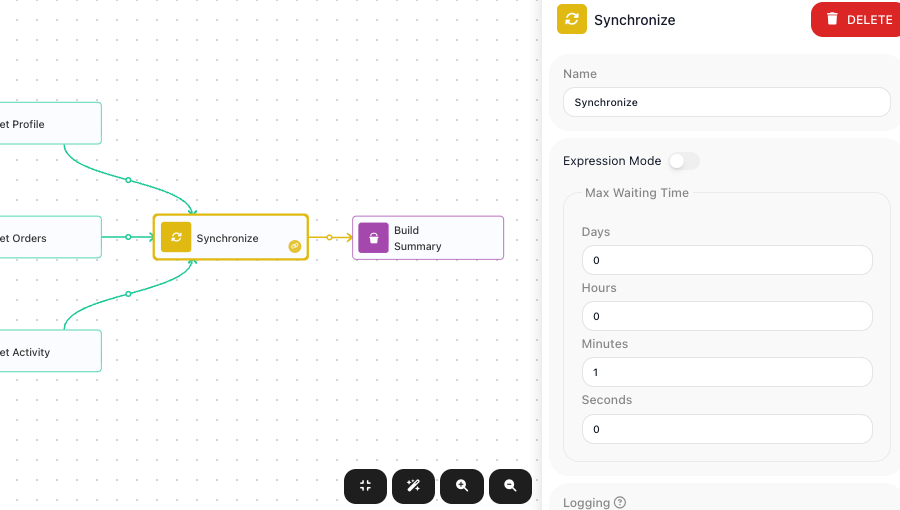
Synchronize's Max Waiting Time caps how long it will wait. Fill in days, hours, minutes, and seconds for a fixed cap, or turn on Expression Mode to compute the cap from flow data at run time (as a number of seconds), so a flow can wait longer or shorter depending on what it is handling. If the time runs out before every branch has arrived, Synchronize stops waiting and the flow continues without the branches that are still running.
Reading what parallel steps produce
Each parallel step's result is available through itsown block, and you read it the same way you read any block's result: by its alias. Neither a Synchronize block nor an Actions Group hands back a single combined result, so read each parallel step's own result.
Things to watch for
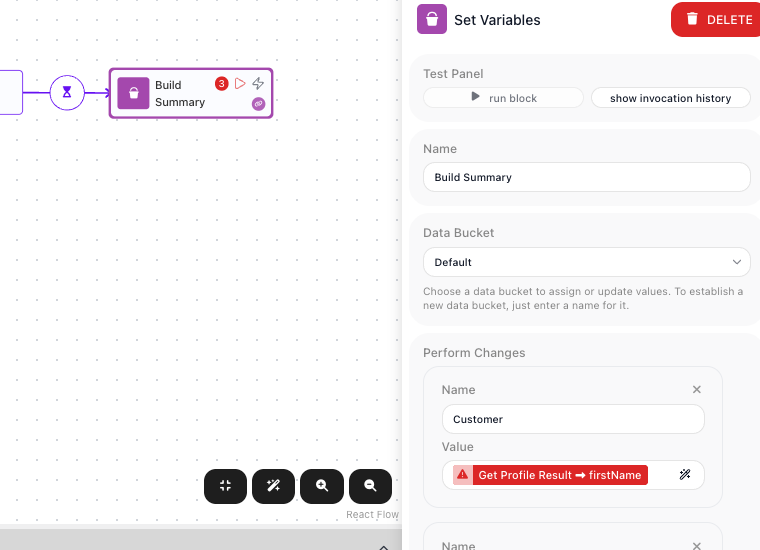
- Read a parallel result only after the flow has waited for it. Under On Start, or from a branch that has not passed through a Synchronize, the result is not ready. The editor flags a reference to it as invalid - it shows "Referenced block is not accessible from this block" - and the flow will not run until you remove it. Use On Completion or a Synchronize to hold the flow until the result is ready.
- A timed-out branch is dropped. If Synchronize's Max Waiting Time runs out before a branch arrives, the flow continues without it and its result is not available downstream. Set the cap above the slowest branch you expect on a normal run.
- Two branches writing the same variable collide. Parallel branches share the flow's Data Bucket variables. If two branches write the same one, both writes land and the value left standing is the one written last. Which branch finishes last is not guaranteed, so the result is unpredictable. Have each branch write its own variable instead.
The editor catches that first case as you build. Switch the Actions Group to On Start and the summary step's reference to a result it can no longer reach turns red:
When parallel work must finish before a later step, wait for it: set an Actions Group to On Completion, or converge separate branches with a Synchronize. The Synchronize and Actions Group references carry the field-level details.