Team
You rarely build automations on your own, and the Team page is where the rest of your people come in - to build flows alongside you, run them, and keep an eye on how they perform - with you deciding how far each one's reach goes. Bring in as many as you need: FlowRunner™ does not charge per seat, so a larger team costs nothing extra. Everyone shares the single workspace and the work inside it; what differs is what they are allowed to touch.
Who is on the team, and what they can do
The Development Team list shows everyone in the workspace at a glance: their name and email, when they last signed in, the reach they have, and whether the workspace's notifications reach them. The row marked It's you is your own.
A member's reach is set by their Permissions. The Owner holds the workspace and can do everything in it; an admin has all permissions; or, on the Professional plan and higher, you grant a mixed set, turning individual abilities on or off so someone can, say, build and run flows but not touch billing or remove people. Their Notifications say whether the workspace's alerts reach that person or stay muted for them.
Professional plan and higher
Giving members their own set of permissions - role-based access control - is available on the Professional plan and higher. On lower plans every member has full access, and inviting someone asks only for their email. Role-based access control is one of the three things HIPAA compliance needs.
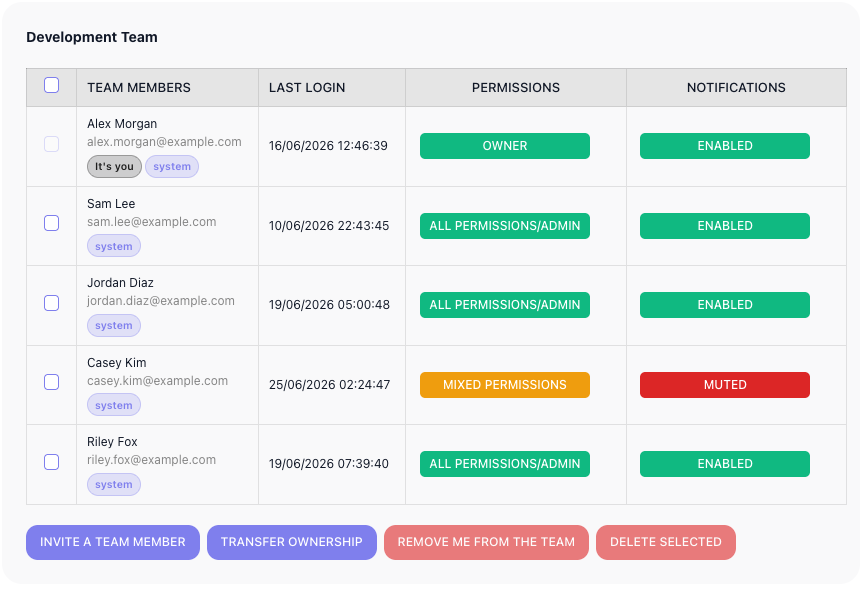
As the work or the team changes, you manage the roster from the same screen. INVITE A TEAM MEMBER brings someone new in by email - on the Professional plan and higher, with the reach you choose for them. DELETE SELECTED removes the members you tick, and REMOVE ME FROM THE TEAM is how you step out of a workspace you no longer work in.
Transferring ownership
TRANSFER OWNERSHIP hands the Owner role to another team member, in place - the workspace does not move. Only the owner sees the button, and only once someone else is on the team. You pick the member from the list and confirm; once the transfer goes through they get maximum permissions and visibility over everyone, including you, and it can be undone only if the new owner transfers it back.
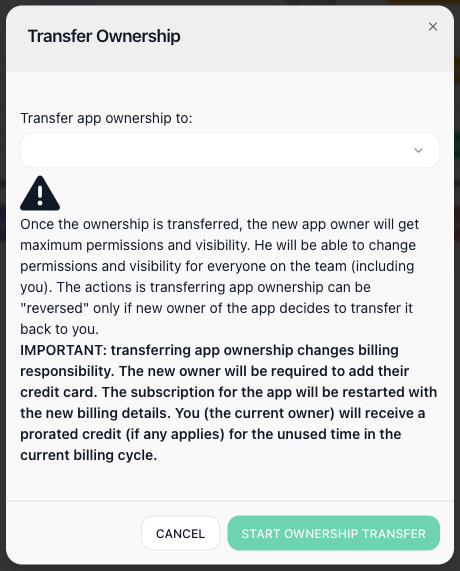
Transferring ownership also moves billing responsibility, so the transfer waits for the new owner. They finish it on their account's Payment Methods page, in an Ownership Transfer panel: they choose a billing plan and, unless it is the Free plan, one of their payment methods, and confirm. On a paid plan the subscription then restarts under their billing, and you receive a prorated credit for any unused time in the current cycle.
While the transfer waits, your Team page shows CANCEL TRANSFER OWNERSHIP in place of Transfer ownership, and only one transfer can be pending at a time.
If the new owner chose a paid plan and their bank asks them to confirm the first payment, the transfer still completes and the workspace keeps running. If they do not confirm it within about 24 hours, the workspace is suspended until they subscribe it. Ownership stays with them either way; it does not come back to you.
Related
- Workspace - what a workspace is and the areas it holds
- Workspace Settings - renaming, credentials, and transferring or deleting the workspace itself