Knowledge Base: Add Document
This block lets a flow feed content into a Knowledge Base on its own, so an AI Agent can later answer from it - the body of a fetched page, a support ticket, a generated summary - without anyone uploading a file by hand. You can tag each document with labels as you add it, which is what makes it findable and removable in bulk afterward.
How it works
You will find this block in the Actions group of the block palette. A Knowledge Base stores text in a form that later steps can search by meaning rather than by exact wording. When you hand this block some content, the Knowledge Base does not keep it as one long string: it breaks the text into smaller passages and converts each one into the numeric form a meaning-based search needs, then files those away. How it splits and converts the text is decided once on the Knowledge Base itself, not on this block - so the same Add Document block behaves consistently no matter where in the flow you place it.
Alongside the text you can attach Metadata: a small set of labels, like a source name or a category, that travel with the document and that you can match against later when you list or remove documents.
The block does not block the flow on indexing. It hands back a result the moment the document
is accepted, and that result carries the document's processing status - which starts as
Processing and turns to Completed once the Knowledge Base finishes splitting and converting
the text in the background. Give the block a result alias in Reference Result Data As, and a
later block can read the status as Add Document Result → status, building the
reference in the Expression Editor under Block Data so it binds.
When to use it
Reach for it when a flow needs to put content into a Knowledge Base on its own, without anyone uploading a file by hand. A typical case is feeding in text another block produced - the body of a fetched web page, a support ticket, a generated summary - so it becomes searchable for later steps or for an AI Agent that answers from that Knowledge Base. It is the in-flow equivalent of dropping a file onto the Knowledge Base by hand, which means you can keep the store current automatically as new content arrives, instead of maintaining it yourself.
Tag with metadata so you can find it later
Once a document is inside a Knowledge Base, the agent searches it by meaning - but a flow that wants to point back at a specific document needs a handle on it, and that handle is metadata. Metadata is a small set of labels you attach as you add the document: key/value pairs like a source name or a category that travel with it from then on.
Those labels are exactly what the matching Knowledge Base steps work from. A later Knowledge Base: List Documents step can return every document whose source is your support site, and a Knowledge Base: Delete by Filter step can remove every document whose category is account in one pass. The filter matches on the labels you set here - so the choice you make at add time is what makes a document findable and removable in bulk afterward.
The catch is that this is your only handle. If you add a document with no metadata, there is nothing for a later List or Delete by Filter step to match on, and you will not be able to single that document out again. So tag as you add, even when you do not yet know which labels you will filter on - a source and a category cost nothing now and are the difference between cleaning up a batch later and being unable to.
Labels stay flat: a value can be text or a number, but not another object nested inside it.
Example
Suppose an earlier HTTP Request block fetched a help article from your support site and returned it like this:
{
  "title": "Resetting your password",
  "body": "To reset your password, open Settings, choose Security, and click Reset...",
  "category": "account"
}
You want this article searchable so an AI Agent can answer password questions from it later. Set the block's Knowledge Base ID to your support Knowledge Base, point Content at the article body from the fetch result, and give it a File Name so it is recognizable in the Knowledge Base's document list:
Knowledge Base : Support Articles
Content        : {{HTTP Request Result->body}}
File Name       : Resetting your password
Now attach Metadata so you can find or clean up this article later. Add two labels - a source and a category - using the Metadata key/value rows:
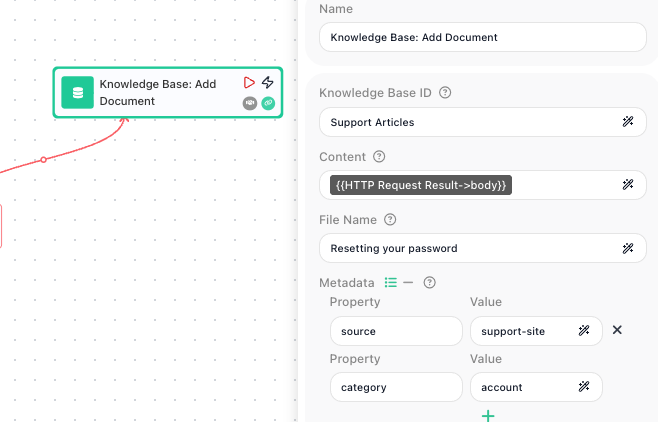
When the flow runs, the block hands the article body to the Support Articles Knowledge Base. The Knowledge Base splits it into passages, converts each into searchable form, and stores them with your two labels attached. The Knowledge Base does this work in the background, so the document shows as processing for a moment before it is finished and ready to be searched.
Give the block a result alias - say Add Document Result in Reference Result Data As - and a following block can read the indexing status straight off it. Build the reference in the Expression Editor under Block Data so it binds, and a Condition can hold the flow until the document is ready by checking Add Document Result → status equals Completed. From then on, a later Knowledge Base: List Documents step filtered to category equals account will return this article, and an AI Agent pointed at this Knowledge Base can draw on it when it answers.
Configuration
| Field | Description |
|---|---|
| Knowledge Base ID | Required. The Knowledge Base to add the document to, set by its name or an expression. |
| Content | Required. The document text to add, usually an expression pointing at a previous block's result. |
| File Name | An optional name for the document, used to recognize it in the Knowledge Base's document list. |
| Metadata | Optional labels attached to the document, as key/value pairs, that later List and Delete steps can match against. You can enter them as separate Property/Value rows, or switch to passing a single object instead. Only flat key/value pairs are allowed - a value cannot be a nested object. |
Common settings (available on most blocks):
| Field | Description |
|---|---|
| Name | A label for this block on the canvas. |
| Reference Result Data As | The alias used to reference this block's result in later blocks. |
| Assign to a Variable | Optionally store the result in a Data Bucket variable too; you choose the bucket and the variable name. |
| Logging | What to log to the Logging panel while the flow is LIVE, both on start and on completion. |
| Notes | Freeform notes for documenting the block; they do not affect execution. |
Behavior
- Returns a reference to the added document. Give the block a result alias in Reference Result Data As, then read the reference downstream as Add Document Result → status (built in the Expression Editor under Block Data), or store it in a Data Bucket variable via Assign to a Variable for a later step to use.
- Surfaces the document's processing status on that result, which starts as
Processingand moves toCompletedonce the Knowledge Base finishes indexing it in the background.
Things to watch for
- Adding a document does not finish the instant the block does. The Knowledge Base processes the text in the background, so a document you added may not be searchable or appear in a list for a short while - it shows as processing until it is ready.
- Metadata is how you find a document again. The labels you attach here are exactly what a later Knowledge Base: List Documents or Delete by Filter step matches on, so if you skip metadata you will have no way to filter for this document later.
- Metadata labels have to be flat key/value pairs. A label's value can be text or a number, but not another object nested inside it.