Transform Data
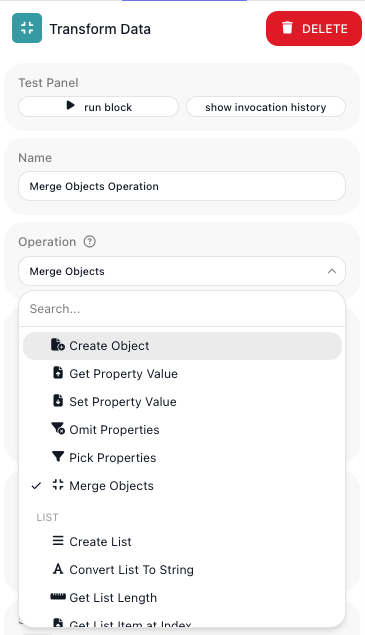
This block reshapes a value without writing code. You pick one operation from a built-in library, give it the inputs it asks for, and its result becomes this block's output, ready for the next block to read.
How it works
Think of it as a library of ready-made data functions, one per block. Each block runs exactly one operation - reading a field off an object, sorting a list, merging two objects, formatting a date, running a calculation - over the inputs you give it, and hands back the result. Because each does a single job, you chain them: one block's result feeds the next.
When to use it
Reach for it whenever you need to read, restructure, or compute a value between blocks and a built-in operation already covers it - pulling one field out of a response, trimming an object down to the keys you care about, building or sorting a list, comparing two values. It keeps the work visible on the canvas and spares you a code block. When the change is awkward to express as a chain of these blocks, or no operation fits, a single Custom Cloud Code block is the cleaner choice instead.
Example
Suppose a Get Order block (HTTP Request) fetched an order, and you want the total number of items in it - to show a count, or to offer free shipping over ten. Each line item carries its own quantity, so no single field holds the total; you build it with two Transform Data blocks in a row, each running one operation. The order looks like this:
{
  "orderId": 4102,
  "items": [
    {
      "sku": "AW-1024",
      "name": "Widget",
      "quantity": 2
    },
    {
      "sku": "BW-2048",
      "name": "Cable",
      "quantity": 1
    },
    {
      "sku": "CW-4096",
      "name": "Case",
      "quantity": 3
    }
  ]
}
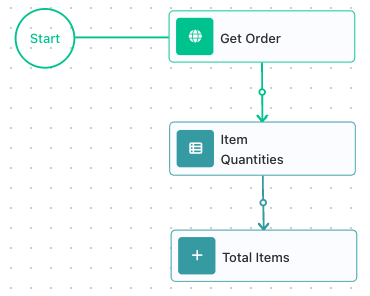
First, an Item Quantities block (Transform Data) runs the Map List operation to turn the line items into a flat list of quantities. Point its List straight at the order's items - Get Order → items - with no separate extraction block, since an expression reaches a nested property directly - and set the property to quantity. Its result:
Then a Total Items block (Transform Data) runs the Sum operation to add them. This is where a second block earns its place: that list of quantities exists only because the Map List operation just built it, so Sum reads the Item Quantities result, Item Quantities, and returns the total:
Downstream, a Condition offers free shipping when Total Items is over ten. Two blocks, because each runs a genuinely different operation - Map List to derive the list, Sum to reduce it - not because the work was split for its own sake.
Logic operations
These operations make a decision or choose a value.
If
Returns one of two values based on a condition. Use it to pick a value, not to route the
flow: a Condition block sends execution down separate branches, while If stays on one path
and just hands the next block the value that fits - a delivery estimate of "Ships today"
when an item is in stock and "2-3 weeks" when it isn't, dropped straight into the
confirmation message, with no splitting and rejoining.
Equal
Reports whether two values are the same, true or false - the check you feed an If or a
Condition to make a decision. Know this up front: it compares type as well as value, with no
automatic conversion. An amount that arrives from an API as the string "19.99" is not equal
to the number 19.99; a postal code "02101" is not the number 2101. So when a comparison
you're sure should pass keeps returning false, a type mismatch is almost always why - run
both sides through the Parse String to Number or To String operations first so you're
comparing like with like.
Switch
Turns one input into a result by matching it against a list of cases - the many-way version of If. It's the clean way to translate a code into something meaningful: an order status into a message for the customer, a subscription tier into the features it unlocks, a country code into a currency. Each value you expect gets its own result, plus a default for anything unlisted.
| The status coming in | Switch returns |
|---|---|
pending |
We've received your order |
shipped |
On its way |
delivered |
Delivered |
| (anything else) | Contact support for an update |
Hand it shipped and it returns On its way, ready for the notification block.
Has Value
Answers one question about a value: is anything actually there? Point Value or Expression to Check at the value and the operation returns true or false - the check you run on an optional field before building on it, with the answer stored under the block's alias for a Condition or a later step to read.
What counts as no value: null and an empty string "" both come back false; a value
that is actually there comes back true. The operation does not substitute a default -
it only reports; pair it with a Condition when the two cases need different handling.
AI Transform
The operation you describe instead of configure. Rather than pick a fixed transformation, you hand a value to an AI model with a plain-language instruction and get the result back like any other operation - so it drops into a chain between blocks, with no AI Agent to set up and no tools to wire. That turns transformations that used to need custom code, or weren't practical at all, into a single step:
- Extract structure from mess - lift a shipping address out of a raw email body as clean JSON, or the order number out of a support ticket.
- Classify - tag a review as positive, neutral, or negative; sort a ticket by urgency.
- Summarize - condense a long thread into a one-line note for a Slack alert.
- Rewrite - shift a blurb into a friendlier tone, or translate it.
You write the instruction, choose the model, and give it an API key - and you can list several instructions to run in sequence. Reach for it when the change you need is easy to say but has no built-in operation; keep the deterministic operations for the shaping that does.
Object operations
These operations read and reshape objects.
Get Property Value
Pulls one value out of a larger object - the move you make right after an HTTP Request or a
database read, when the next block needs a single field, not the whole payload. Give it a
path and you get that value back, ready to pass on. The path is where the power is: a dot
steps into a nested object and [n] picks a list item (from 0), so you reach deep into a
response in one step.
An order from the API:
{
  "id": 4102,
  "customer": {
    "name": "Ada Lovelace",
    "addresses": [
      { "city": "London" },
      { "city": "Bath" }
    ]
  }
}

customer.name                ->  "Ada Lovelace"
customer.addresses.[0].city  ->  "London"
customer.vatNumber           ->  null
A path that doesn't exist returns null instead of erroring - so an optional field is safe
to read, but a mistyped path fails quietly as an empty value rather than stopping the flow.
When a later block sees an unexpected null, a wrong path here is the first place to look.
Set Property Value
Writes a field onto an object and hands back the updated object - how you stamp a record
before passing it on. Add a processedAt timestamp to an order, flip a status to
"reviewed", or attach a total you computed a few blocks back. New key or existing one, it's
the same move.
One thing that surprises people: the property name is literal. Setting shipping.method
creates a single key spelled "shipping.method", not a nested shipping object with a
method inside. To build real nesting, set the nested object as the value, or assemble it
with Create Object first.
Merge Objects
Layers objects on top of each other - the tool for applying defaults, overrides, or a patch. List them in order and the later ones win on any shared key, which is exactly the "defaults first, real values on top" pattern:
defaults:
{
  "shipping": "standard",
  "gift": false
}

the incoming order:
{
  "shipping": "express",
  "id": 4102
}

merged (the later object wins on "shipping"):
{
  "shipping": "express",
  "gift": false,
  "id": 4102
}
Before you rely on it, know that the merge is shallow - it combines top-level keys only.
A nested object on a shared key is replaced whole, not deep-merged: merging
{ "prefs": { "email": true } } with { "prefs": { "sms": true } } gives
{ "prefs": { "sms": true } }, and the email preference is gone. To combine nested
structure, merge at that level too, or reach for Custom Cloud Code.
Pick Properties
Keeps only the fields you name and drops the rest - the way you slim a fat API response down to what the next step actually needs, or strip a record to a safe subset before you send it on.
A user from the auth service:
{
  "id": 88,
  "name": "Ada",
  "email": "ada@x.io",
  "passwordHash": "…",
  "sessionToken": "…"
}

pick id, name, email:
{
  "id": 88,
  "name": "Ada",
  "email": "ada@x.io"
}
Handy right before logging or an outbound webhook, where you don't want secrets riding along.
Omit Properties
The mirror of Pick: it drops the fields you name and keeps everything else. Reach for it when
the object is mostly fine and you just need a couple of things gone - strip passwordHash
and sessionToken out of that same user without listing every field you want to keep.
Property Name(s) takes one name or a list of names, so a variable that holds
["passwordHash", "sessionToken"] strips both at once - handy when the same set of secret fields
is removed in several places.
Create Object
Builds a fresh object from scratch out of the values you have on hand - the step where you assemble a clean payload for an outbound request or a row for the database, pulling each field from an earlier block's result. Each value can be a literal or an expression that reads upstream.
name  = the Get Property Value result
email = the form's email field
plan  = "trial"

result:
{
  "name": "Ada",
  "email": "ada@x.io",
  "plan": "trial"
}
List operations
These operations build, read, filter, and reorder lists. Positions count from 0.
Create List
Builds a list from separate values you have on hand - gathering a handful of ids to look up in one batch, or seeding a list you'll add to as the flow runs.
Convert List To String
Joins a list into one string with a separator between items - for a comma-separated line in a
CSV, a set of tags in an email, or an id in (…) fragment for a query.
Get List Length
Counts the items - the number behind "how many results came back?" and the test for "did we get any?" before the flow goes on.
Get List Item at Index
Reads one item by position, counting from 0 - the third result, or a known slot in a fixed-shape list.
Set Item at Index
Replaces the item at a position and returns the updated list - swapping one entry without rebuilding the whole thing.
Merge Lists
Joins two or more lists end to end - combining the results of two searches, or appending a fixed set of defaults to whatever came back.
If List Contains
A membership test - is this value already in the list? - for gating: skip the customer who's already subscribed, or allow only SKUs in an approved set.
Add To List / Remove From List
Add To List appends an item to the end; Remove From List takes a value out - and Remove takes out every occurrence, not just the first.
Get First List Item / Get Last List Item
Grab the ends - the latest entry when a list is newest-last, the top result when it's already sorted.
Find First Element / Find All Elements
Keep the items whose field matches a value exactly - every order for a given customer, every product in a category. Find All returns them all; Find First stops at the first. The match is a Path (dotted, so it reaches nested fields) equal to a Value.
[
  { "role": "admin" },
  { "role": "user" },
  { "role": "admin" }
]
keeping the items where role = "admin":

Find All Elements:
[
  { "role": "admin" },
  { "role": "admin" }
]

Find First Element:
{ "role": "admin" }
When "which ones" is a comparison rather than an exact match, use Find by Expression, next.
Find First by Expression / Find All by Expression
Filters a list by a condition instead of an exact value - the step up from Find All Elements
for anything with >, <, and, or or in it: orders over 100, events this week, users
with more than five logins. You write the condition in the Expression Editor, using the
Field to check: token for each item's field - so price > 100 keeps every order whose
price clears 100, and status equals "open" and priority > 2 narrows to the urgent open
ones. Find First by Expression returns just the first match.
Reverse List
Flips the order - turning an oldest-first feed into newest-first for display.
Shuffle List
Returns the items in a random order - for sampling, rotating through options, or an unbiased pick.
Flatten List
Un-nests a list of lists into a single list - collapsing the grouped results of several searches into one. It goes one level deep, so a deeper nest stays put:
Given a Key, it does something more useful for objects: it pulls that list-valued field
from each item and joins them - every tags array across a list of posts, merged into one.
Map List
Pulls one field out of every item, giving you a flat list of just that value - the ids from a list of orders, the emails from a list of users, ready to feed the next step.
Distinct List
Removes duplicates - a clean set of unique customer ids, or tags with no repeats. On plain values it compares the values; on a list of objects it compares whole objects, unless you give it a Key, in which case it dedupes on that field and keeps the first item for each.
Slice List
Takes a range out of a list - the top ten, or one page of results - with the start included and the end excluded.
Positions count from 0, and negative indexes aren't allowed, so "the last three" means
computing the start from the length, not passing -3.
Sort List
Orders a list - cheapest first, newest first, alphabetical. Order is Ascending or Descending, each with a case-insensitive variant, and for a list of objects Key picks the field to sort on.
Keep in mind that numbers sort by value, but text sorts character by character, so a list of
numeric strings orders as ["1", "10", "2"], not ["1", "2", "10"]. Parse them to numbers
first if that isn't what you want.
Object Keys To List
Returns an object's field names as a list - useful when the keys are data themselves (a map of currency to rate, say) and you need to loop over them.
Date and time operations
Every date in a flow is a Unix timestamp - milliseconds since 1 January 1970 UTC. These operations read, build, format, and parse them.
Now
Stamps the current moment as a timestamp - the start for anything time-based: recording when a record was processed, measuring how long ago something happened, or seeding a deadline you then push forward with Add Days.
Reading, setting, and shifting the parts of a date
This family works on the pieces of a timestamp without making you do the arithmetic:
- Get a part - Get Month, Get Day of Year, Get Hour, Get Day of Week as Number, and so on - reads that piece out, which is how you group or branch on it. Bucket orders by month, or treat weekends differently (a Monday is
1, so a Tuesday is2). - Set a part - Set Seconds, Set Day of Month, Set Year, and the rest - replaces just that piece and leaves everything else, so you can pin a time to the top of the hour or the first of the month.
- Add a part - Add Days, Add Hours, Add Months, Add Years, Add Minutes, Add Seconds - shifts the date by that many units, and a negative number goes back. This is how you build deadlines and expiries: a seven-day trial end is Now plus Add Days 7.
For the timestamp 1700000000000 (14 November 2023, 22:13:20 UTC), Get Month returns 11
and Get Day of Year returns 318.
Format Date
Turns a timestamp into readable text - a date for an email, a filename stamp, or a value another system expects in a particular shape. You give it a pattern and it fills in the parts, in UTC.
The pattern uses Java's SimpleDateFormat - the common letters are yyyy year, MM month,
dd day, HH hour, mm minute - and case is load-bearing, which trips almost everyone on
one pair: DD is the day of the year, not the day of the month (that's dd), so
yyyy-MM-DD turns 14 November into 2023-11-318. Likewise MM is the month while mm is
minutes.
Parse Date
The inverse - it reads a date string coming in from somewhere (a webhook, a form, a CSV) and turns it into a timestamp you can compare and compute with.
Watch the pattern language: Parse Date uses Java's DateTimeFormatter, which is not the
SimpleDateFormat that Format Date uses, and is far stricter. It wants a full date, time, and
offset, and yyyy there means the week-based year - use uuuu for the calendar year. A bare
2023-11-14 with yyyy-MM-dd is rejected, which catches out anyone coming straight from
Format Date.
Math operations
These operations calculate with numbers.
Subtract, Divide, Multiply
The two-number arithmetic that sits between other steps - a running balance, a unit price times a quantity, a percentage. (For addition, reach for Sum.)
Divide guards against the classic mistake: a zero divisor stops the block with "Divisor for 'Divide' operation can't be zero" rather than returning infinity, so handle a possibly-zero denominator before you get here.
Sum, Average, Max, Min
Collapse a whole list of numbers into one - an order total, an average rating, the highest bid - so you don't loop to add things up. Feed them a list (say the line-item prices you pulled with Map List), or several numbers entered directly.
Watch for: summing decimals can leave floating-point noise - 19.99 + 5.00 + 12.50 comes
back as 37.489999999999995, not 37.49. Run the total through Format Number when you show
it as money.
Round Up, Round Down, Round with Fraction
Three ways to drop the decimals, and the difference matters for money and inventory:
- Round Up always climbs to the next whole number (
2.1->3) - the one you want when a partial unit still needs a whole box or a whole licence. - Round Down always drops (
2.9->2) - how many whole items fit in a budget. - Round with Fraction goes to the nearest (
2.5->3,2.4->2) - ordinary rounding for a displayed average or price.
Parse String to Number
Turns numeric text into an actual number so you can do math on it - the "19.99" from a form
field or an API becomes 19.99. It's strict: the text has to be a clean number, so "12px"
or "$5" fails with "not a valid number". Strip units and symbols first with Replace if your
input carries them.
Format Number
Goes the other way - a number into a display string with fixed decimals and grouped thousands, for money and reports. Its defaults are European, which catches out anyone expecting US formatting:
Set the decimal and thousands separators explicitly when you need 1,234.50.
Pi, Random
Pi is the constant 3.141592653589793. Random returns a fresh number between 0 and 1
- a seed for sampling, jitter, or an A/B split.
Text operations
These operations work on strings.
Lower, Upper, Trim
Normalize strings so comparisons and lookups behave - lowercasing an email before you match it, trimming the stray spaces a form leaves on either end. The usual first step before an Equal or a Find that would otherwise miss on case or whitespace.
Capitalize, Start Case
Capitalize raises the first letter of the string; Start Case raises the first letter of every word - the pair you use to tidy names and titles for display.
Note that Capitalize touches only the first letter and leaves the rest exactly as it found it,
while Start Case also lowers the rest of each word. Start Case splits words only at spaces:
"order_status-code" becomes "Order_status-code".
Length
Counts characters - the check behind "is this within the field limit?" and "did they actually enter something?".
Contains, Index Of
Contains answers yes or no - is this substring in the text? - for a quick gate. Index Of
answers where, as a position from 0, or -1 when it's absent, for when you then want to
slice around it.
Contains  "order #4102 shipped", "shipped"  ->  true
Index Of  "order #4102", "#"                ->  6
Index Of  "order #4102", "@"                ->  -1
Substring
Pulls out a fixed slice by position - the country prefix off a code, the year out of a reference - with the start included and the end excluded.
Replace
Swaps one piece of text for another, every occurrence - normalizing separators, blanking a token, fixing a delimiter. It matches literally, not as a pattern:
Because the search is literal, [0-9] matches those five characters, not any digit - Replace
is not the place for regular expressions.
Split
Breaks text into a list on a separator - turning a comma-separated tag string or a CSV line into items you can iterate or filter.
Encode URL, Decode URL
Encode URL makes text safe to drop into a query string or a URL path; Decode URL reverses it.
Encoding is form-style, so a space becomes + and reserved characters are percent-escaped.
To String
Coerces any value to its string form - a number for concatenation into a message, or an object to its JSON text for logging or a text field.
Parse JSON to Object, Parse JSON to List
Turn a JSON string into real data you can read into - the move when a webhook delivers its body as text, or you've stored a payload in a field and need it back as structure.
The rest
- Unique Identifier generates a UUID - a fresh id for a record, or an idempotency key so a retried request isn't processed twice.
- base64 encode / base64 decode move between text and base64 (
"hello"and"aGVsbG8=") - for Basic-auth headers and data-URI payloads. - md5 encode returns an MD5 hash (
"hello"becomes"5d41402abc4b2a76b9719d911017c592") - a cheap fingerprint for deduping or cache keys, not for security. - Remove HTML tags strips markup to plain text (
"<b>Hi</b>"becomes"Hi") - cleaning an email body or a scraped field; Escape HTML Tags does the reverse, making text safe to place into HTML ("<b>"becomes"<b>"). - ascii drops characters outside ASCII (
"café"becomes"caf"); Text To Binary / Binary To Text convert a string to its byte form and back.
Configuration
| Field | Description |
|---|---|
| Operation | Required. The transformation to perform, chosen from the built-in library of more than 90 operations spanning Logic, Object, List, Date/Time, Math, and Text. The sections above work through the operations in each category. |
| (operation inputs) | The inputs the chosen operation needs - they change with the operation. Get Property Value, for instance, asks for an Object and a Property Name, while Sort List asks only for the array to sort. Each input is a value or an expression that references an earlier result. |
Common settings (available on most blocks):
| Field | Description |
|---|---|
| Name | A label for this block on the canvas. |
| Reference Result Data As | The alias used to reference this block's result in later blocks. |
| Assign to a Variable | Optionally store the result in a Data Bucket variable too; you choose the bucket and the variable name. |
| Skip Block | When on, the block is skipped during execution and the value in Simulated Result is used as its output. |
| Logging | What to log to the Logging panel while the flow is LIVE, both on start and on completion. |
| Notes | Freeform notes for documenting the block; they do not affect execution. |
Behavior
- If you turn on the option to store the result in a variable, the same value is also written to the Data Bucket variable you choose.
Things to watch for
- Each operation has its own set of inputs, and they expect particular kinds of value. An operation that works on a list, like Sort List, will not behave as expected if you hand it a single object or a piece of text instead of an array; check that the inputs match what the operation reads.
- An operation does exactly one job, so chains of these blocks are normal. If a transformation needs several distinct steps, place one block per step and feed each one the previous block's result, rather than trying to make a single operation do everything.